

WhatsApp is the most widely used messaging platform globally. Integrating it with Odoo allows businesses to send invoices, sales confirmations, and marketing messages directly through a channel customers already use daily.
Odoo comes preconfigured with useful WhatsApp templates, and you can create custom ones for your specific workflows.
Before configuring Odoo, you need a WhatsApp API app created in the Meta Developer Console. Odoo's official documentation provides a step-by-step guide for that process.
On the Odoo side, navigate to the WhatsApp configuration panel for your business account. Five fields under the Sending Messages section must be filled in from your Meta application:
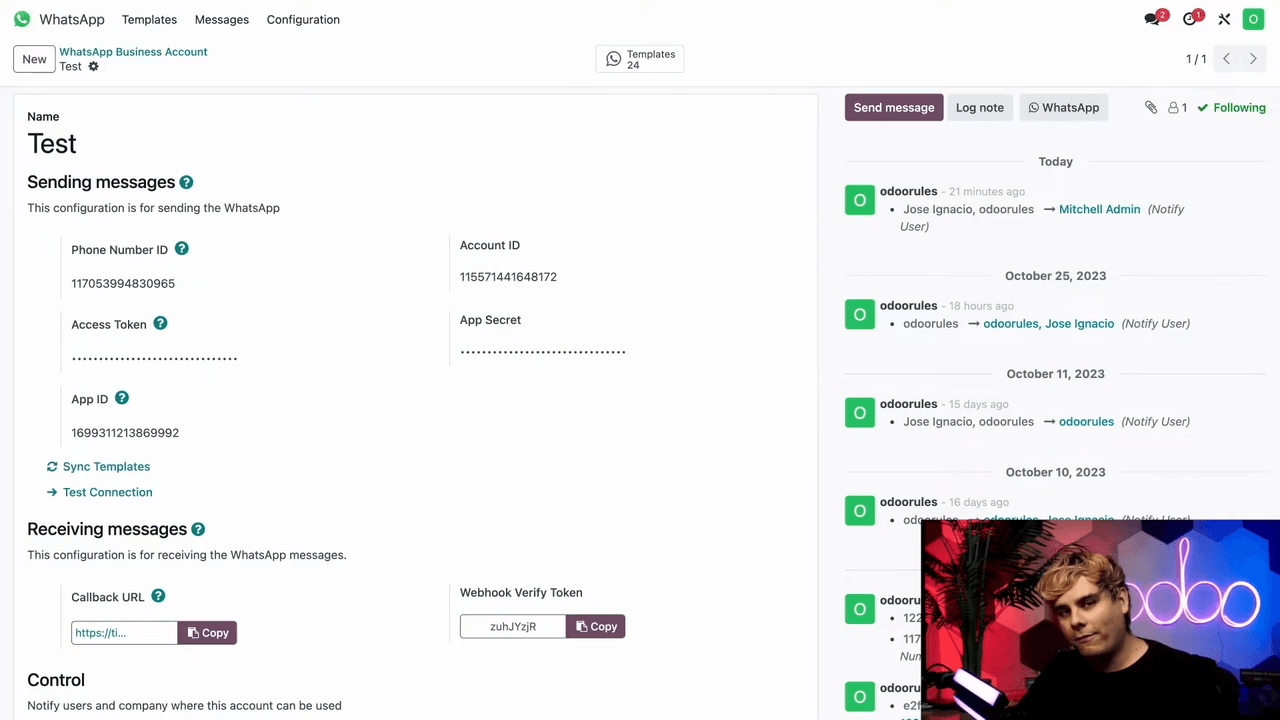
After entering these values, click the Test Connection button. A green confirmation notification confirms the configuration is correct.
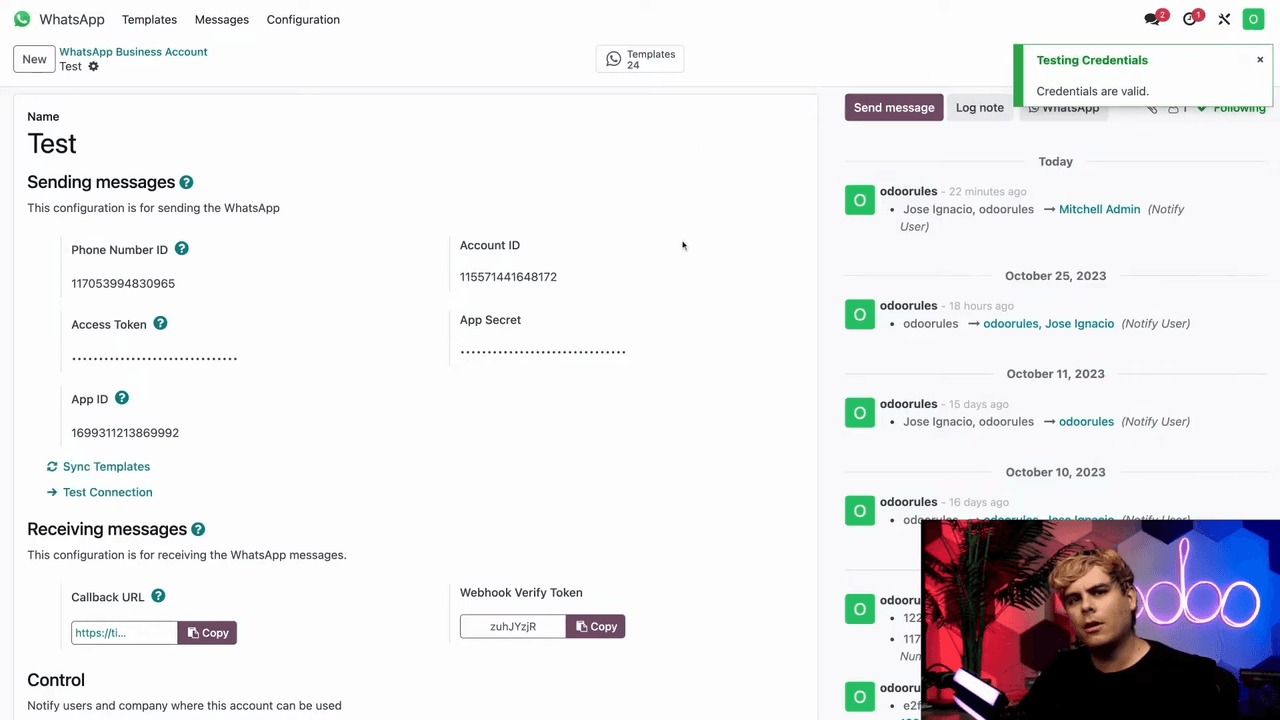
Once the connection test passes, two additional values are automatically populated in Odoo:
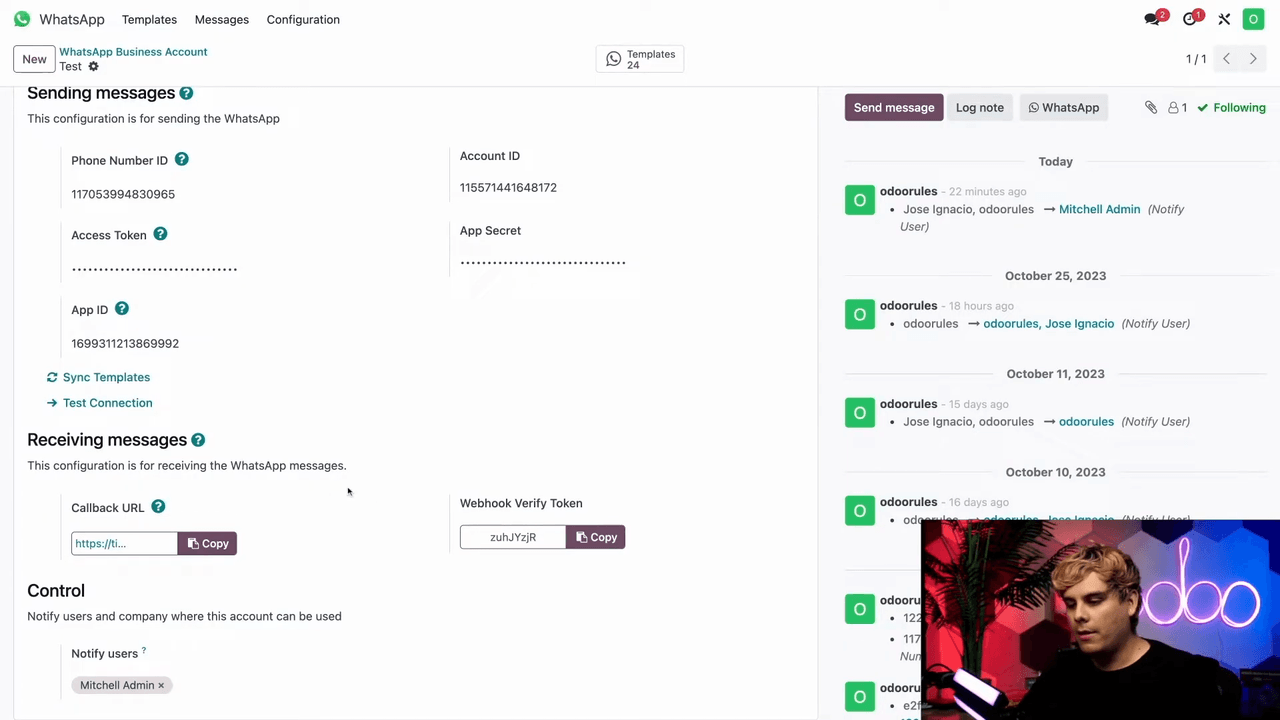
These values need to be entered into the Meta Developer Console to set up webhooks — the pathways that route return messages back into your Odoo database.
At the bottom of the WhatsApp Business Account configuration page, the Control section lets you specify which users receive notifications for incoming responses.
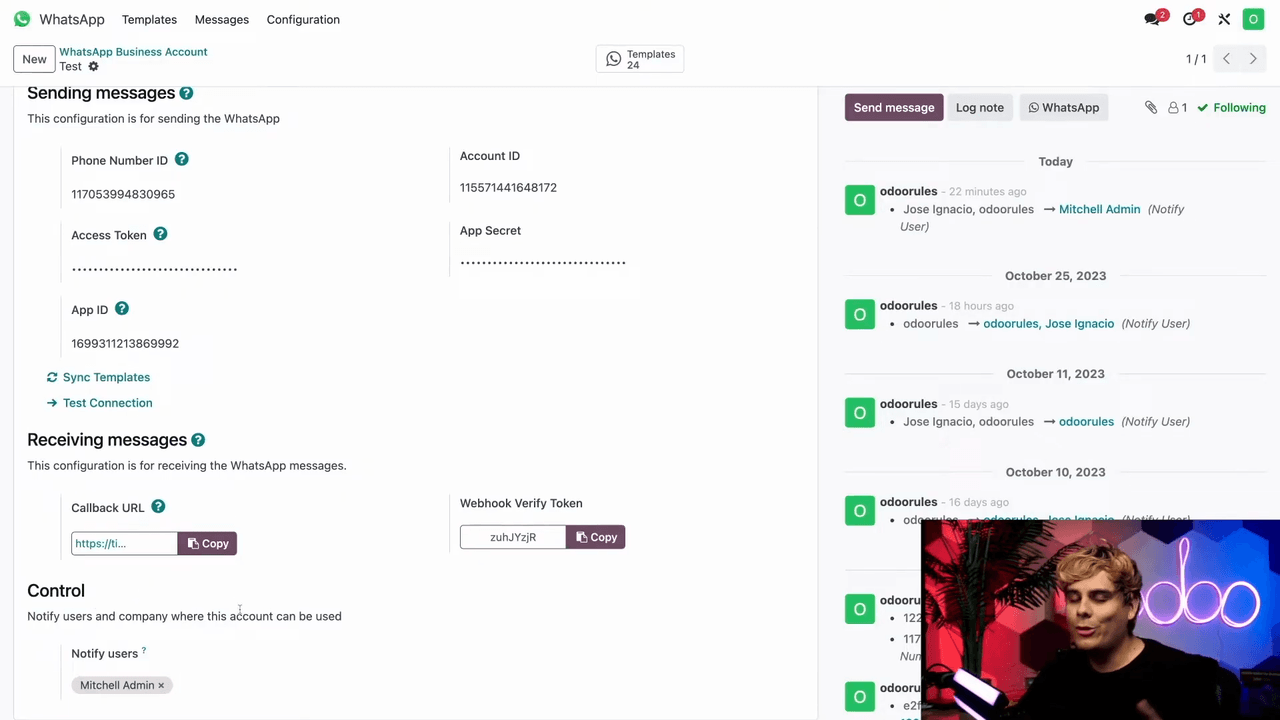
Key notification rules:
Companies can configure multiple WhatsApp accounts in Odoo for different teams — help desk, sales, hiring, and more.
WhatsApp templates are required by Meta for outbound business messaging. Every template must be associated with a WhatsApp Business Account in Odoo.
To create a new template, navigate to the Templates menu and select New, or open an existing one for reference.
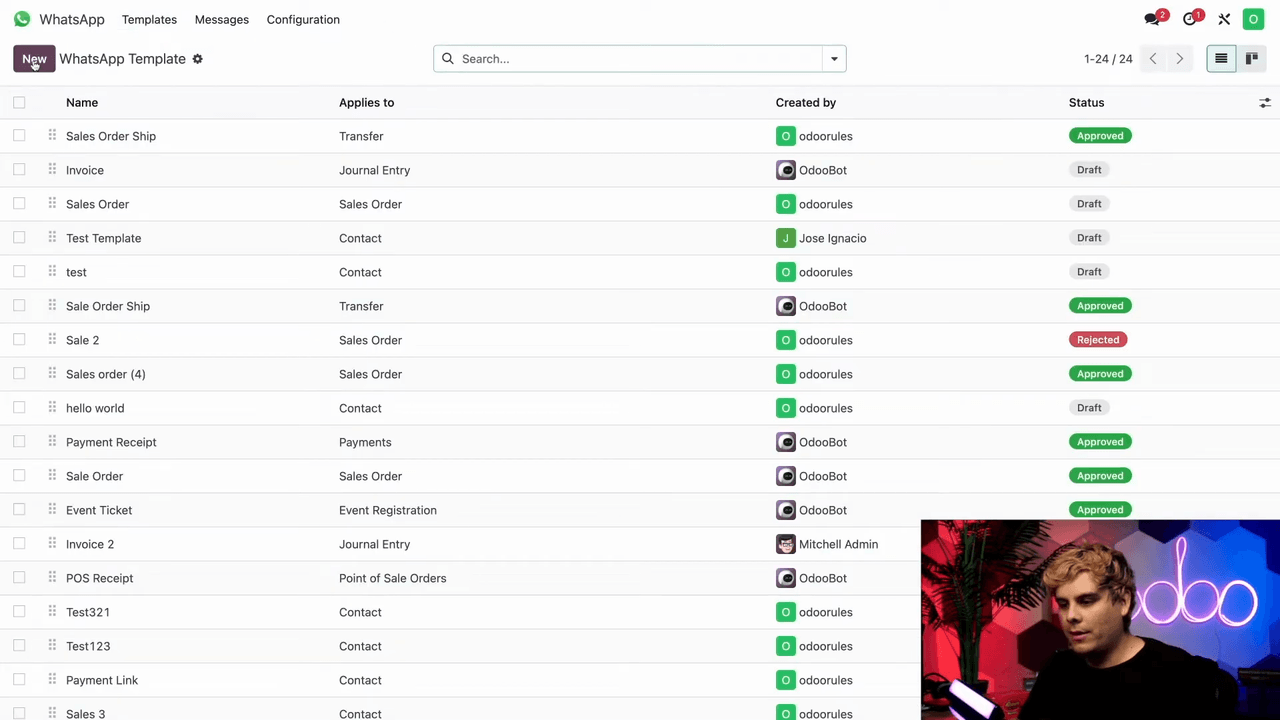
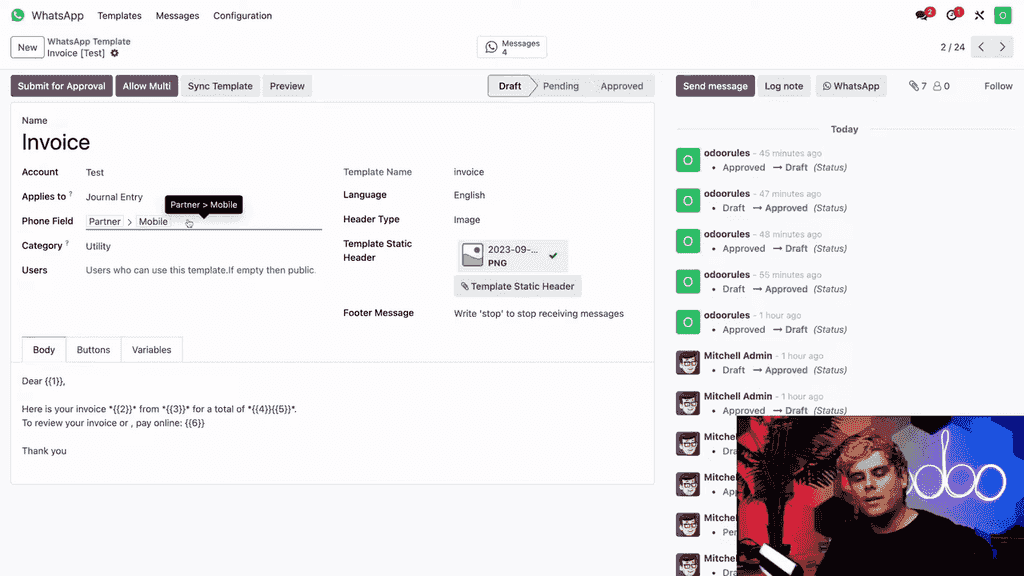
Each template has several key fields:
This specifies which Odoo model the template is used on (e.g., Journal Entry, Sales Order, Contact). The dynamic fields in the template pull data from this model.
To find a model name in Odoo:
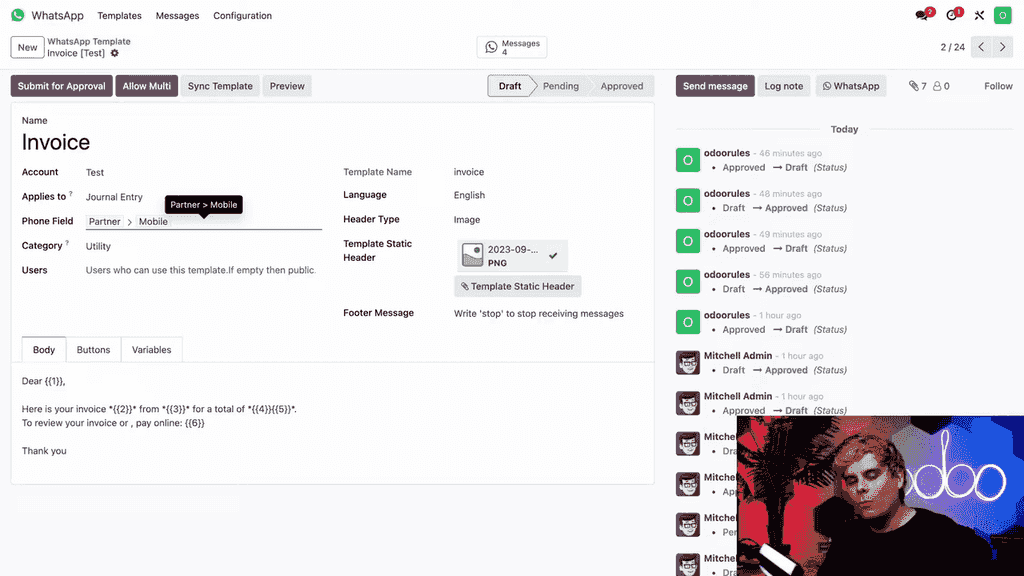
Set this to either Phone or Mobile. This refers to the phone number field in the model. The number must be a WhatsApp-registered number.
Choose from:
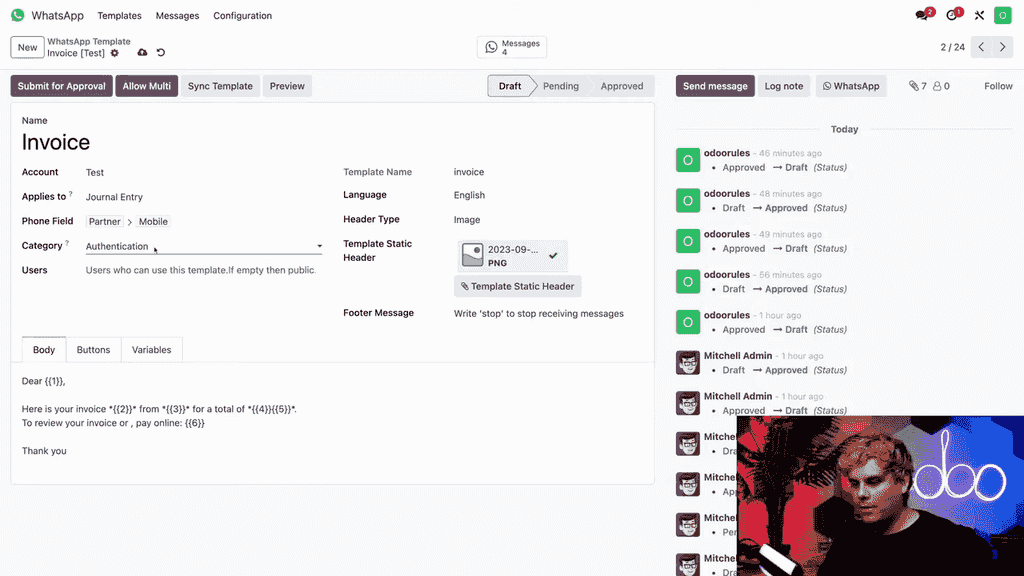
Select the category that matches the template's purpose. For customer transactions like invoices, use Utility.
If left blank, all Odoo users can use the template. Otherwise, specify which users have access.
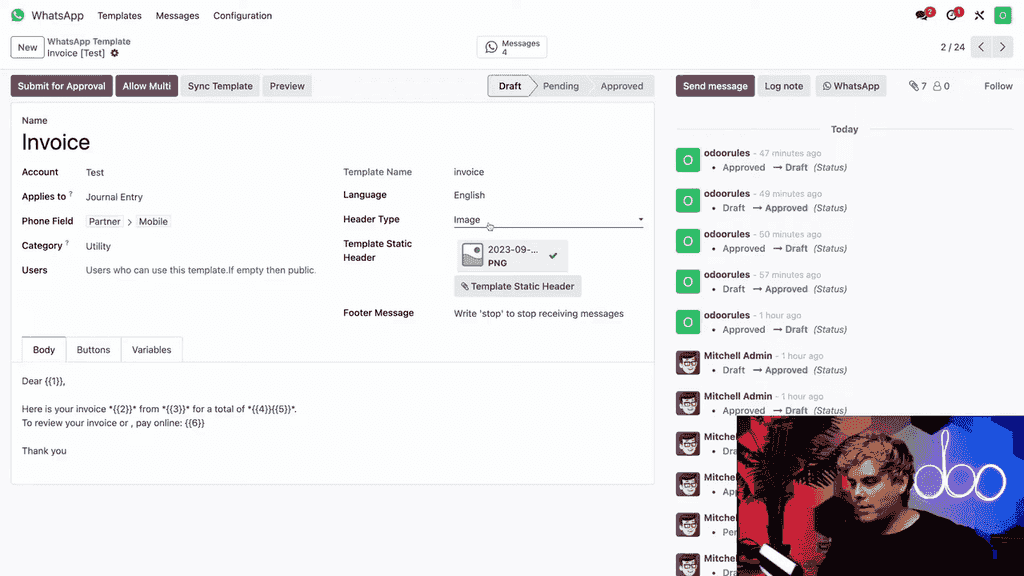
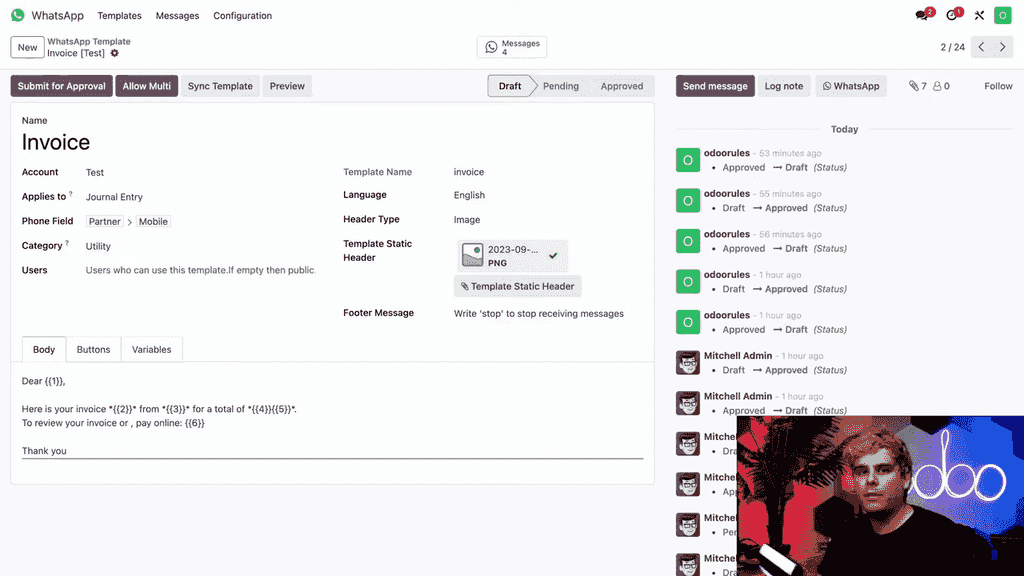
Dynamic placeholders are numbered markers (e.g., {{1}}, {{2}}) in the message body. Each placeholder maps to a variable that pulls specific data from the Odoo database.
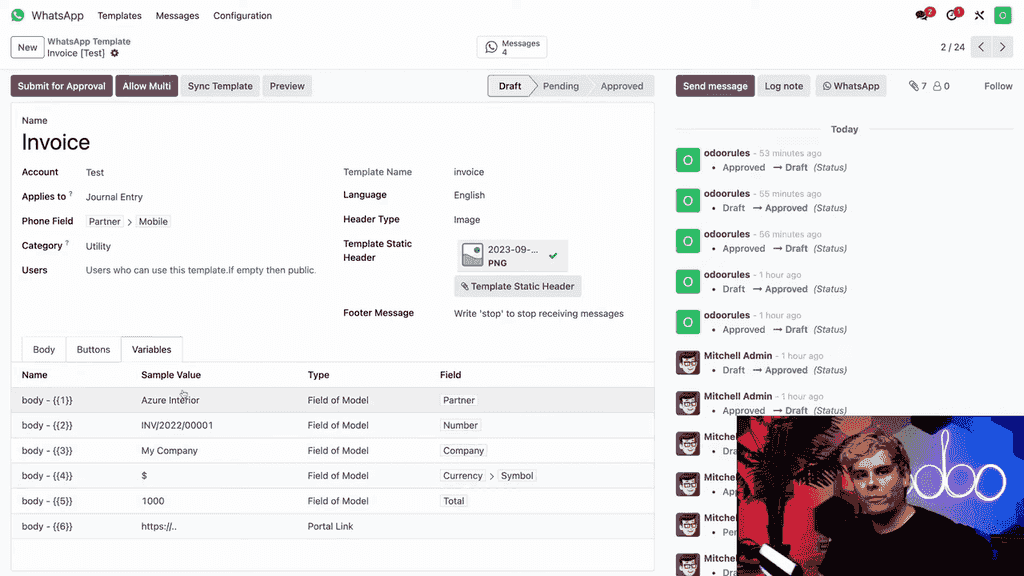
In the Variables tab, each placeholder has:
| Type | Description |
|---|---|
| Username | Current user's name |
| User Mobile | Current user's mobile number |
| Free Text | Custom static text |
| Portal Link | Auto-generated portal URL |
| Field of Model | Data from the "Applies To" model |
Field of Model is the most flexible option, allowing you to reference any field within the linked model — partner name, invoice number, company, total amount with currency, and more.
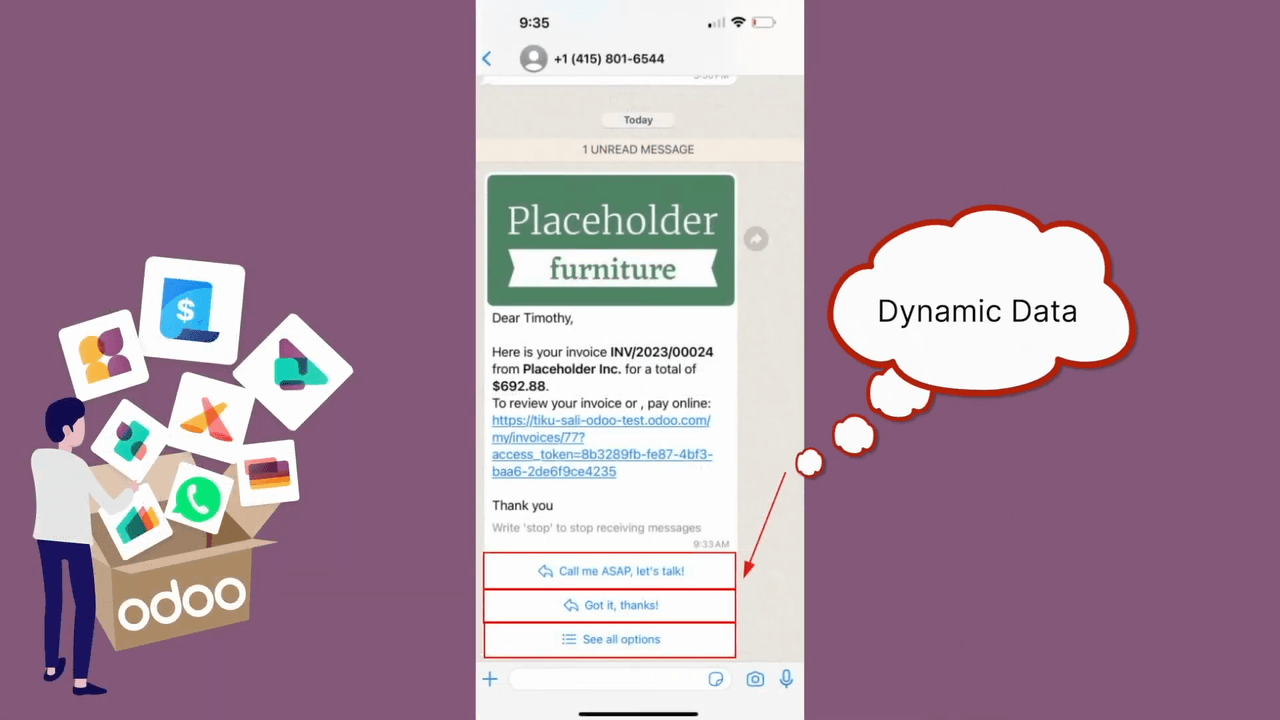
A completed invoice template populates with:
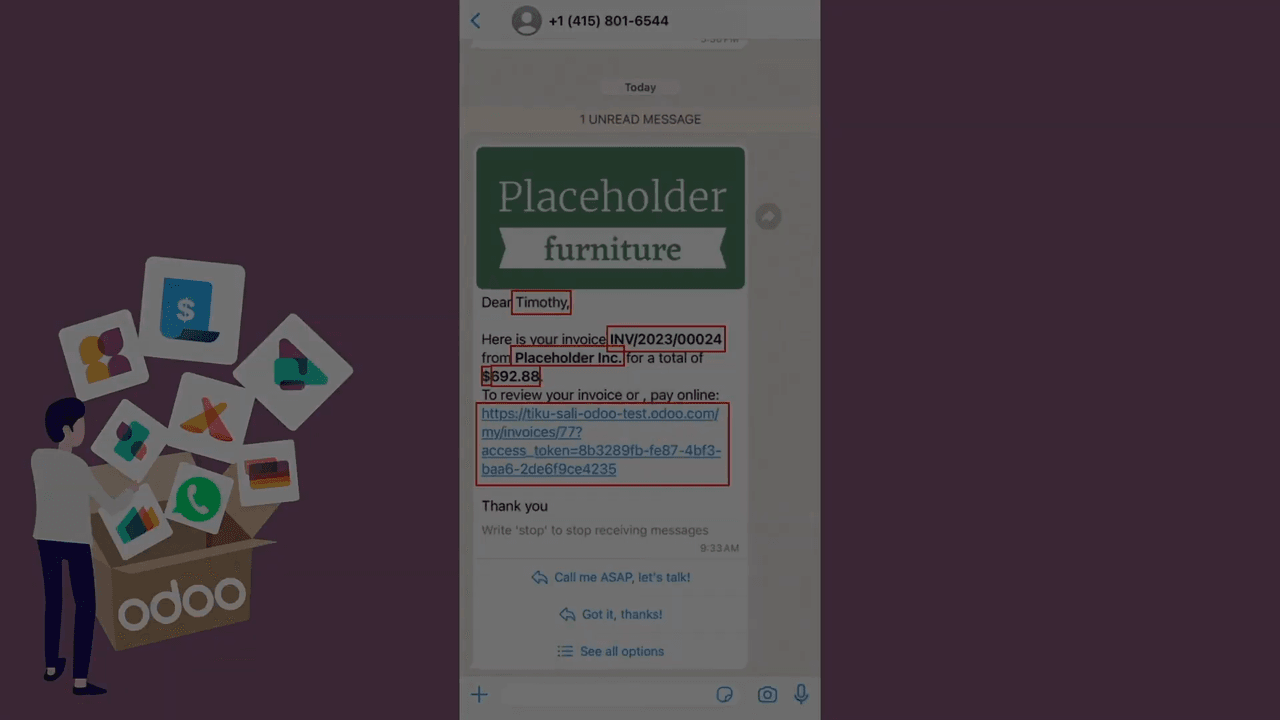
Each value is unique per transaction and customer.
The Buttons tab lets you add interactive elements below your message. Available button types:
| Button Type | Purpose |
|---|---|
| Quick Reply | Pre-set response options for one-tap replies |
| Call Number | Direct phone call button |
| Visit Website | Link to a URL |
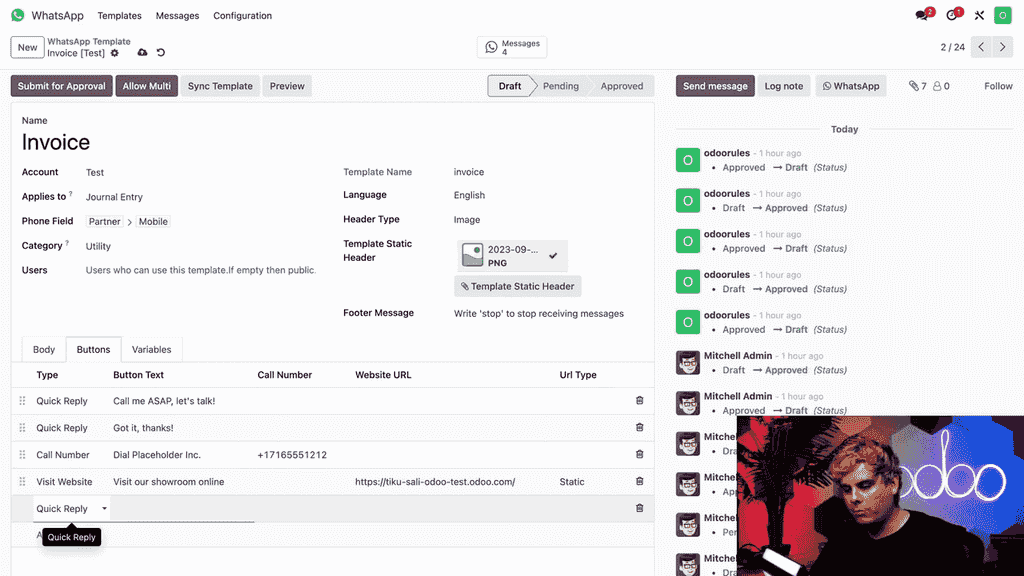
Buttons make messages more engaging and actionable. Quick reply buttons appear directly below the message for easy interaction.
The Allow Multi toggle controls whether the template appears in the action menu for bulk sending. Enable this if you need to send the template to multiple recipients at once.
Before a template can be used, it must be approved by Meta:
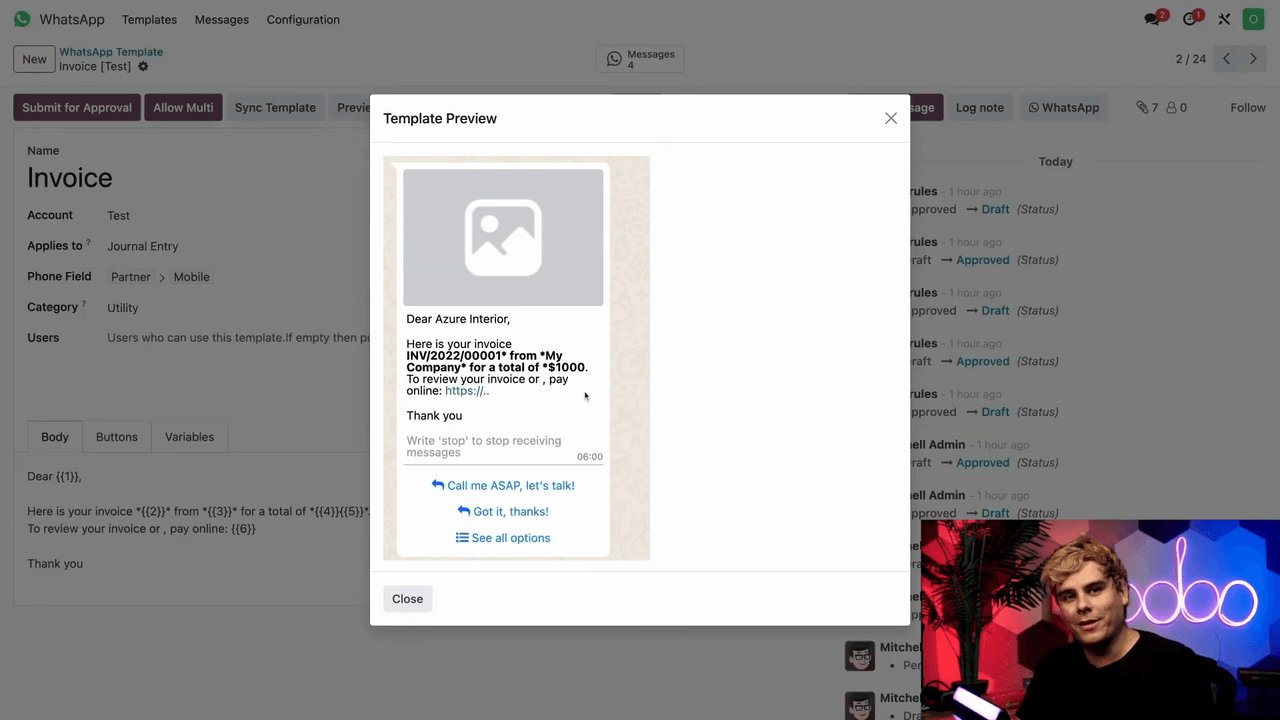
Once approved, the template is ready to use across your Odoo applications.
WhatsApp integration in Odoo streamlines customer communication across sales, accounting, and support workflows. Start with the preconfigured templates, then create custom ones as your business needs grow. For detailed Meta API setup instructions, visit Odoo's official WhatsApp documentation.

Zoo AI is a certified Odoo partner in Hong Kong, delivering expert ERP implementation and AI automation for SMEs. Get in touch to learn more.