How to Design Website Images and Motion in Odoo

How to Design Website Images and Motion in Odoo

Yannis, Odoo Expert
5 min read

Table of Contents

Understanding Building Blocks

Odoo Website builder showing the four building block categories

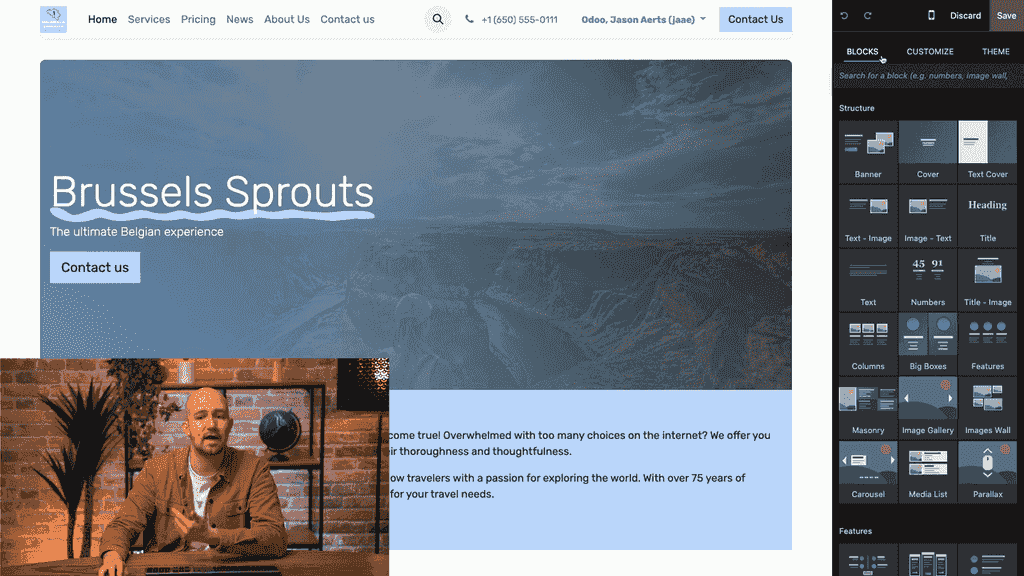
Odoo Website organises its building blocks into four categories, each serving a distinct purpose:
  • Structure — Classic blocks for headings, images, and text. These are your foundational layout elements.
  • Features — Advanced blocks that display specific information in smarter ways, such as price comparison tables.
  • Dynamic — Blocks integrated with other Odoo apps. For example, you can pull in e-commerce products or newsletter sign-up forms directly.
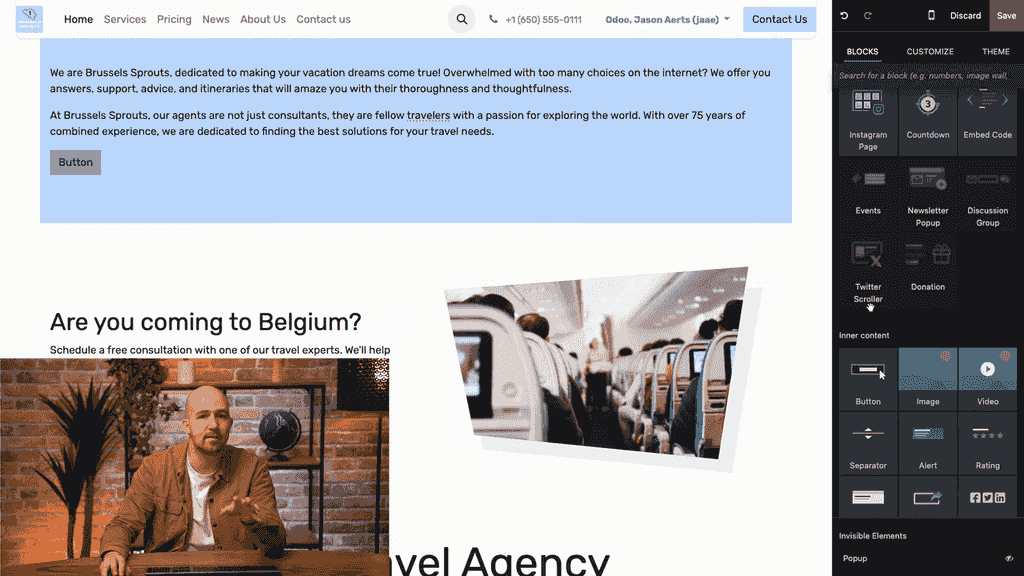
  • Inner Content — Elements designed to be placed inside other blocks, such as buttons or dividers.

Drag and drop a building block onto the page

To explore them, simply drag and drop any block onto your page. If you don't like the result, click the undo arrow or use the Discard button to revert all changes made since you last opened the editor.

Pro Tip: Be careful with the Discard button — it removes all unsaved changes at once, not just the last one.

Working with Images

Images are essential for conveying your message quickly. Odoo provides several ways to manage them effectively.
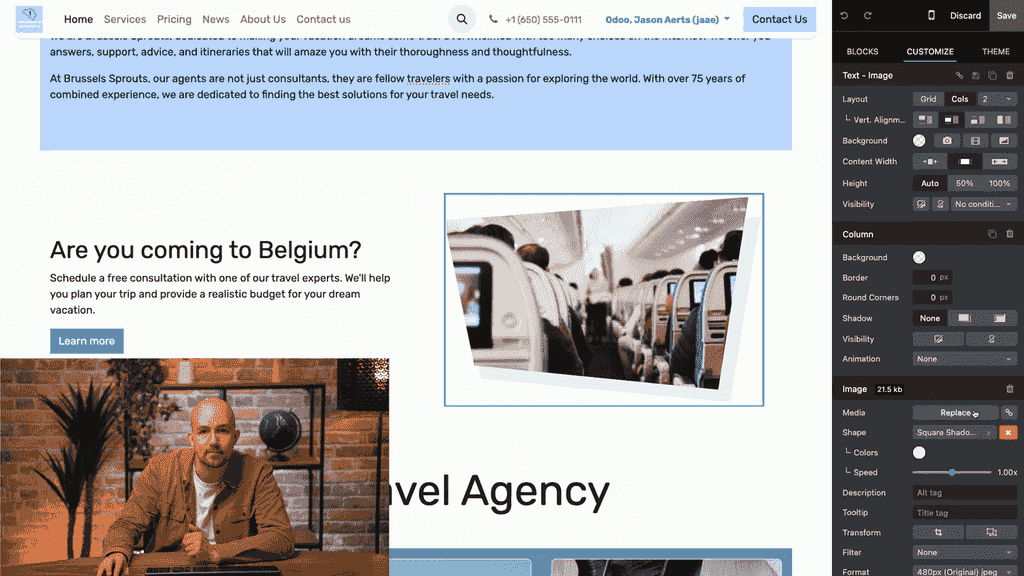
Adding and Replacing Images

Replace image dialog with upload and Unsplash options

Click on any image element and select Replace to swap it out. You can upload your own images or use Odoo's built-in Unsplash integration, which gives you access to millions of free photos and illustrations. Simply type a keyword to search.

Unsplash image search results in Odoo

Image Optimisation

Odoo automatically optimises image quality for faster page loading, which also helps your search engine ranking. If you need manual control, you can adjust the image weight directly in the editor.
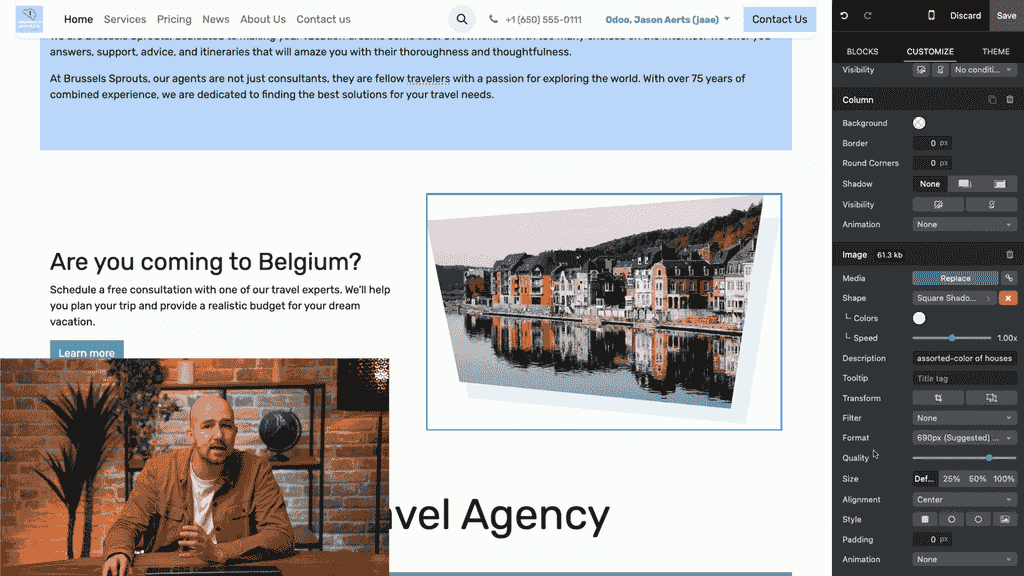
Styling Options

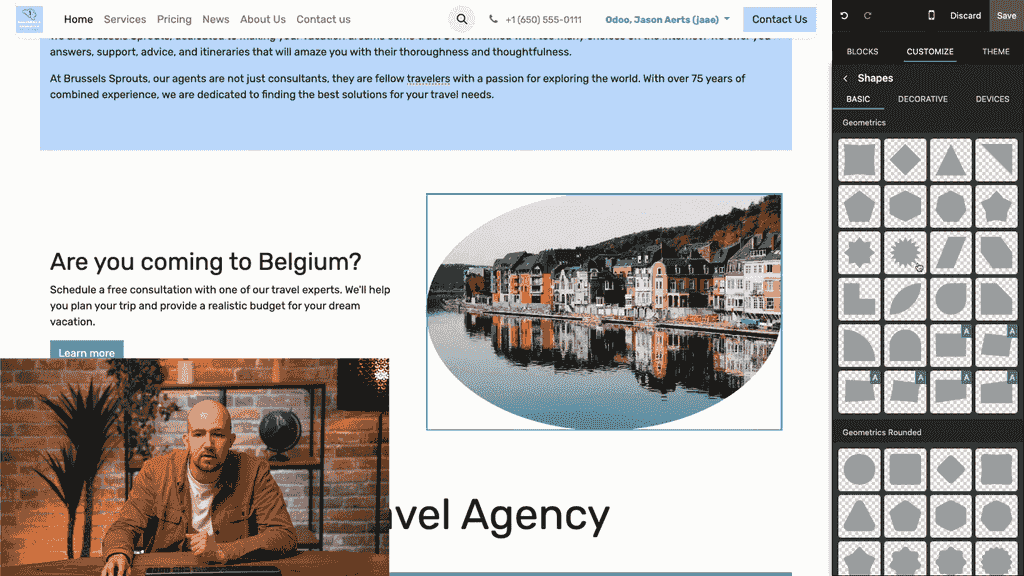
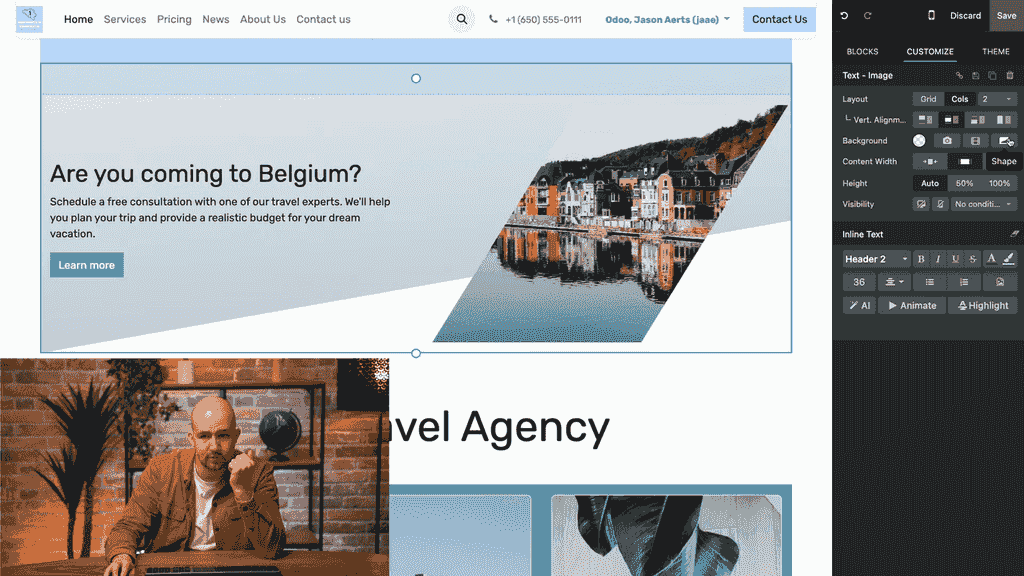
Image styling options showing padding, style, roundness and shape controls

Once an image is selected, you can customise:

OptionWhat It Does
PaddingAdjust spacing around the image
StyleApply preset visual styles
Corner RoundnessControl how rounded the corners are
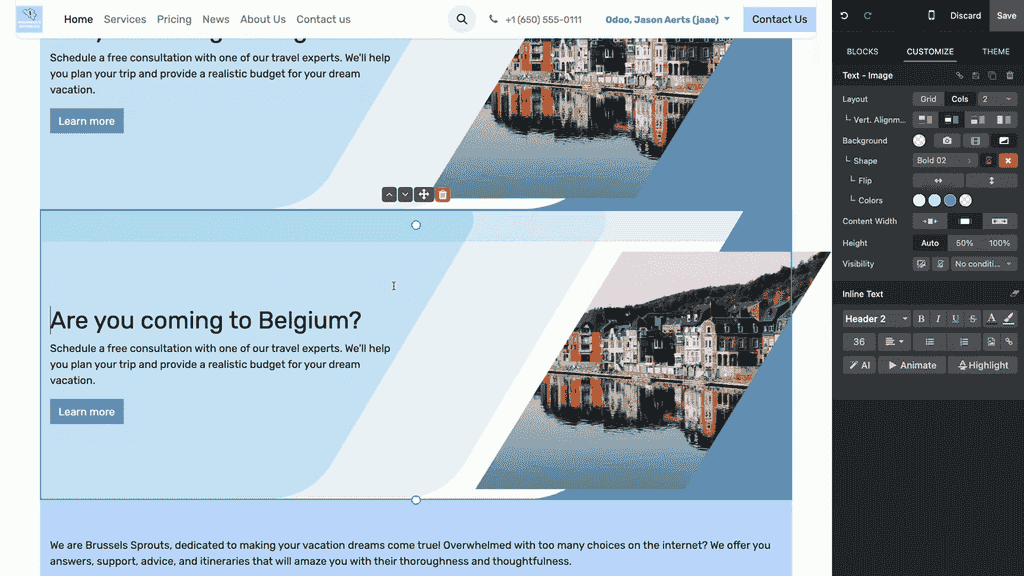
ShapePlace the image inside a decorative shape

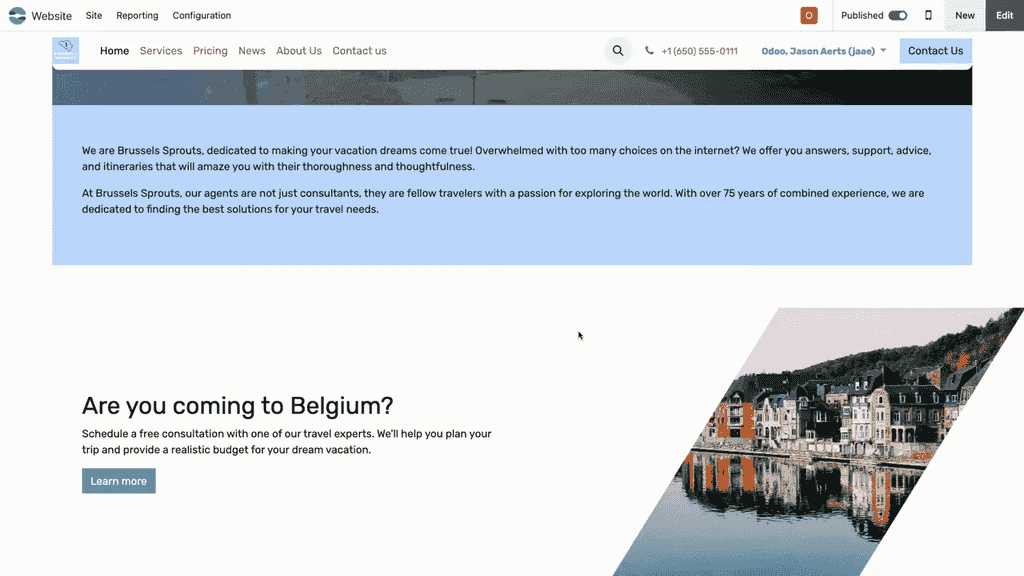
Image placed inside a decorative shape

Adding Motion and Animation

Static pages can feel lifeless. Motion draws attention and improves user engagement. Odoo offers two main types of motion.
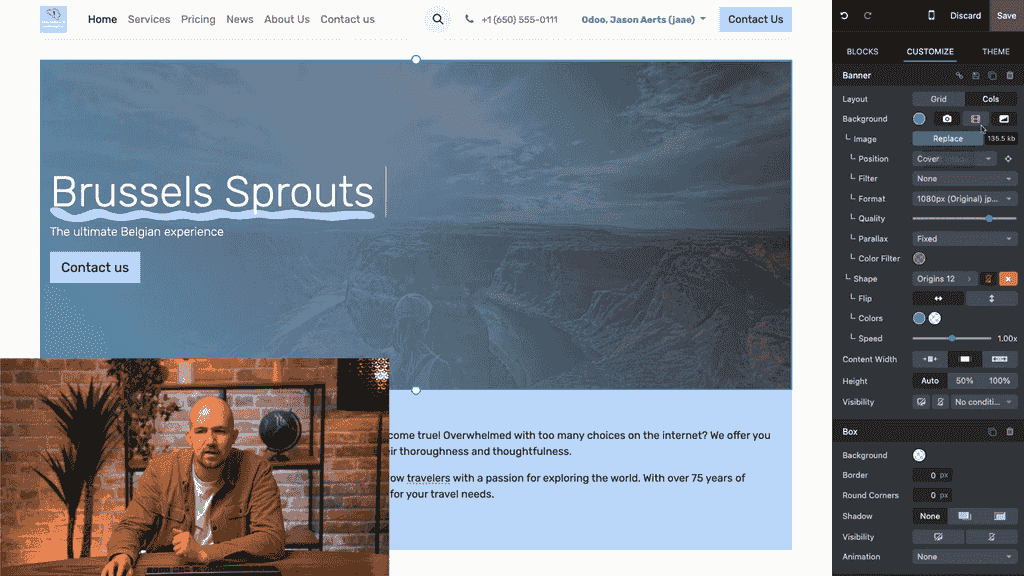
Video Backgrounds

Video background option in the banner block editor

You can replace any banner image with a video background:

  1. Select the banner block
  2. Click the Video option
  3. Paste a link from YouTube, Dailymotion, or Vimeo
  4. Click OK

The video will play automatically when visitors land on the page.
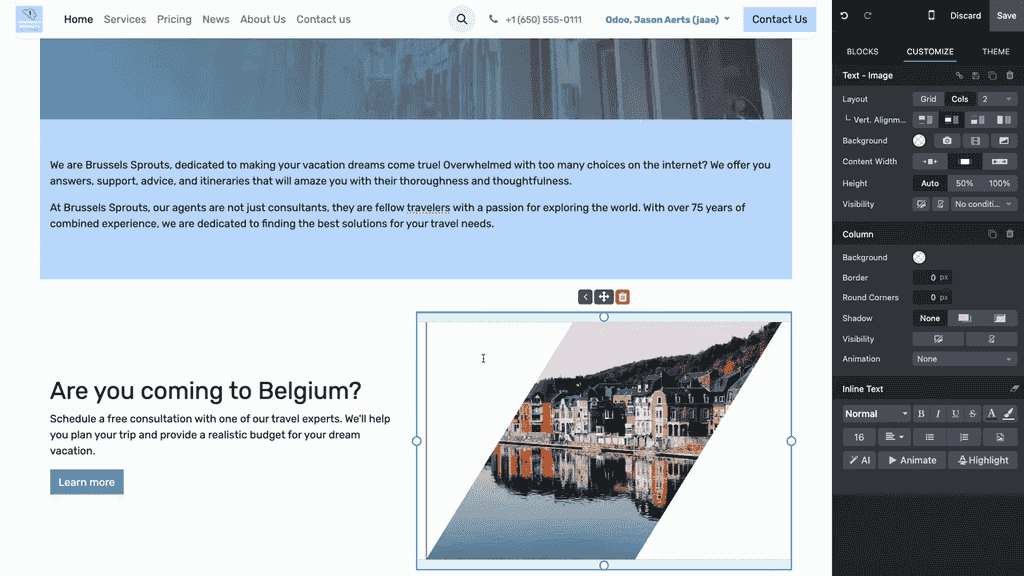
Element Animations

Animation settings panel showing scroll and appearance triggers

You can animate individual elements within any block. Two trigger types are available:

  • On Scroll — The animation plays each time the user scrolls past the element
  • On Appearance — The animation plays once, the first time the element becomes visible

For each animation, you can configure:
  • Direction — Left, right, top, or bottom
  • Effect — Fade, slide, or bounce

Page preview showing video playing and slide animation in action

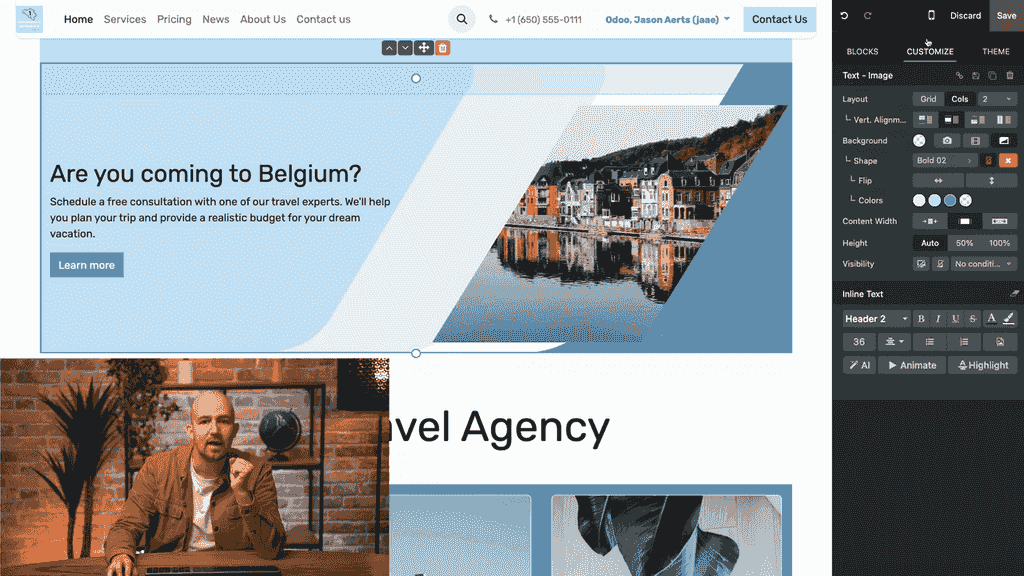
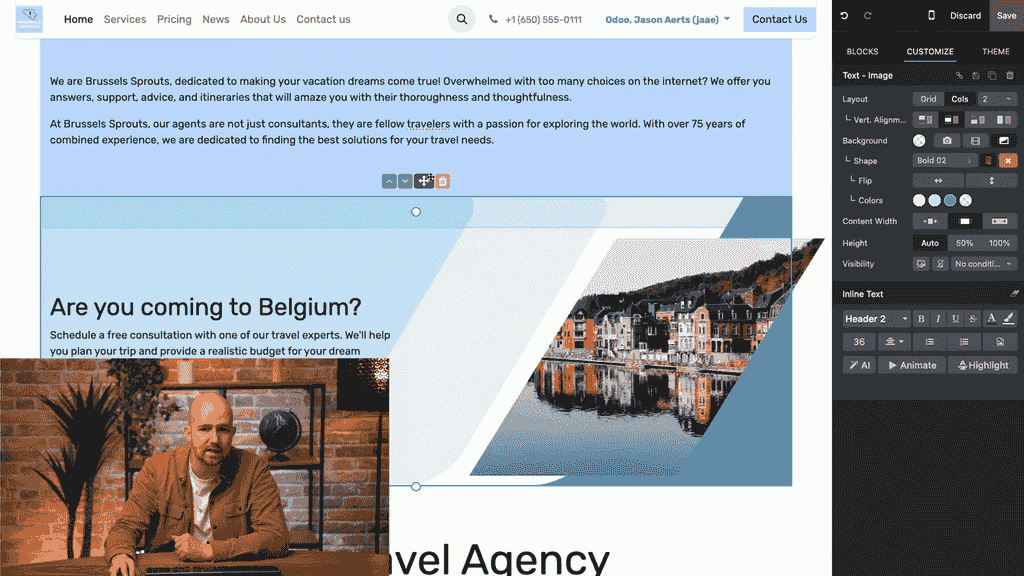
Using Background Shapes

Background shapes create visual flow between blocks, making your page feel more cohesive.
Background shape options panel with shape templates

To add a background shape:

  1. Select any block
  2. Click the Shape option
  3. Choose a shape from the available templates
  4. Adjust orientation and colour to match your design

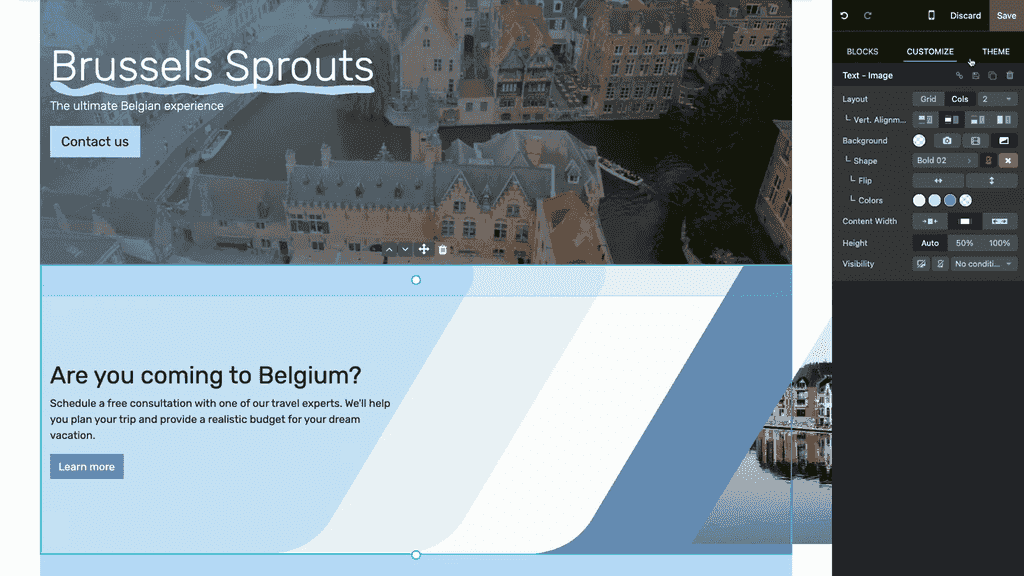
Block with a subtle background shape applied

Keep colour choices subtle to maintain readability and avoid overwhelming visitors.

Managing Block Layout

As your page grows, you will need to rearrange blocks. Odoo makes this straightforward.
Reordering Blocks

Drag and drop block reordering in the editor

  • Drag and drop — Click and drag any block to a new position on the page
  • Arrow buttons — Use the up/down arrows to move a block one position at a time

Repositioning Elements Within Blocks

Individual elements inside a block (such as images or text) can also be repositioned using the left/right arrow controls.
Duplicating Blocks

Duplicate button on a block with the duplicated result below

If you want to reuse a block's layout with different content, click the Duplicate button. The new block inherits all styling and animations from the original.
Saving Custom Templates

Save block as custom template and rename it

When you create a block design you plan to reuse across your website, save it as a custom template:

  1. Select the block
  2. Click Save
  3. Find it later under Custom Templates in the block panel
  4. Rename it for easy identification

This saves time by eliminating the need to rebuild and restyle blocks from scratch.

Next Steps

  • Experiment with each block category to understand what is available
  • Use Unsplash images to quickly prototype your page designs
  • Add subtle animations to guide visitor attention
  • Check the official Odoo YouTube channel for advanced design tips and best practices

References

Tags

OdooWebsiteDesignImagesAnimation
Professional businesswoman working with data and analytics in modern office environment

Need Help with Odoo Implementation in Hong Kong?

Zoo AI is a certified Odoo partner in Hong Kong, delivering expert ERP implementation and AI automation for SMEs. Get in touch to learn more.