

Building a professional website no longer requires coding skills. Odoo's built-in website builder offers a drag-and-drop interface that lets you create, customize, and publish pages in minutes. Whether you're a financial coach, consultant, or small business owner, you can build a site that reflects your brand without hiring a developer.
This guide walks you through the entire process — from customizing your homepage to publishing your first blog post and optimizing for search engines.
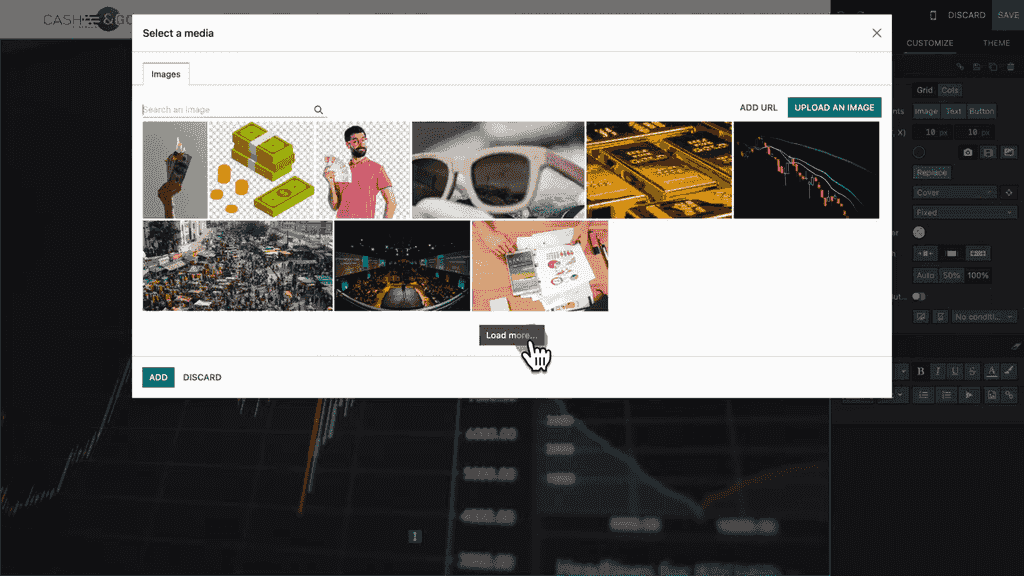
Start by replacing the default banner photo with an image that represents your brand. Click on the banner area and upload a new image directly.
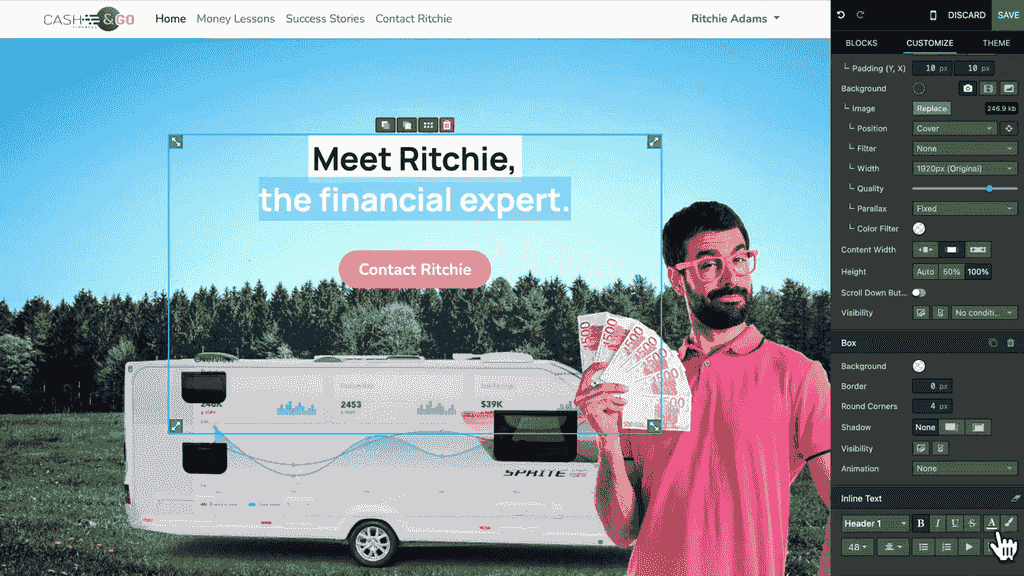
Next, make your main title stand out by adjusting the font size, weight, or color through the customization panel.
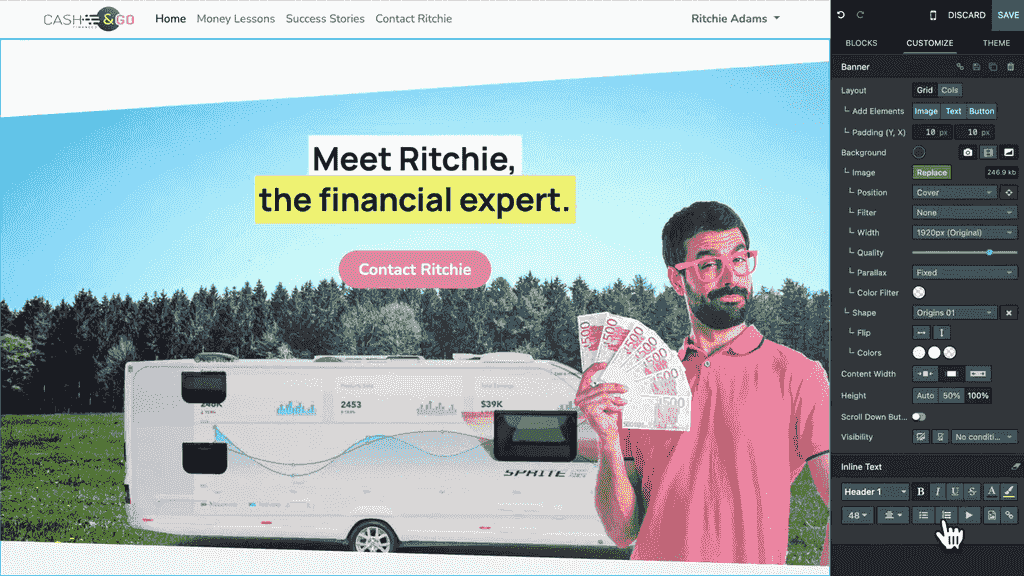
Use shape dividers to create smooth transitions between page sections. Selecting a shape "melts" the banner into the next content block, giving your site a polished, modern look.
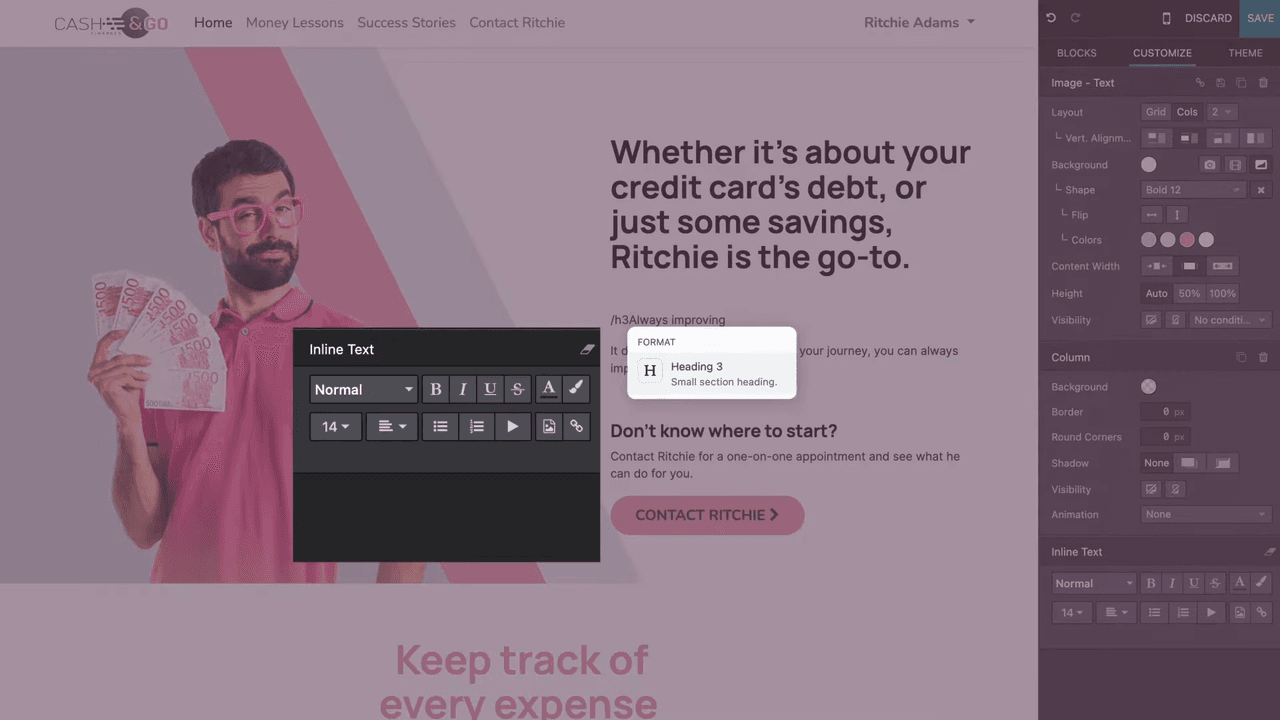
Odoo lets you edit text directly on the page in real time. Click on any text block and start typing — changes appear instantly.
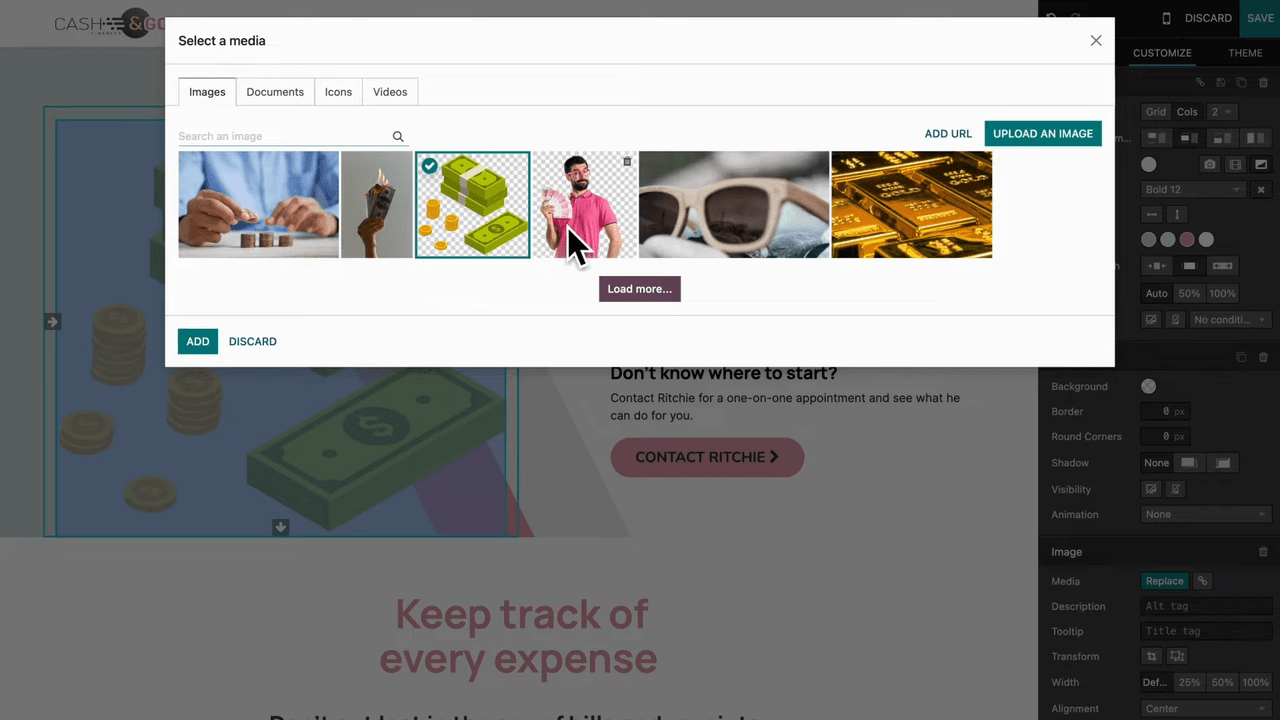
For text-image blocks, swap in your own photos and adjust the layout. Choose from different headers, font sizes, and styles using keyboard shortcuts or the customization panel.
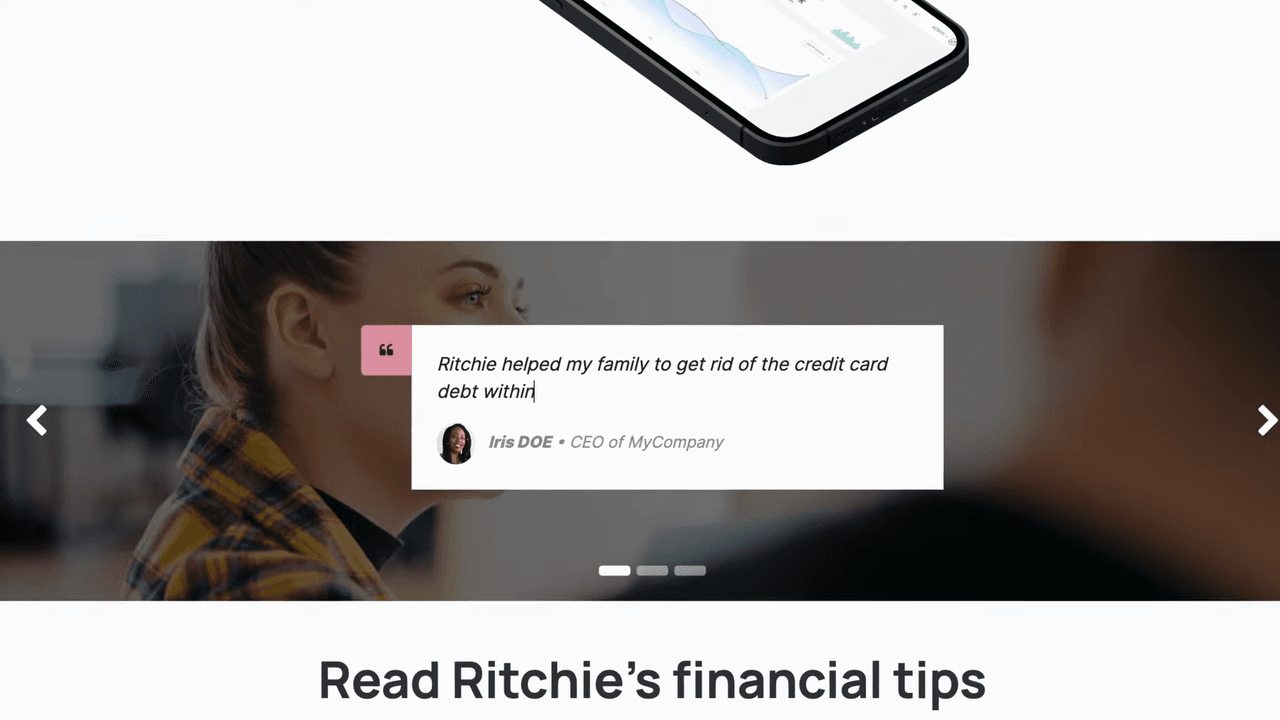
Customer feedback boosts legitimacy. Insert a quote block to showcase testimonials from satisfied customers. This builds trust with potential visitors who are evaluating your services.
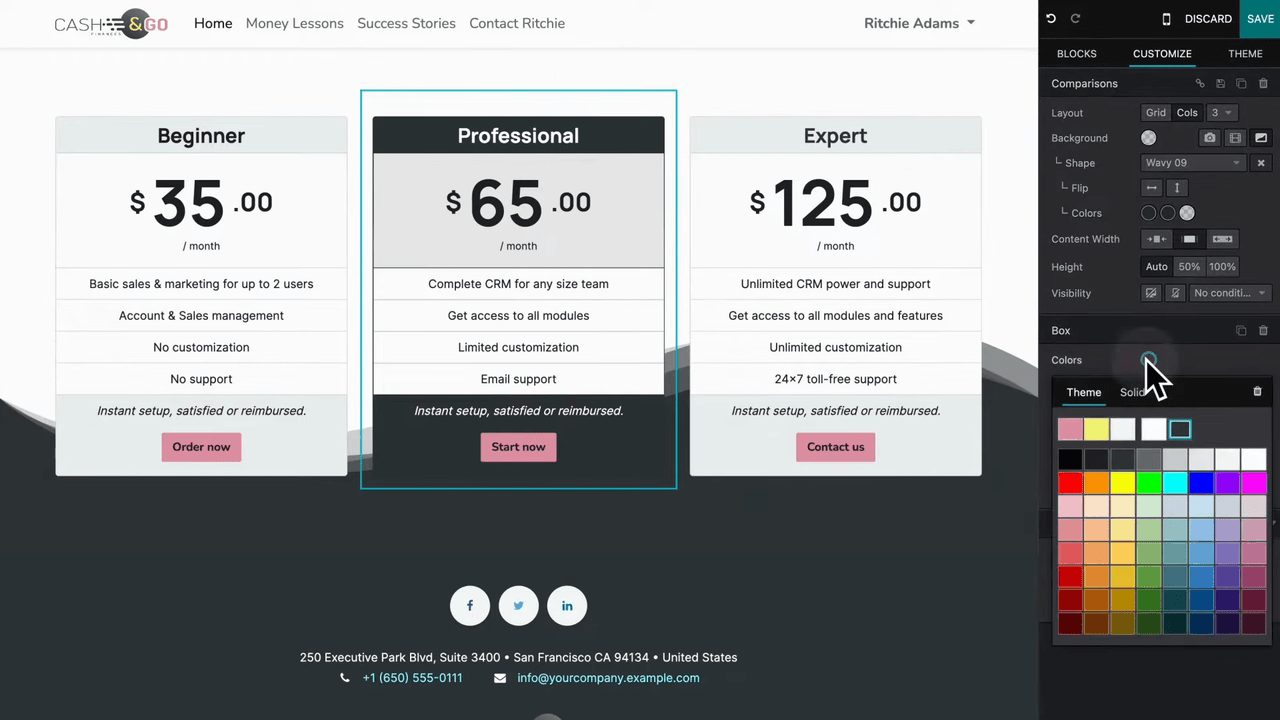
If you operate in a competitive market, add a comparison block to highlight how your services stand out. Change colors to emphasize your most popular offering and make the decision easier for visitors.
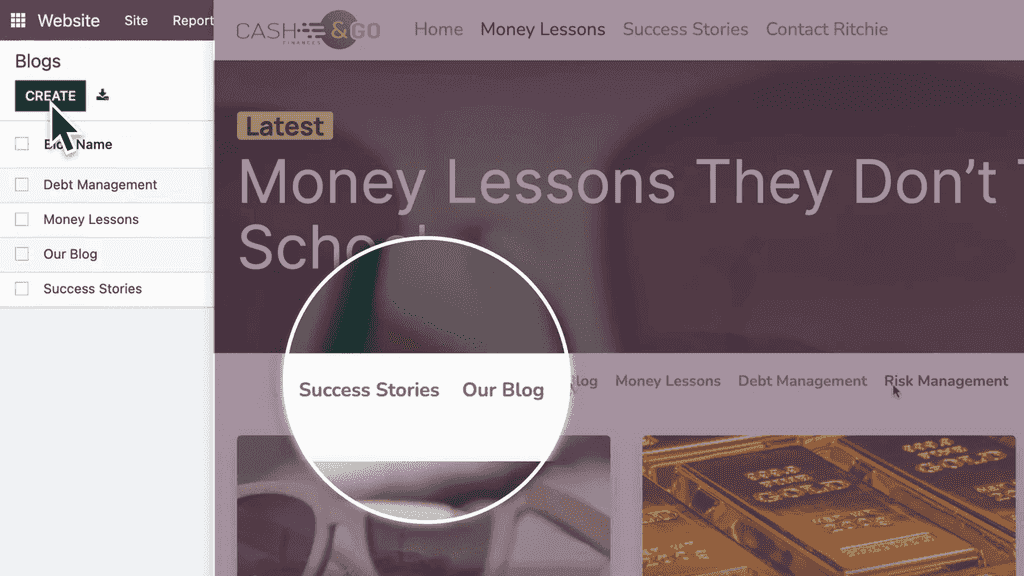
Before writing posts, organize your blog by creating categories. This helps readers find relevant content and keeps your blog structured as it grows.
To create a new blog post:
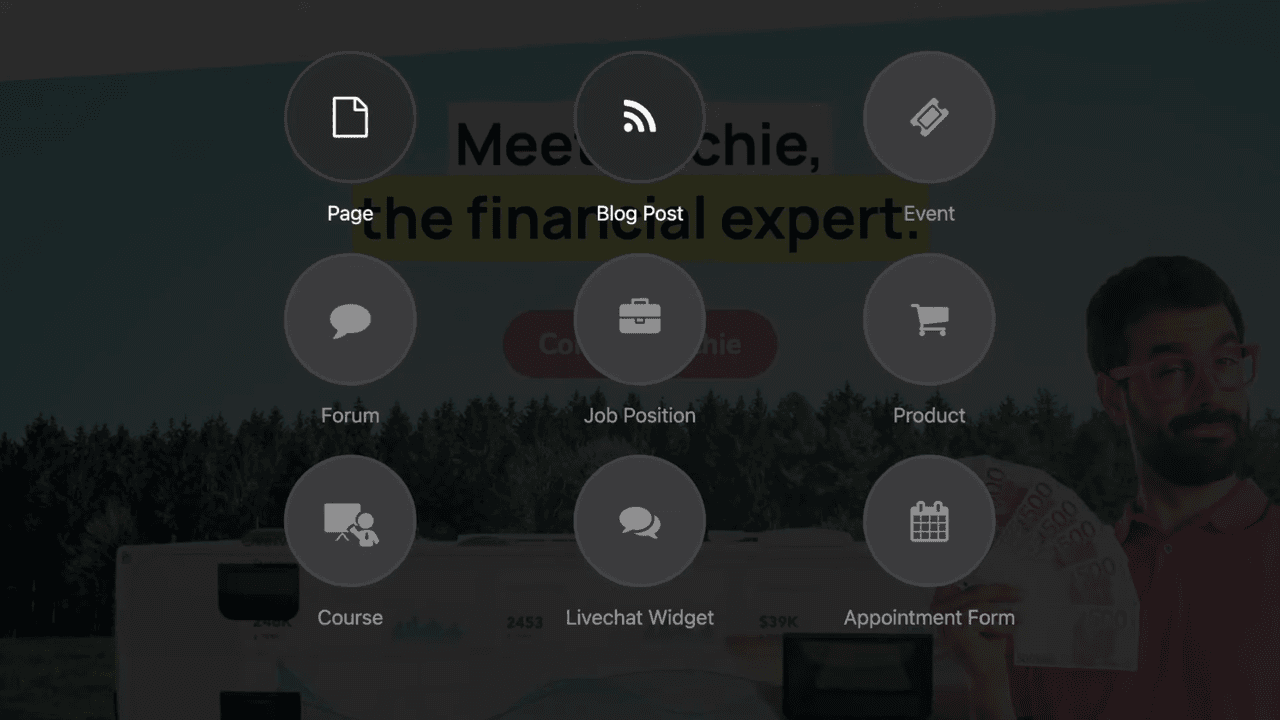
A compelling cover photo is crucial. Odoo provides an extensive library of free stock images you can use immediately. If the title is hard to read against the image, add a contrast overlay to improve readability.
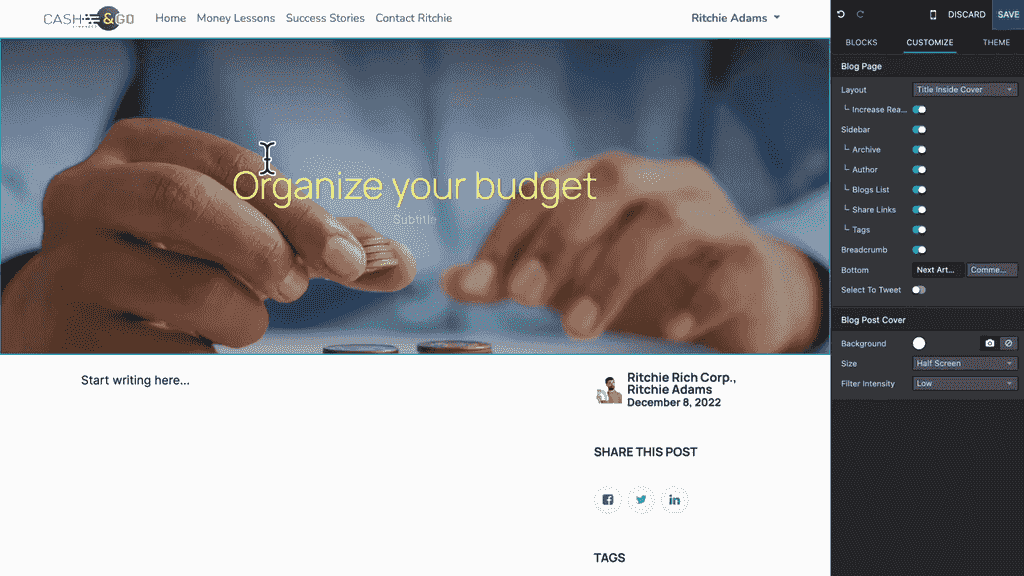
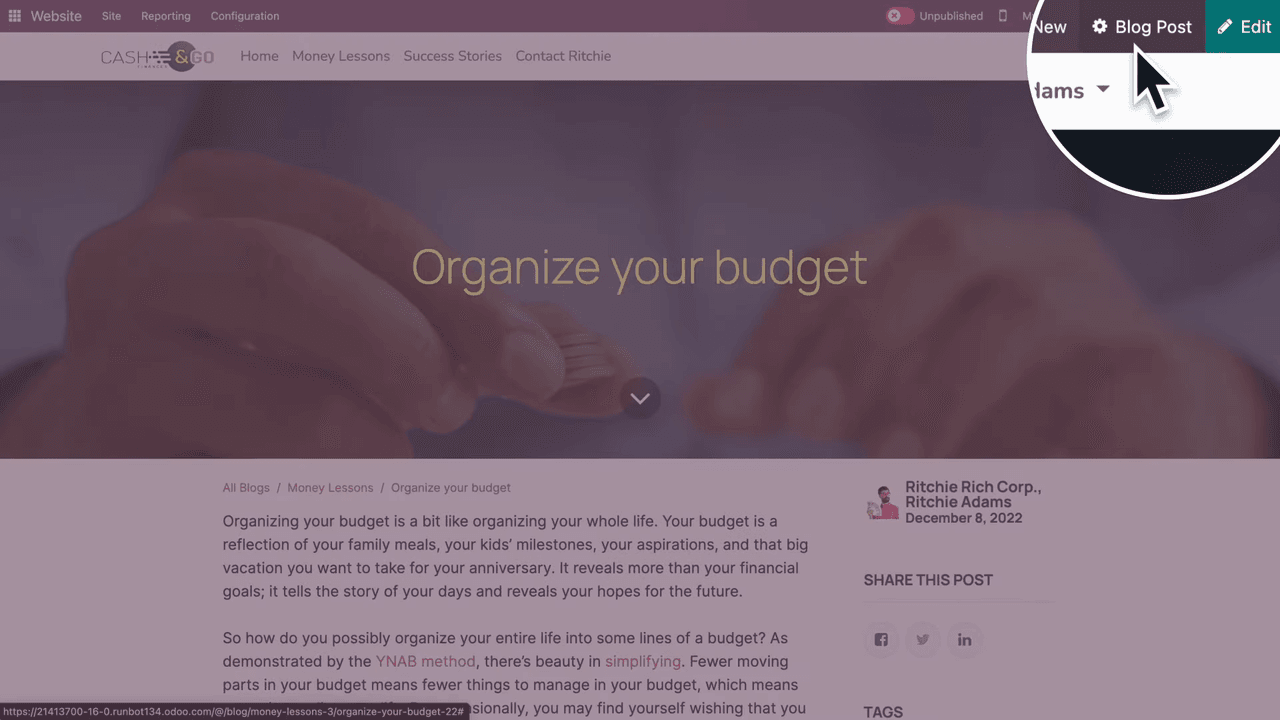
When your post is ready, hit Publish to make it live.
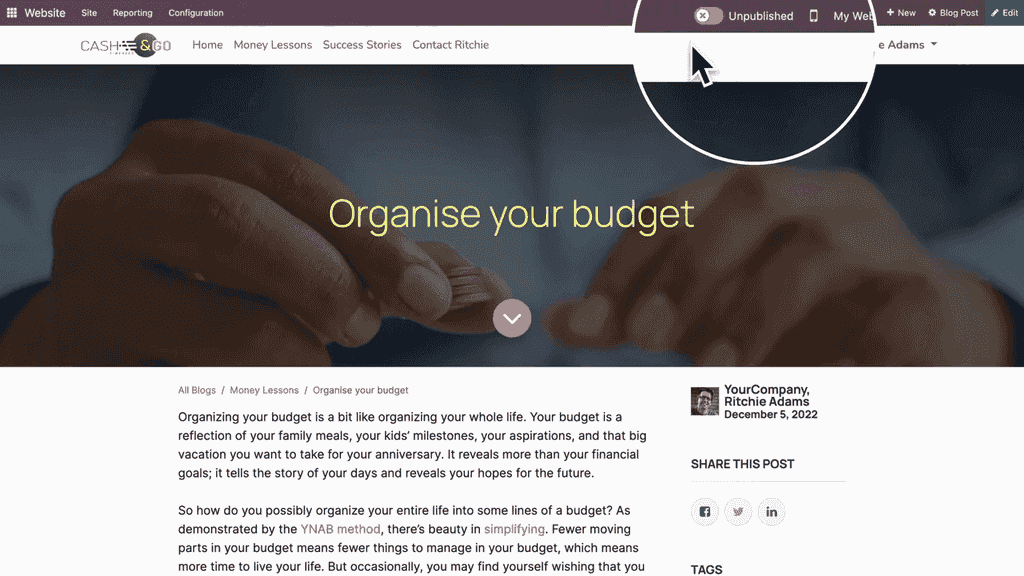
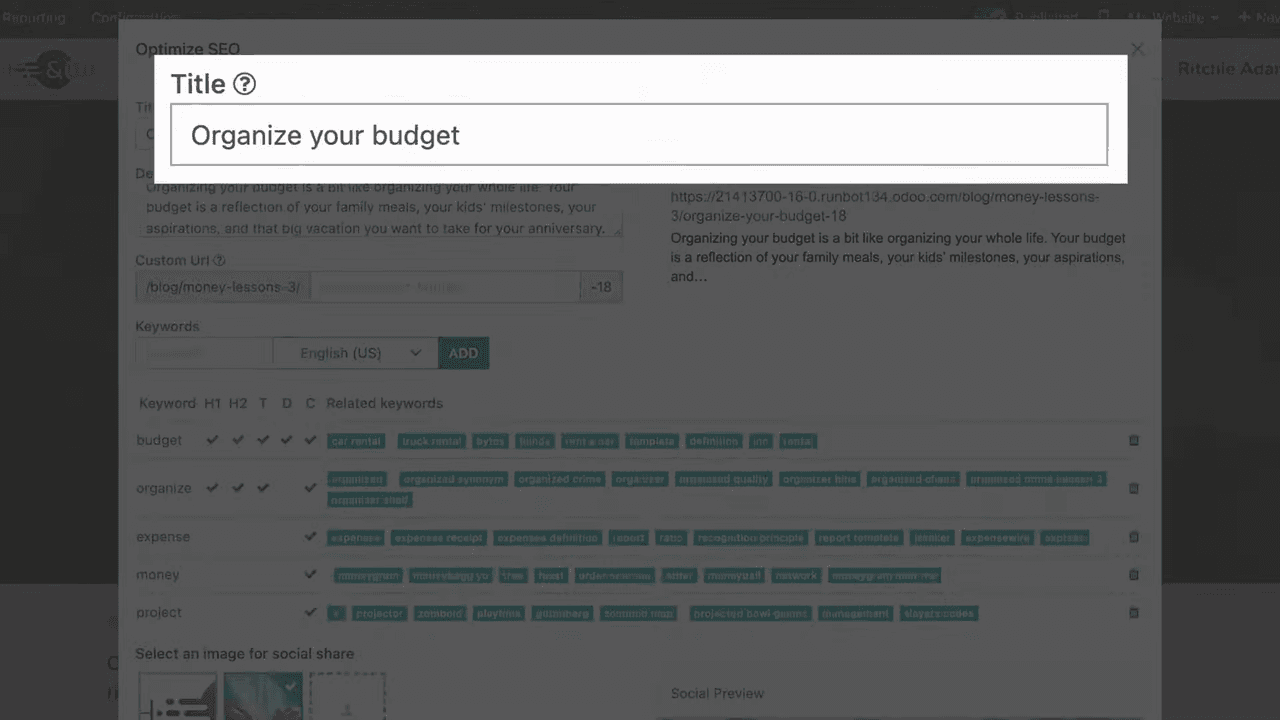
Odoo includes built-in SEO tools. For each page or blog post, you can set:
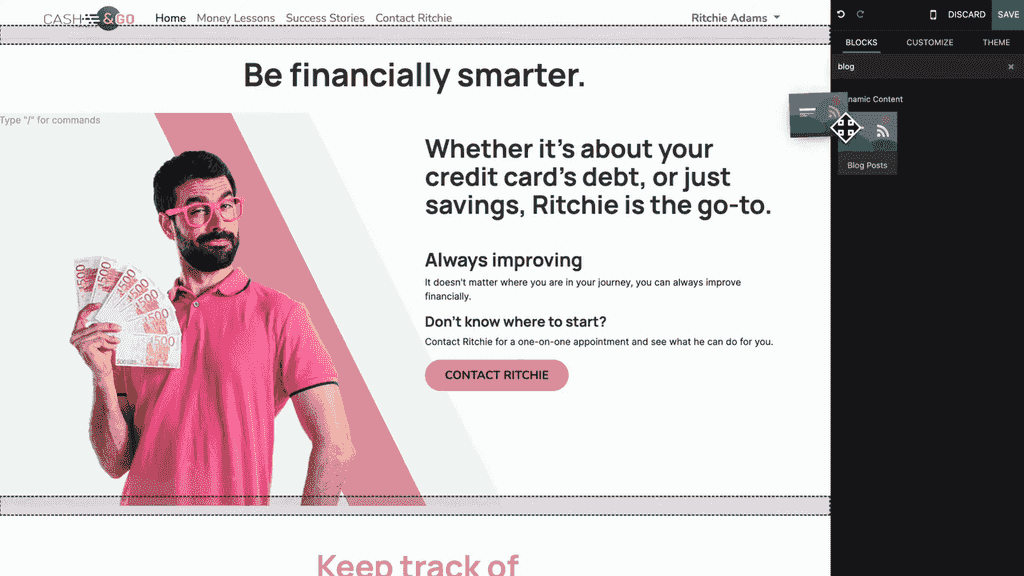
Use the dynamic blog post building block to feature recent articles directly on your homepage. Select the category you want to showcase, and the block automatically pulls in your latest posts — keeping your homepage fresh without manual updates.
Every Odoo Website subscription includes one year of free domain name registration. This means you can launch your site with a custom domain at no extra cost.

Zoo AI is a certified Odoo partner in Hong Kong, delivering expert ERP implementation and AI automation for SMEs. Get in touch to learn more.