

When a customer orders a product that needs to be manufactured, several things must happen: raw materials need to be purchased, a manufacturing order needs to be created, and the finished product needs to be delivered. Doing this manually is slow and error-prone.
Odoo MRP lets you automate this entire chain. Once configured, a confirmed sales order automatically triggers manufacturing orders and purchase orders for missing components. This prevents production bottlenecks caused by missing materials and keeps your fulfillment pipeline moving.
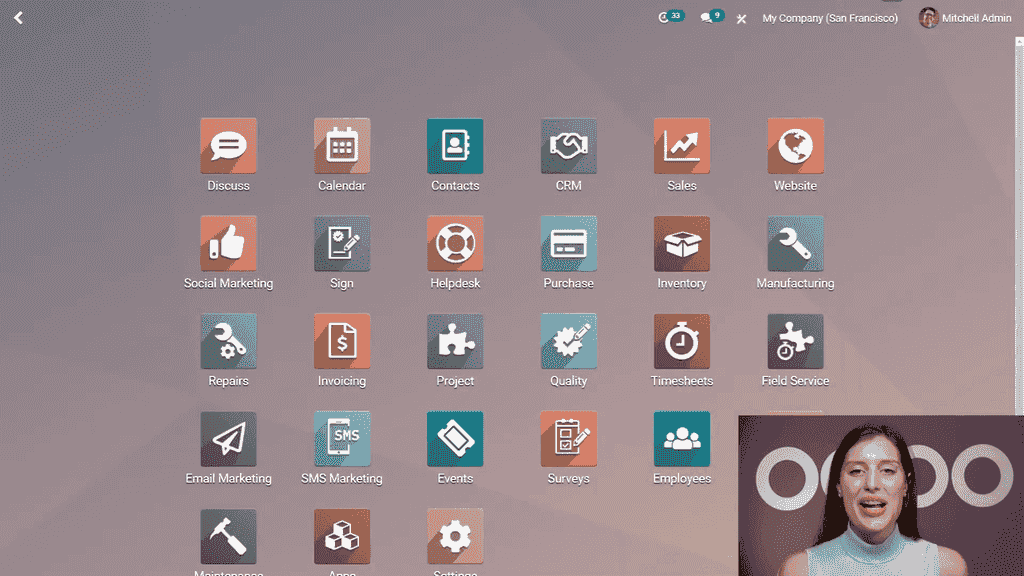
Before setting up this flow, make sure you have:
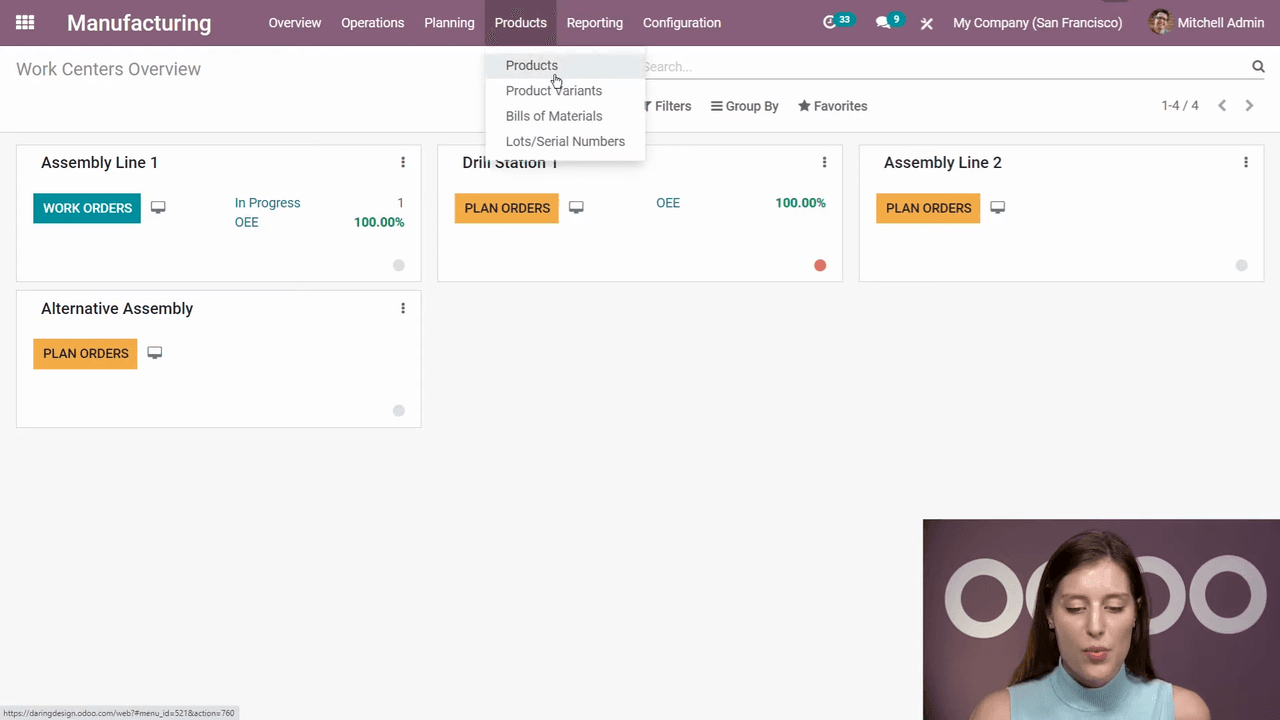
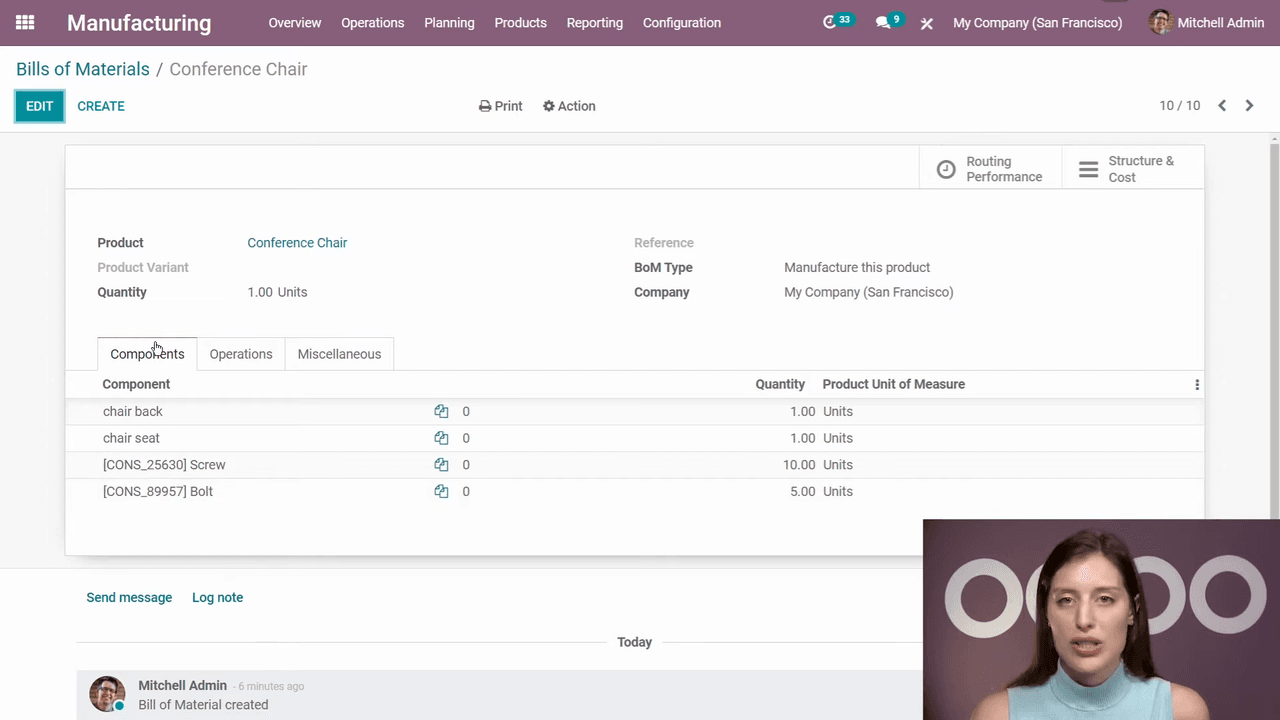
Navigate to Manufacturing > Products > Bills of Materials and open the BoM for the product you want to manufacture (e.g., "Conference Chair").
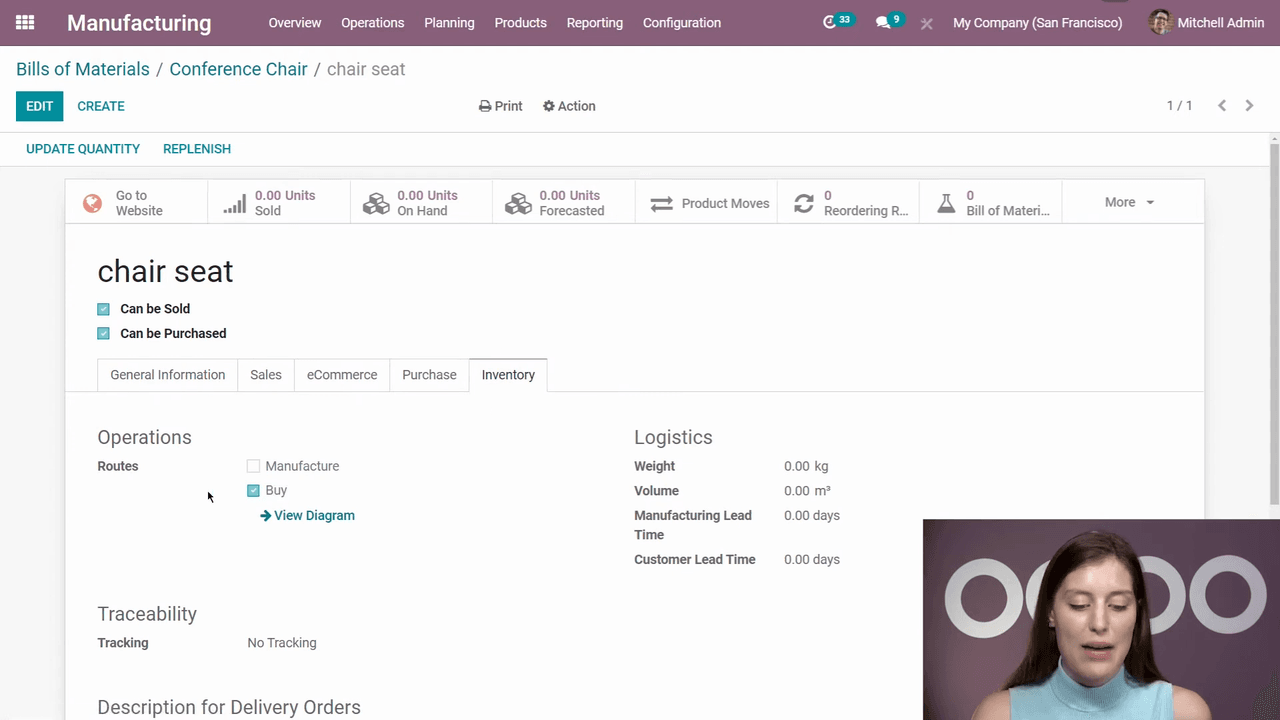
On the product form, go to the Inventory tab and ensure the Manufacture route is selected. This tells Odoo that this product should be produced rather than purchased.
For each component in your BoM that you buy from a vendor:
This ensures Odoo knows where to source each component when a purchase order is generated.
Reordering rules tell Odoo how many units to order when stock runs low. For each purchasable component:
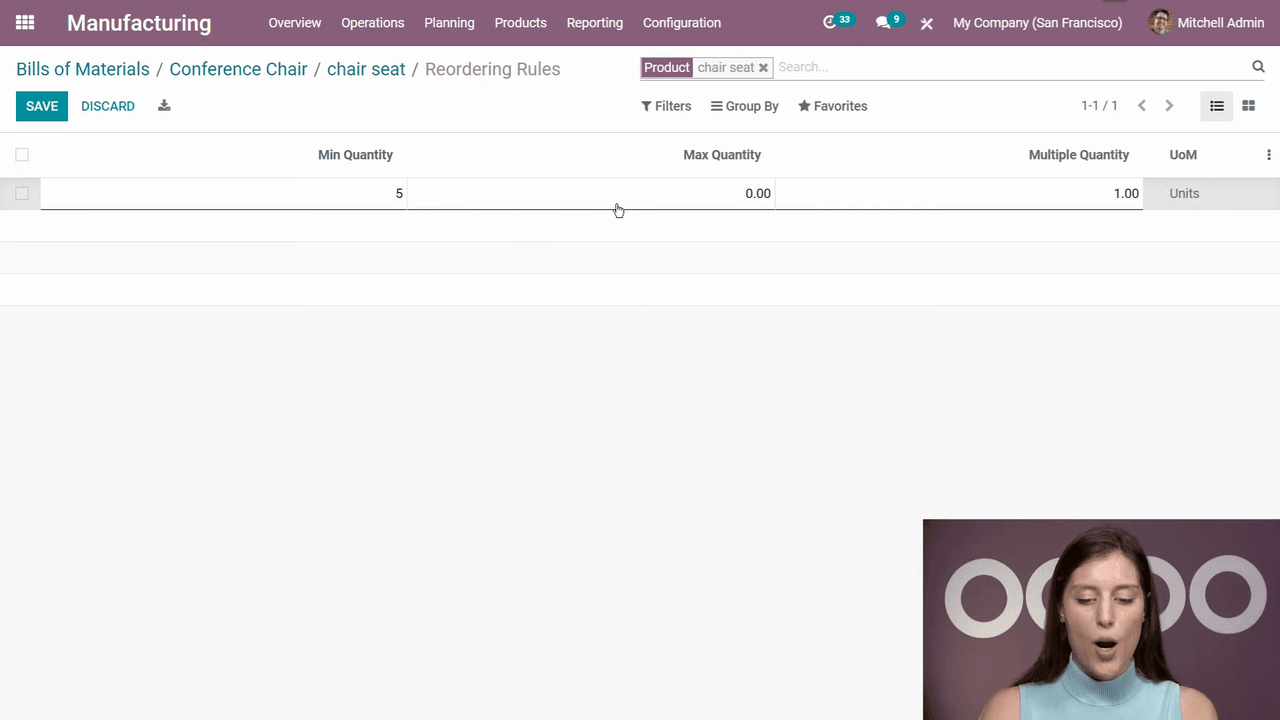
For example, if you set a maximum of 10 and you need 1 unit for a new order, Odoo will order 11 units to bring stock up to the maximum plus the immediate demand.
Go to the Sales application and create a new quotation:
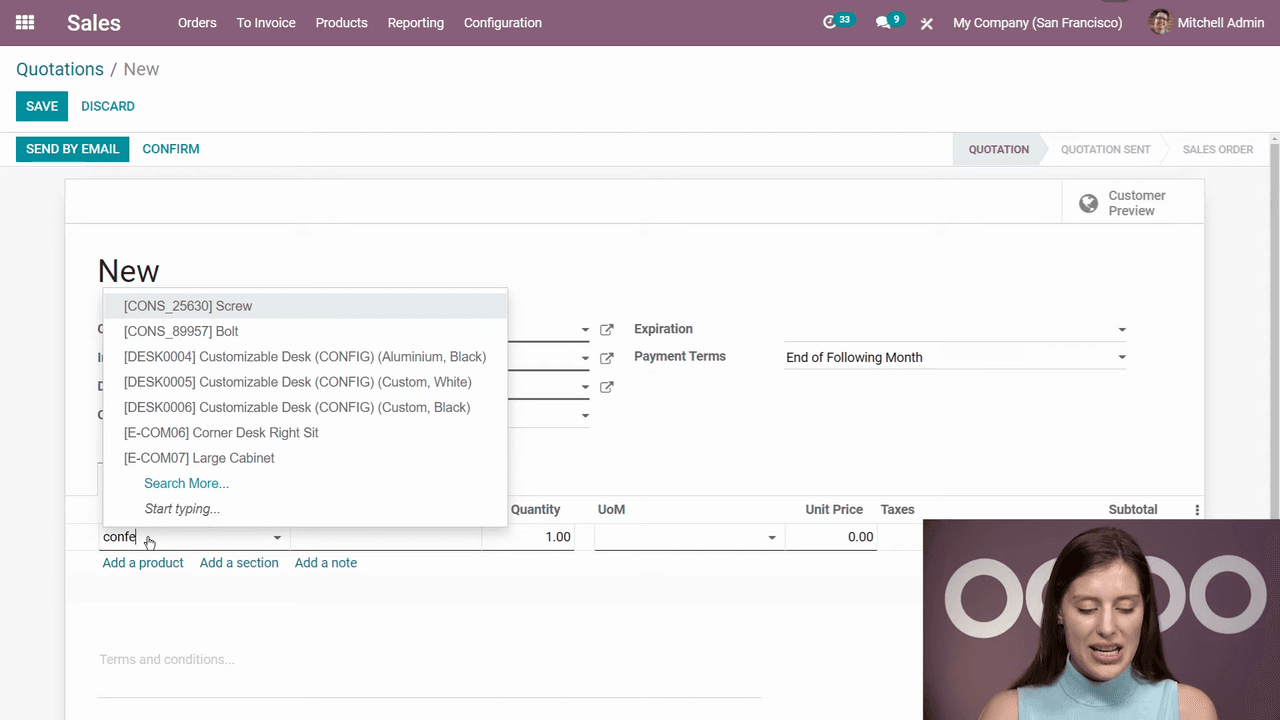
Confirming the quotation turns it into a sales order and generates a delivery order. At this point, the delivery will show a Waiting status because the product hasn't been manufactured yet.
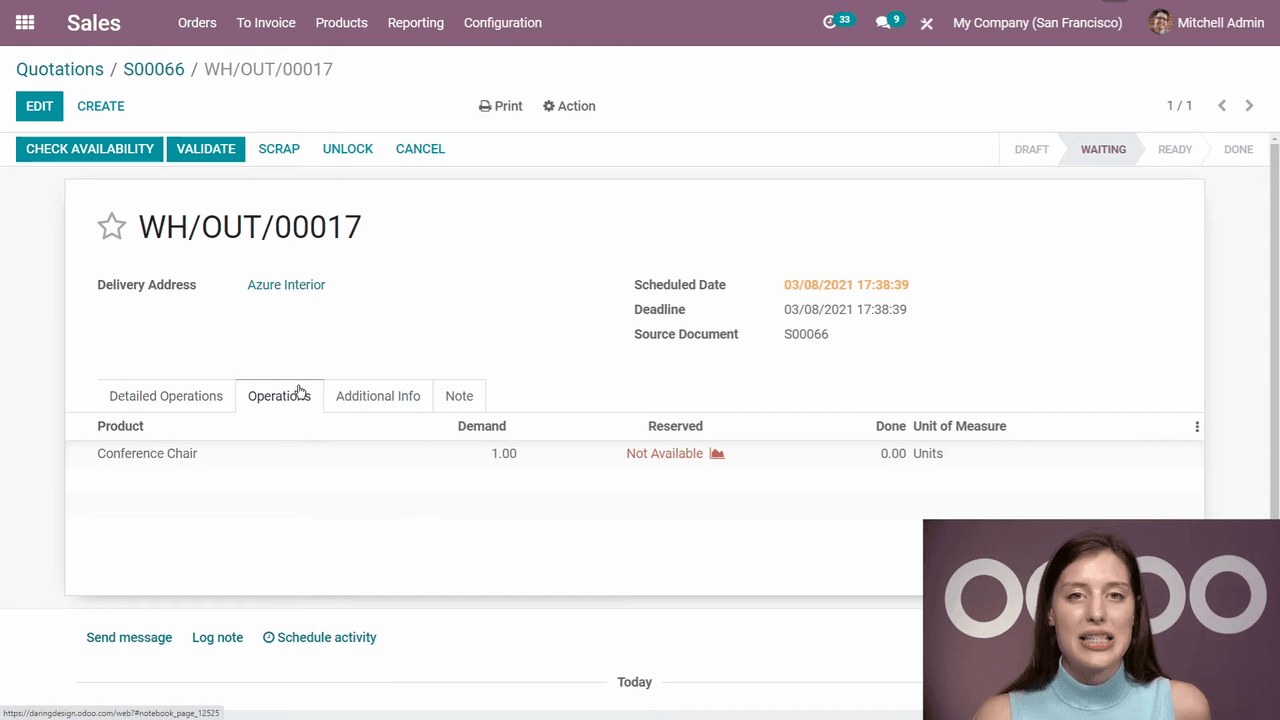
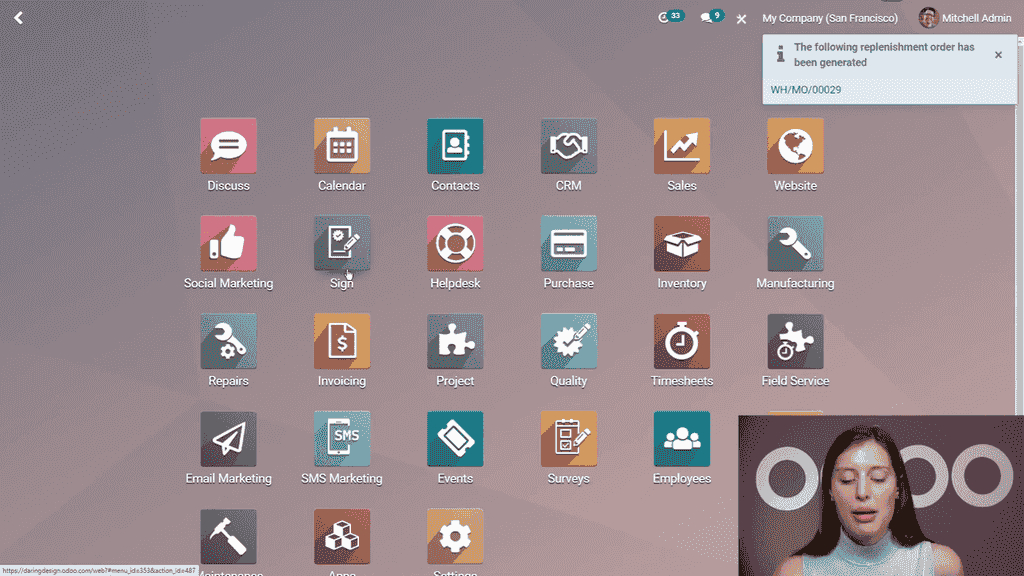
The purchase and manufacturing orders don't appear automatically from the sales order alone. You need to trigger replenishment:
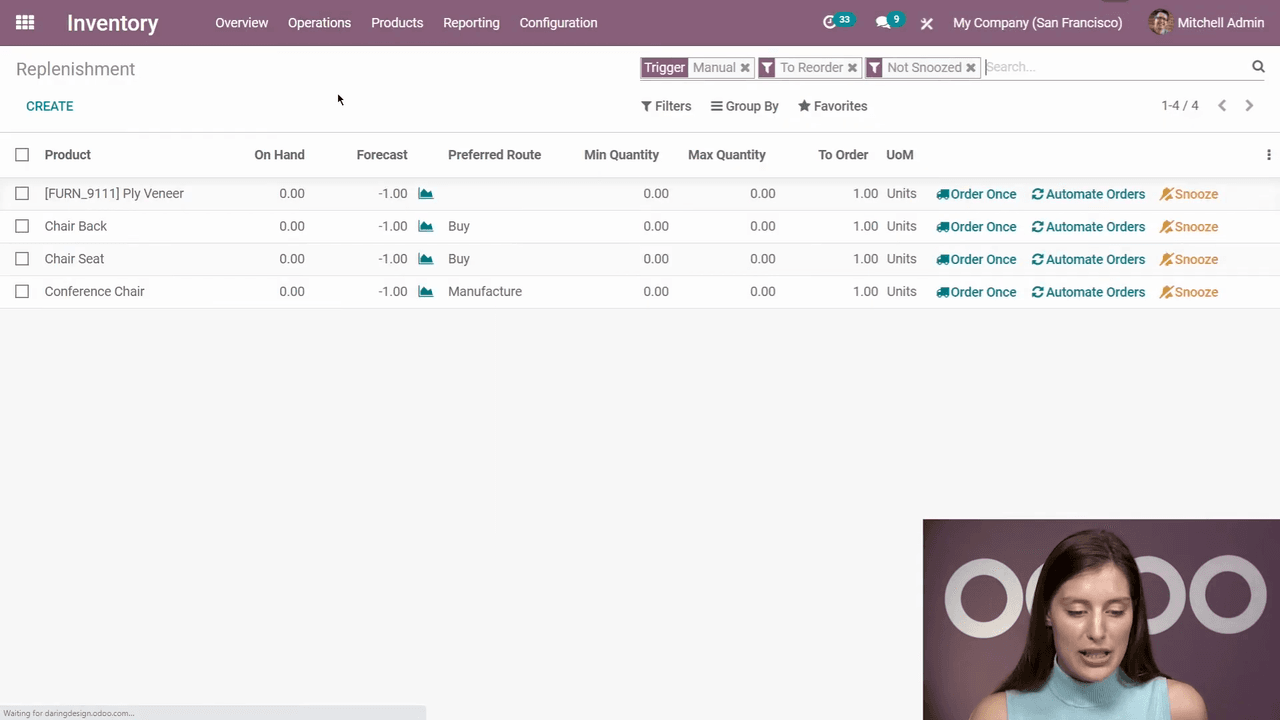
This creates:
Navigate to the Purchase application. You will see a new purchase order linked to your sales order (check the source document reference).
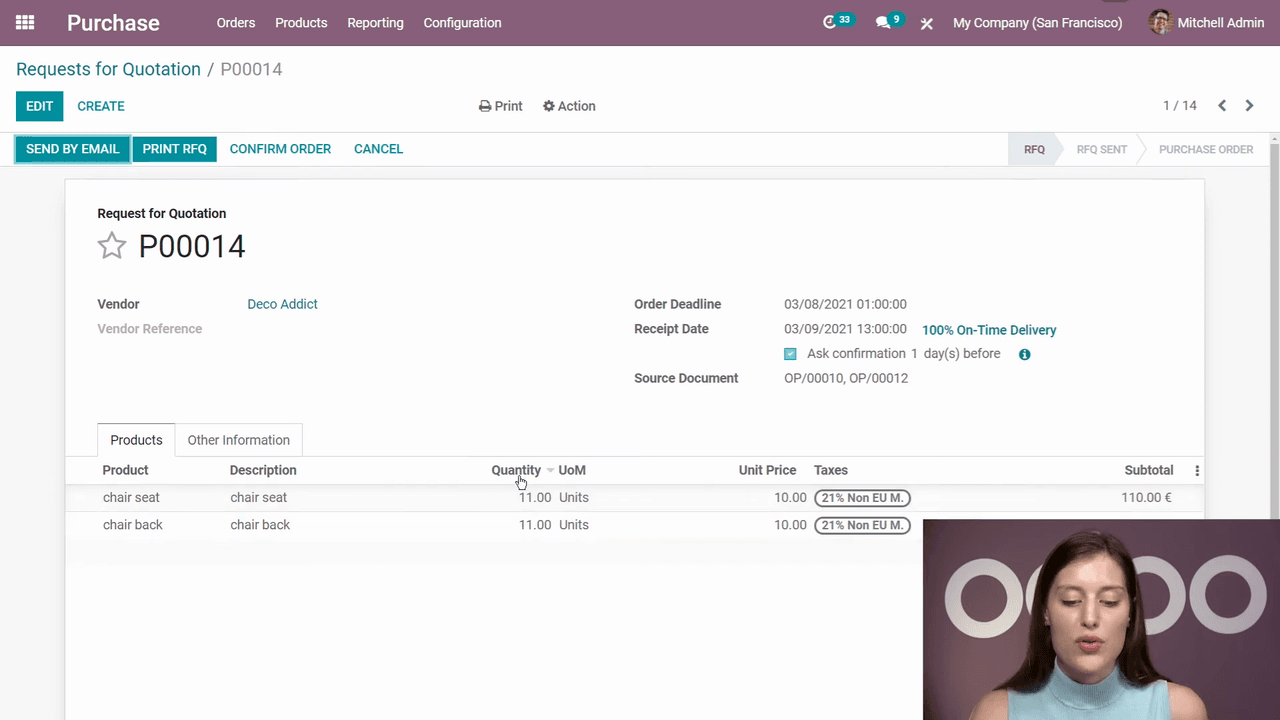
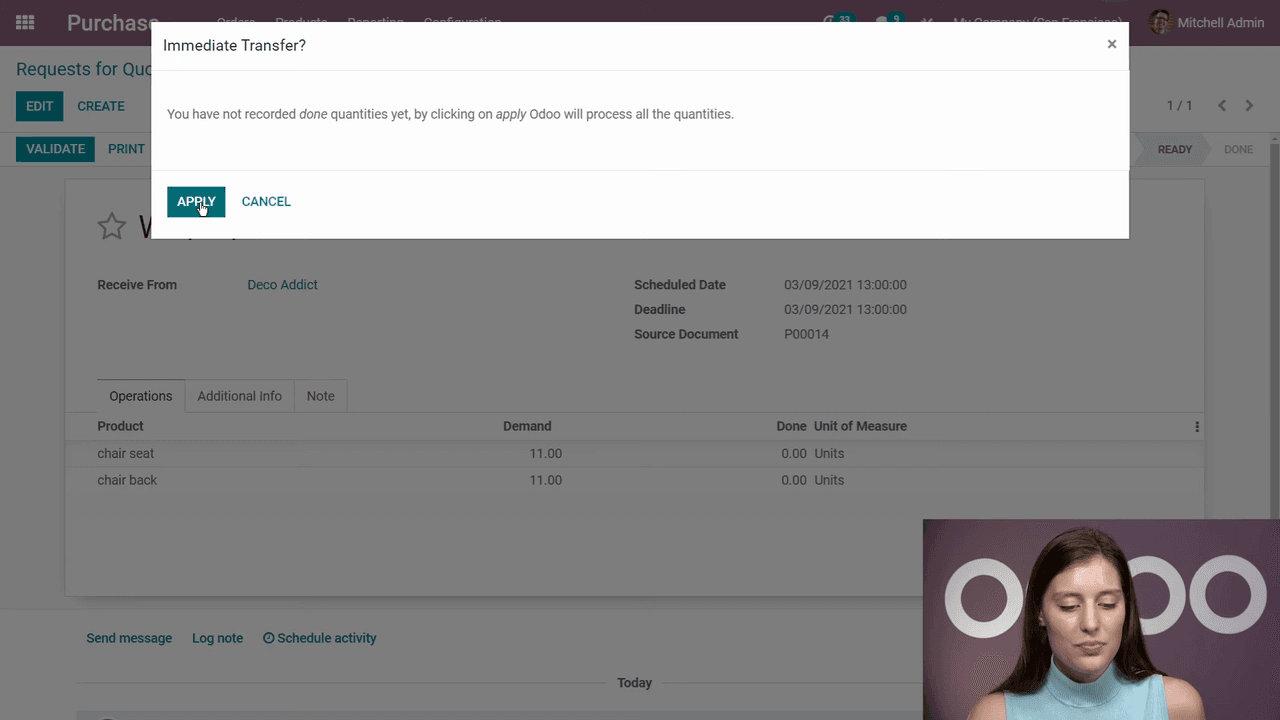
Your components are now in stock and ready for manufacturing.
Go to Manufacturing > Operations > Manufacturing Orders. Your order should show a Ready status since all components are now available.
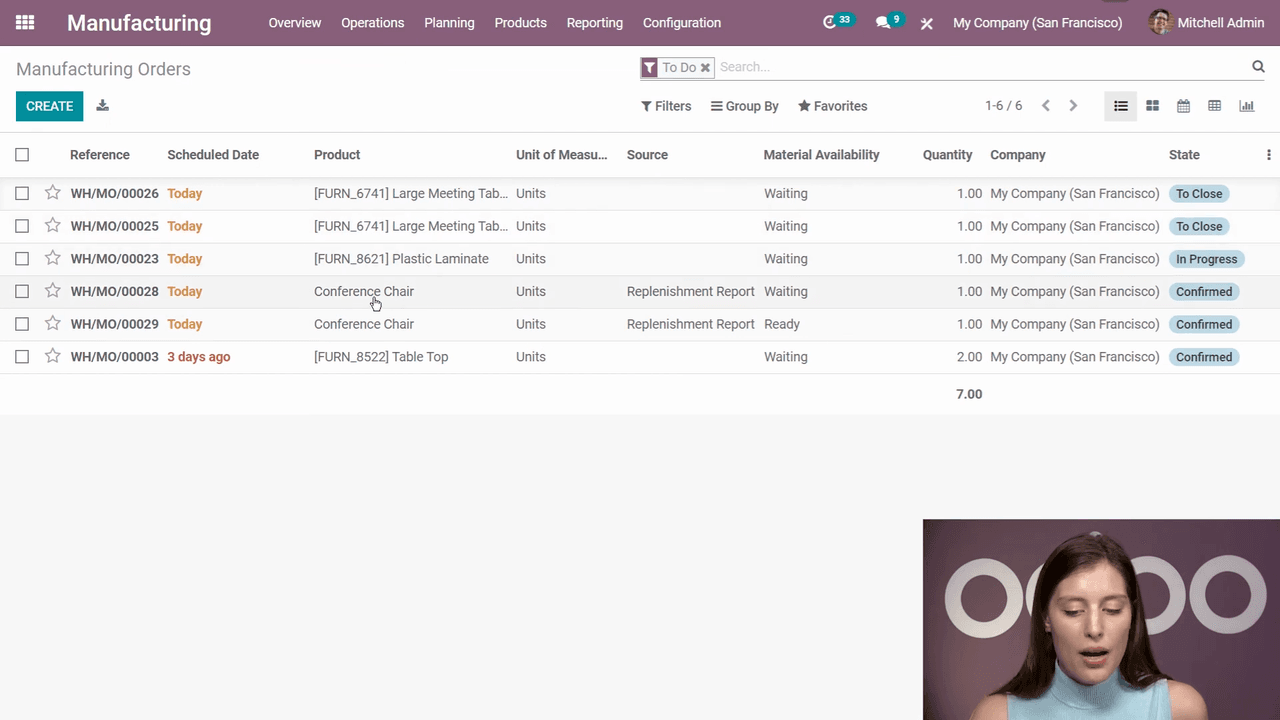
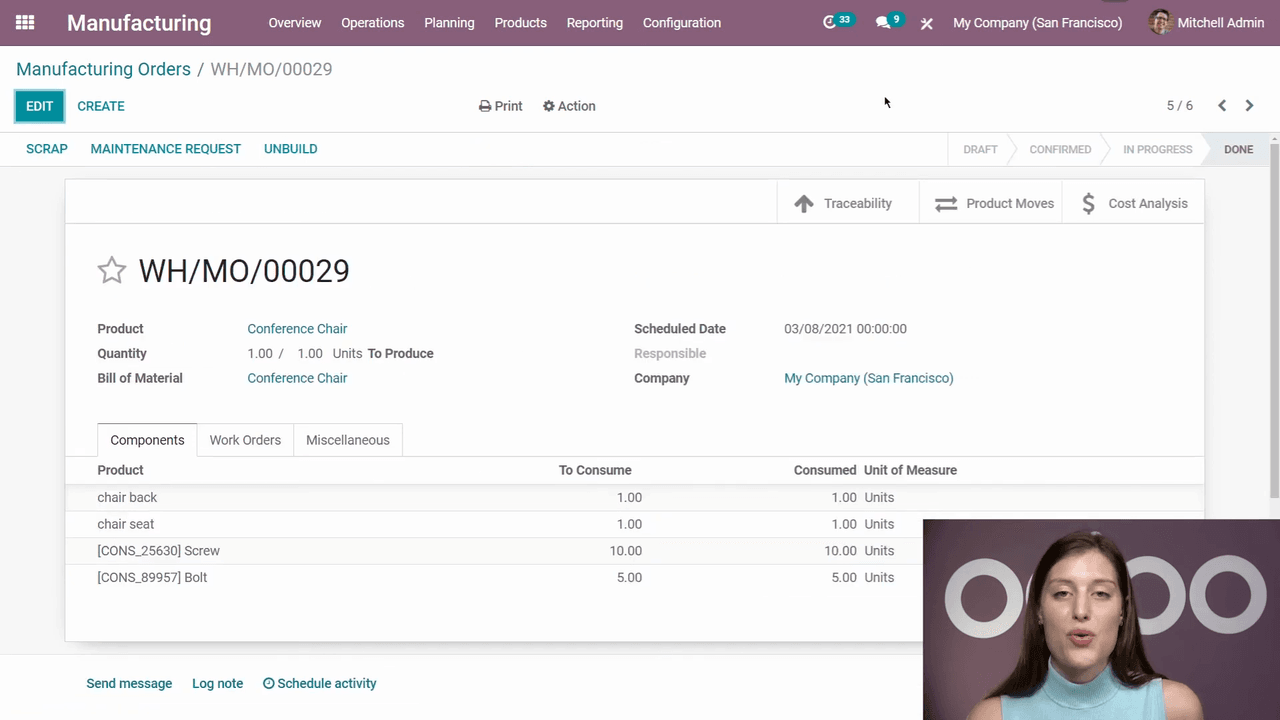
The finished product is now in stock.
Return to the original sales order and open the delivery order. It should now show a Ready status instead of Waiting.
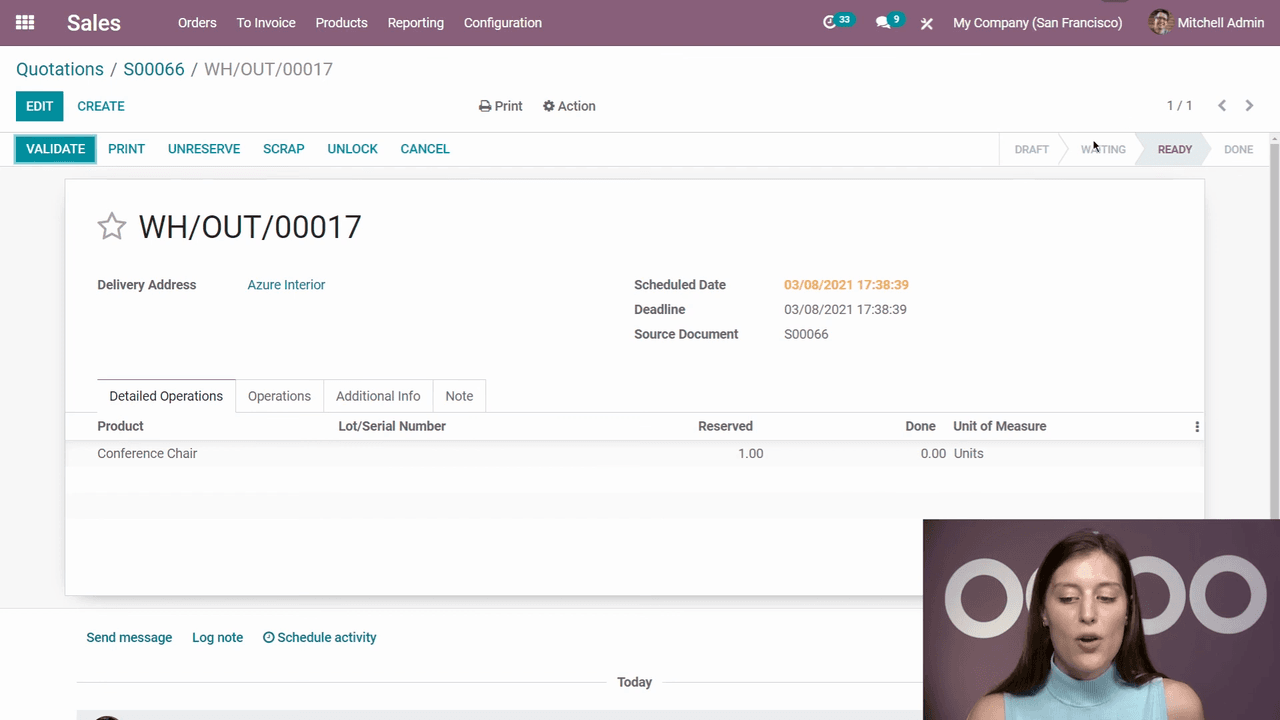
The order is complete and the product has been delivered to your customer.
Here is the complete flow at a glance:
| Step | Application | Action |
|---|---|---|
| 1 | Manufacturing | Set up BoM with Manufacture route |
| 2 | Inventory | Configure Buy route and vendors for components |
| 3 | Inventory | Create reordering rules for components |
| 4 | Sales | Create and confirm sales order |
| 5 | Inventory | Trigger replenishment to generate MO and PO |
| 6 | Purchase | Confirm PO and receive components |
| 7 | Manufacturing | Complete the manufacturing order |
| 8 | Sales | Validate the delivery order |
With this setup, your business can handle any volume of orders for manufactured products without worrying about stock shortages or manual coordination between departments.
Next steps: Consider adding work centers and operations to your BoM for more detailed production tracking, or explore Odoo's MRP scheduling features to plan manufacturing capacity.

Zoo AI is a certified Odoo partner in Hong Kong, delivering expert ERP implementation and AI automation for SMEs. Get in touch to learn more.