

Most teams drown in emails. CC chains get out of control, important messages get buried, and context lives outside the system where work actually happens.
Odoo Discuss solves this by embedding communication directly into your ERP. Every conversation, note, and follow-up lives alongside the records they relate to — sales orders, leads, invoices, and more.
This guide walks you through everything Discuss offers: channels, direct messages, canned responses, activity scheduling, and slash commands.
When you open Discuss, you land on your Inbox. The left panel organises your conversations into three categories:
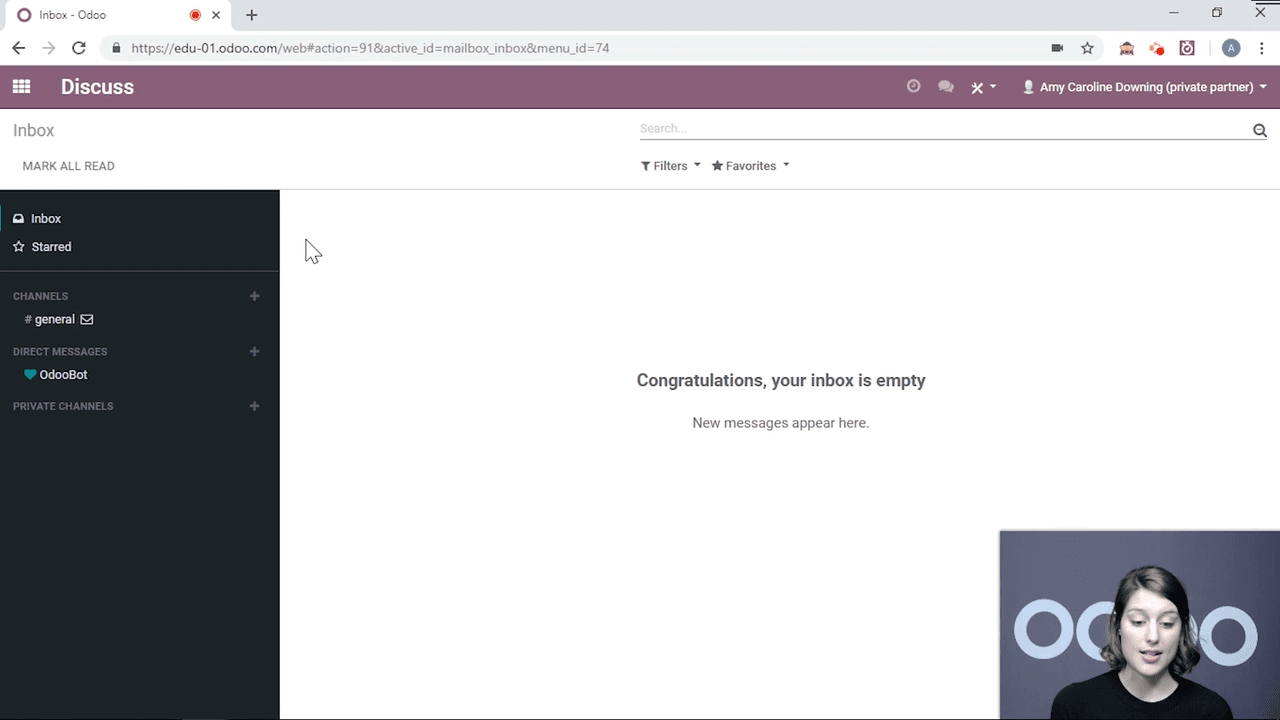
You also have a Starred Messages section for bookmarking important messages.
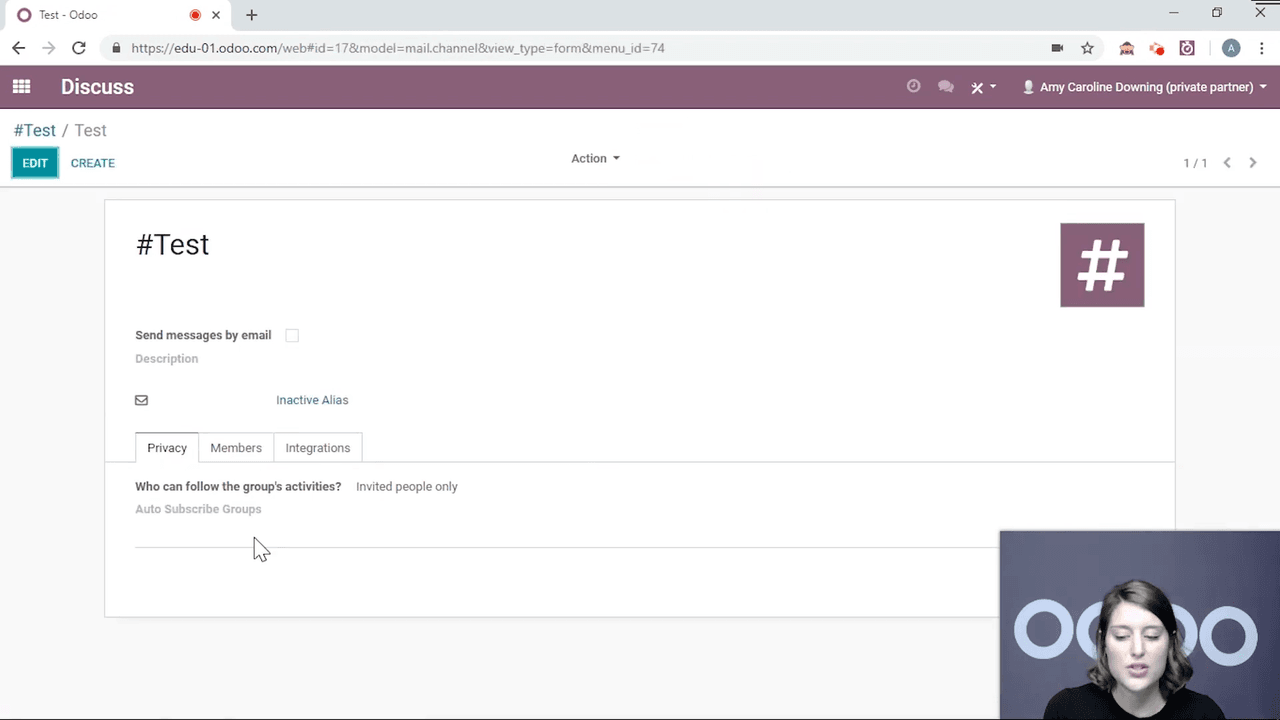
Channels let you group conversations by any criteria — location, project, department, or topic. Every database starts with a #general channel, but you can create as many as you need.
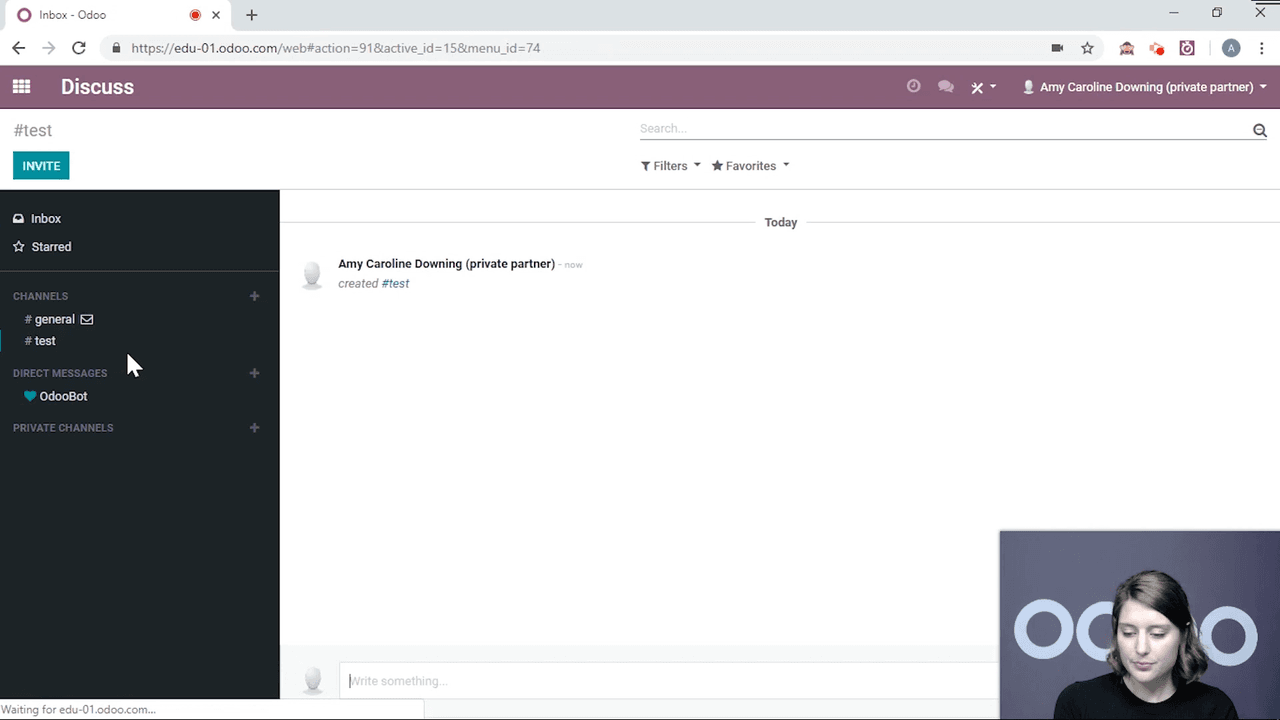
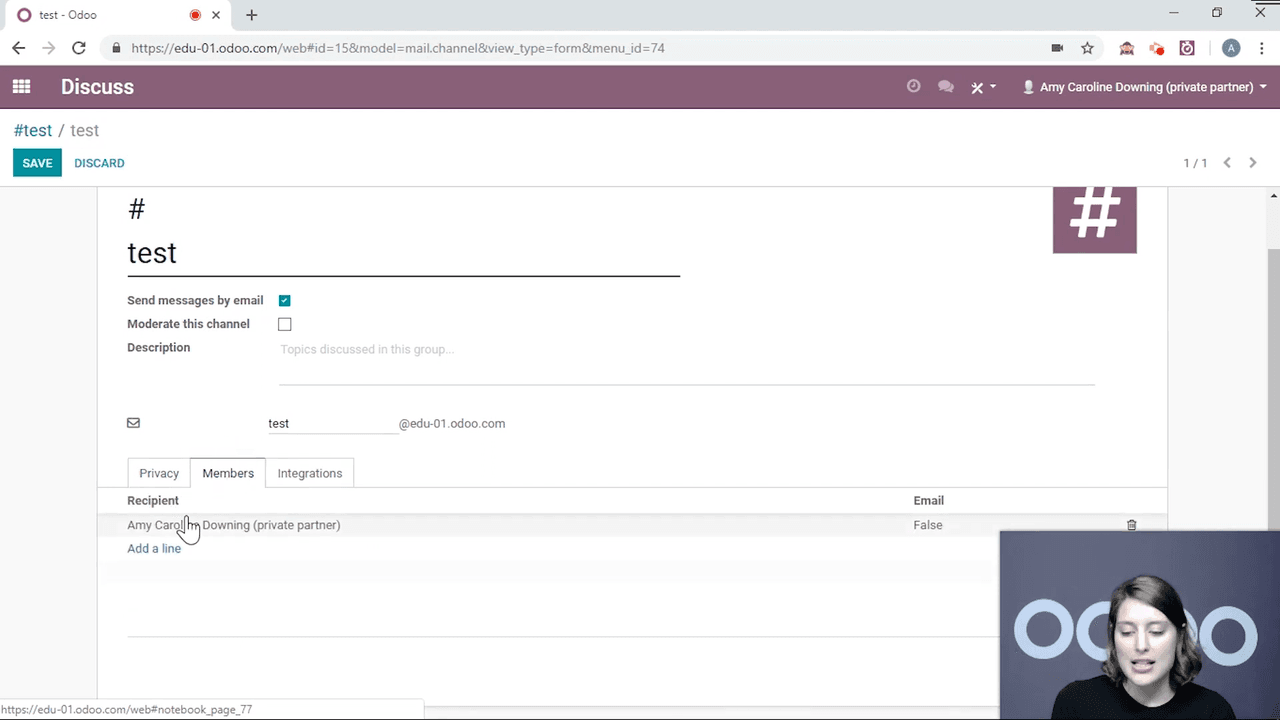
Key configuration options:
test@yourdomain.odoo.com) so external emails land in the channel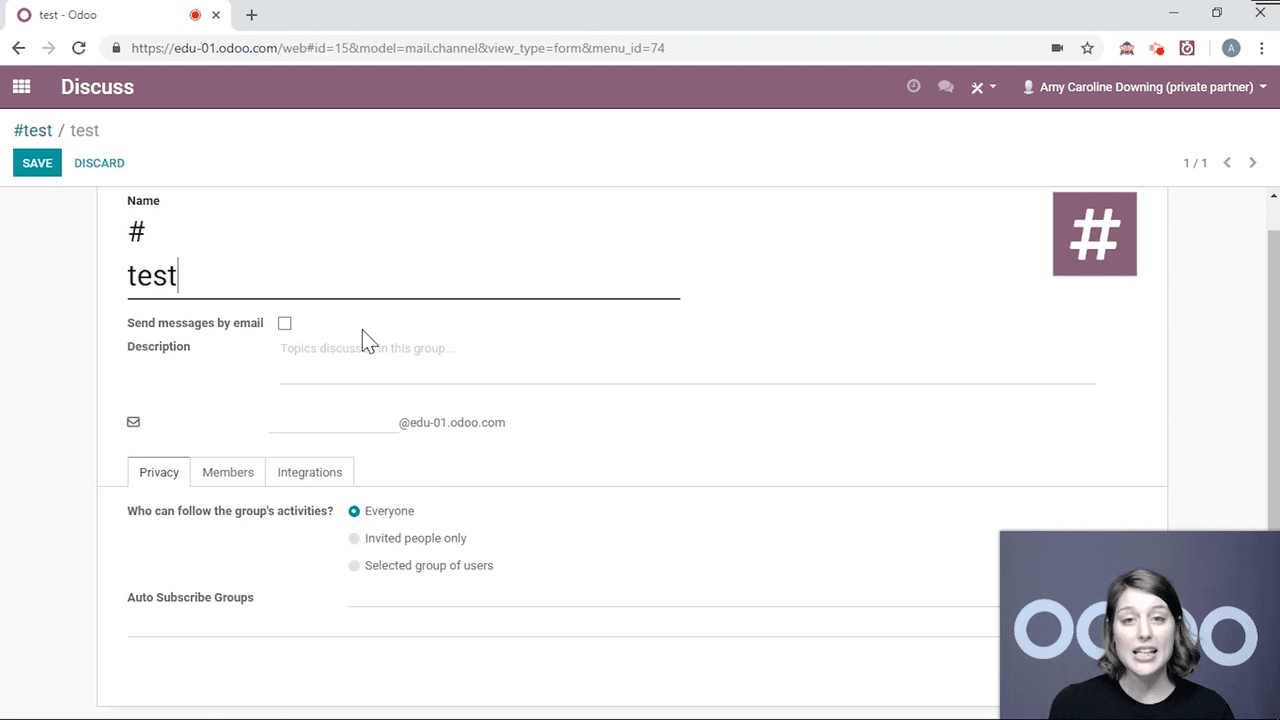
When you restrict a channel to a user group, members of that group are automatically added.
For one-on-one conversations, use Direct Messages:
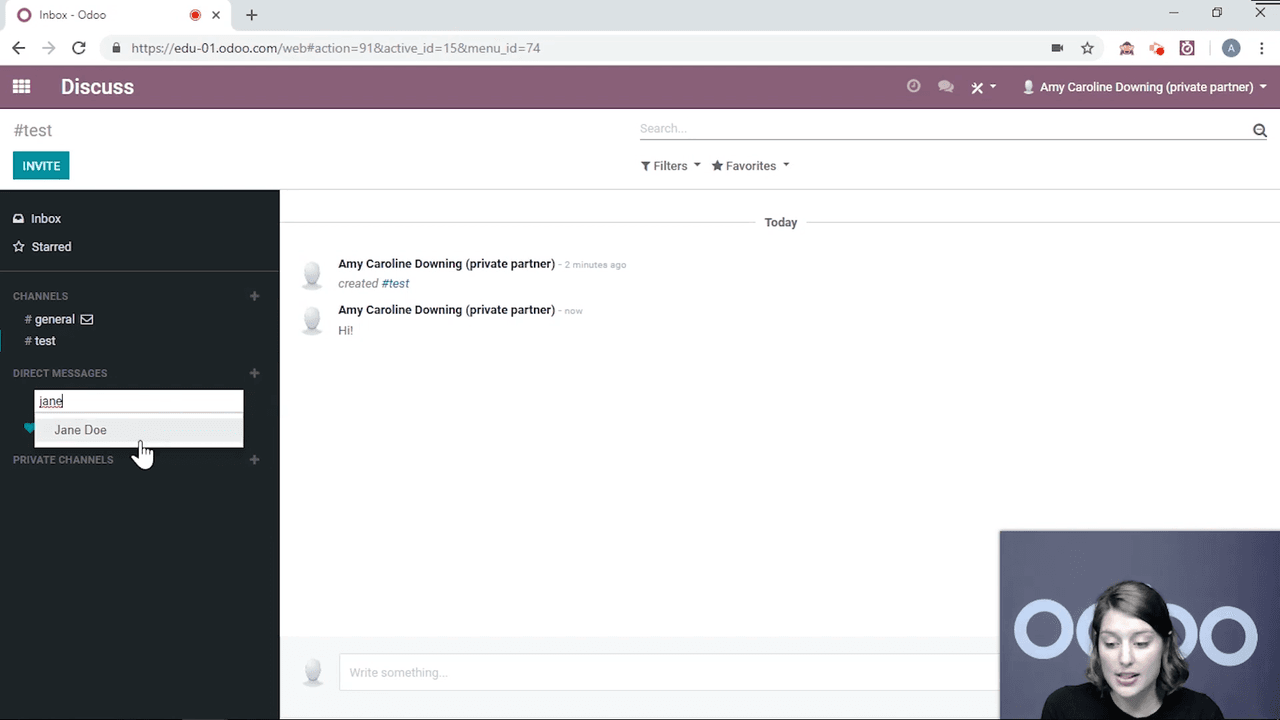
Direct messages persist even if you archive them. Clicking the X removes the conversation from your sidebar, but reopening it restores the full history.
When someone messages you while you are working in another Odoo app, the conversation pops up as a bottom panel on your screen. If the conversation is already open, it blinks to notify you. The panel stays open as you navigate between apps until you close it.
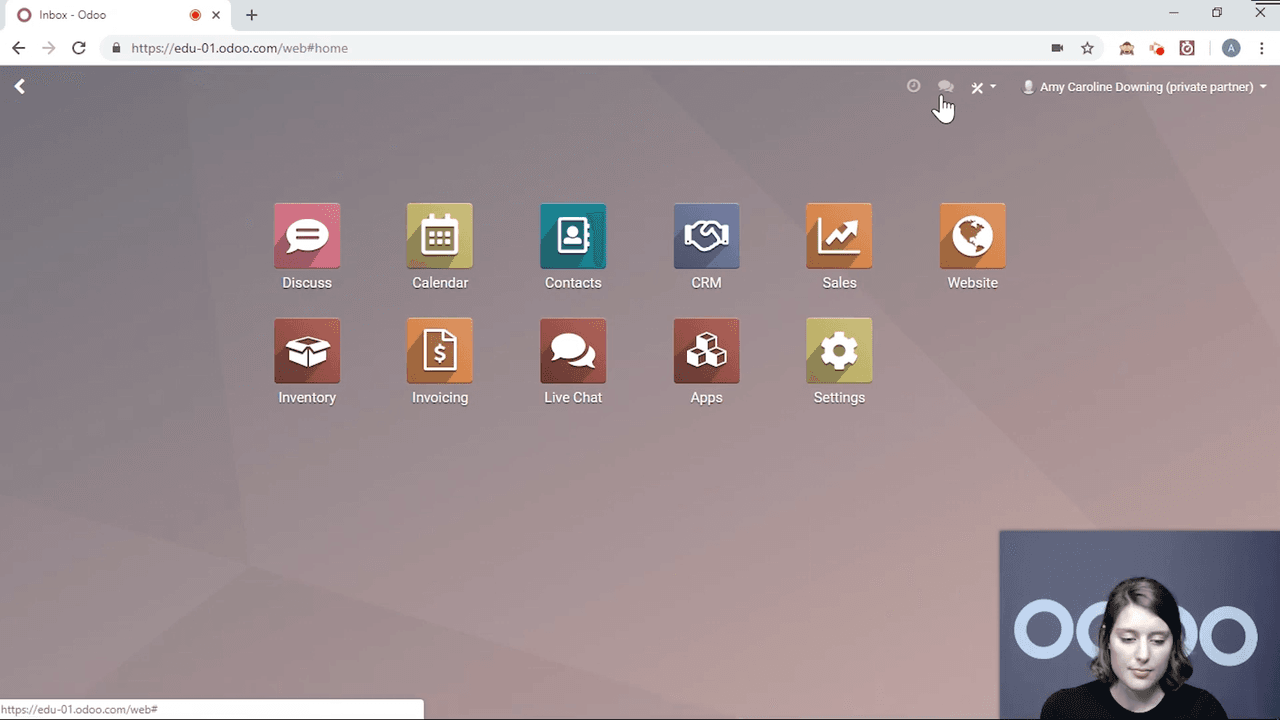
You can also access all open conversations from the conversations tab in the top navigation bar.
Private channels work like regular channels but with fewer configuration options. They are designed for conversations that should only be visible to specific people, without the option to make them public.
One of Discuss's most powerful features is the chatter — the communication panel attached to every record (sales orders, invoices, contacts, etc.). You'll find it at the bottom of each record, or on the right side on larger screens.
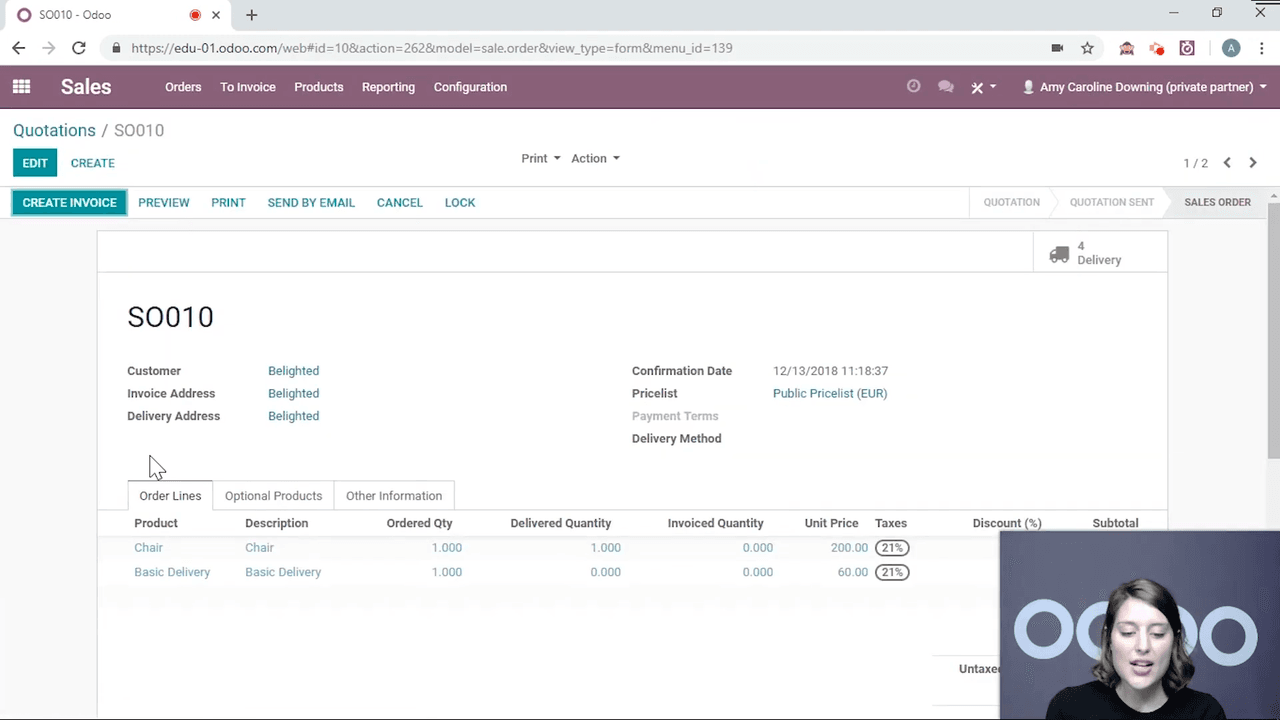
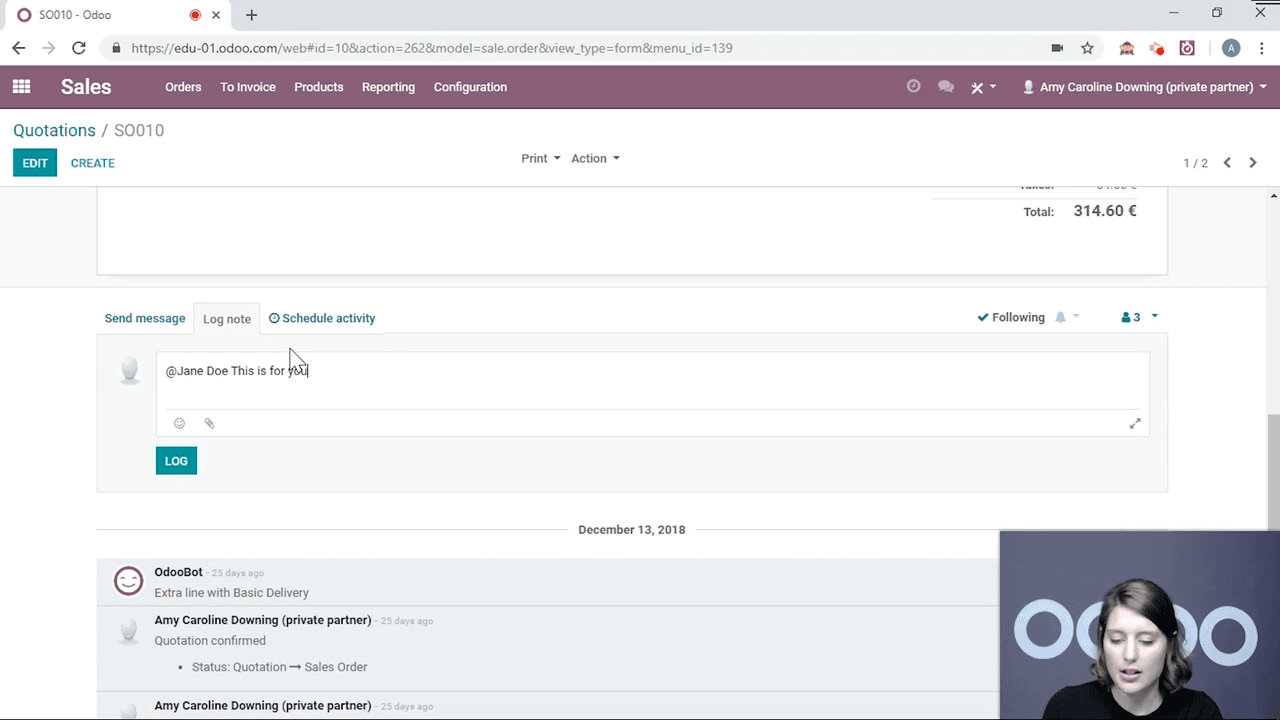
Use Log Note to leave internal comments on a record. You can tag colleagues using @mention:
From the chatter, you can schedule follow-up activities:
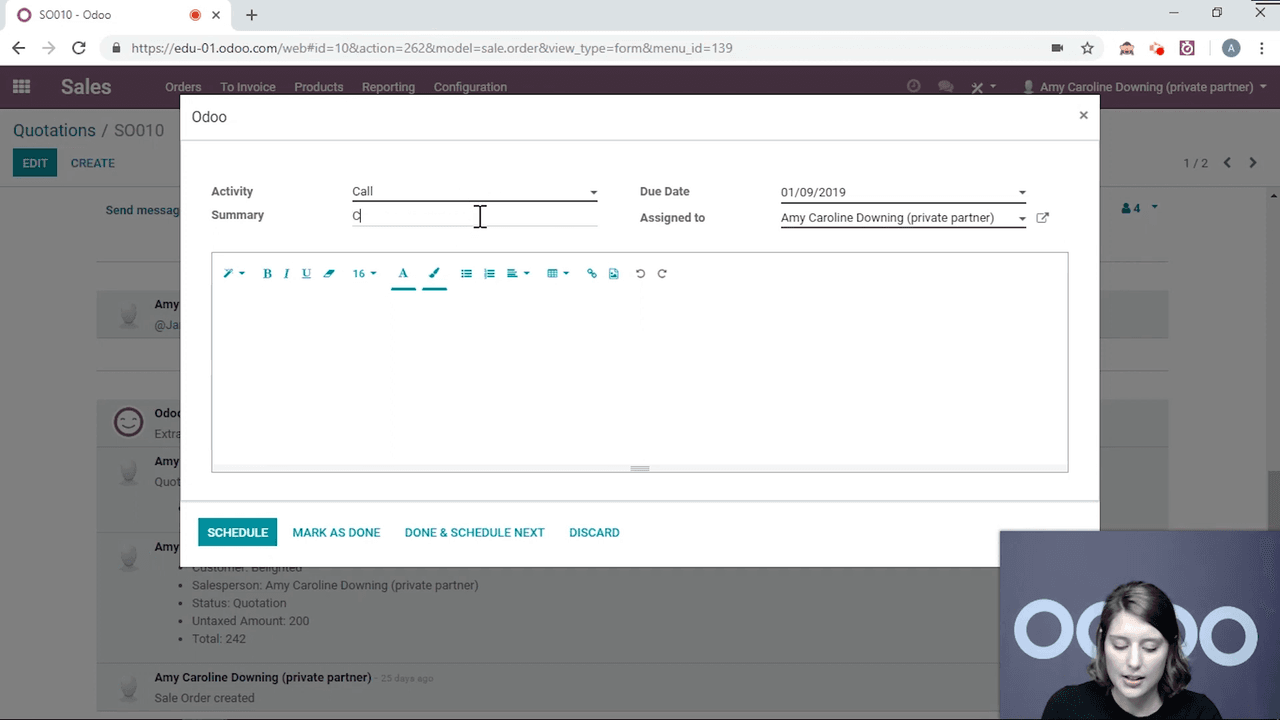
Once scheduled, you can mark it as done, edit it, or cancel it directly from the record.
Canned responses are pre-written message templates triggered by shortcuts. In current Odoo, this feature is managed through the Discuss app and does not require the Live Chat module to be installed; the responses work in Discuss, the chatter, Live Chat, and WhatsApp.
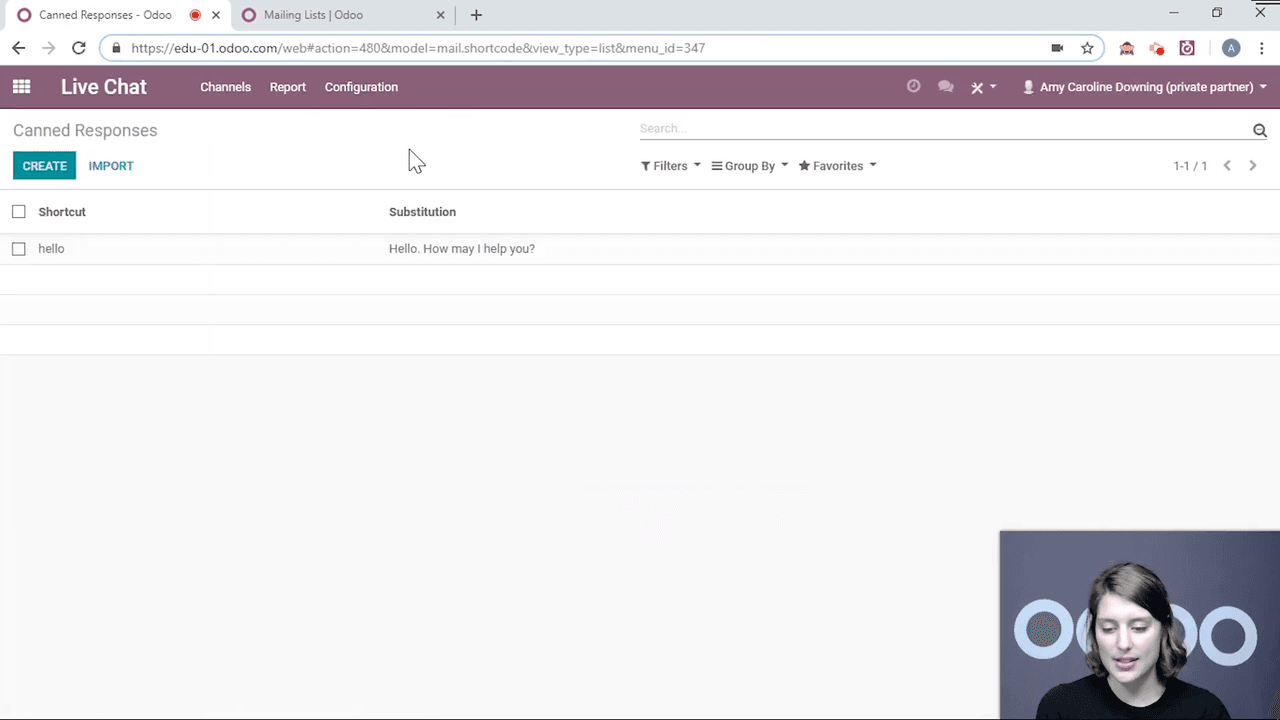
:) in the message field:he matches "hello")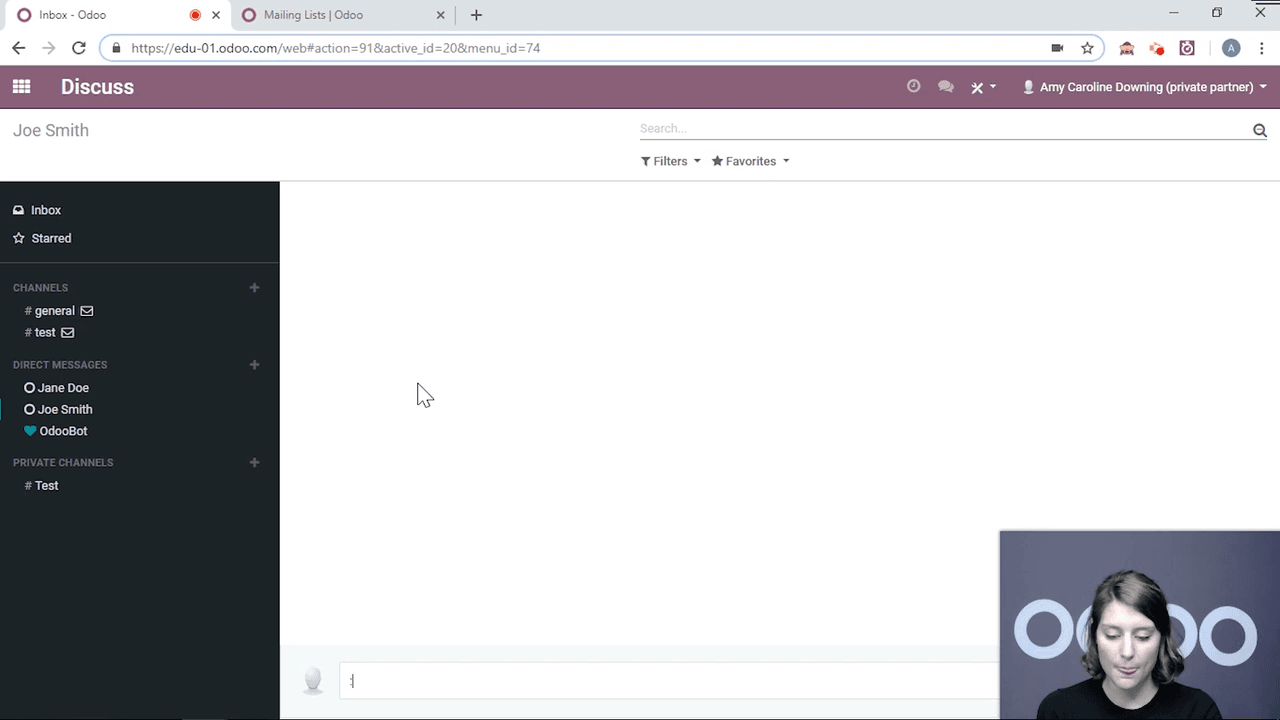
This is especially useful for customer-facing teams who send similar greetings or instructions repeatedly.
Type / in any Discuss message field to access quick commands:
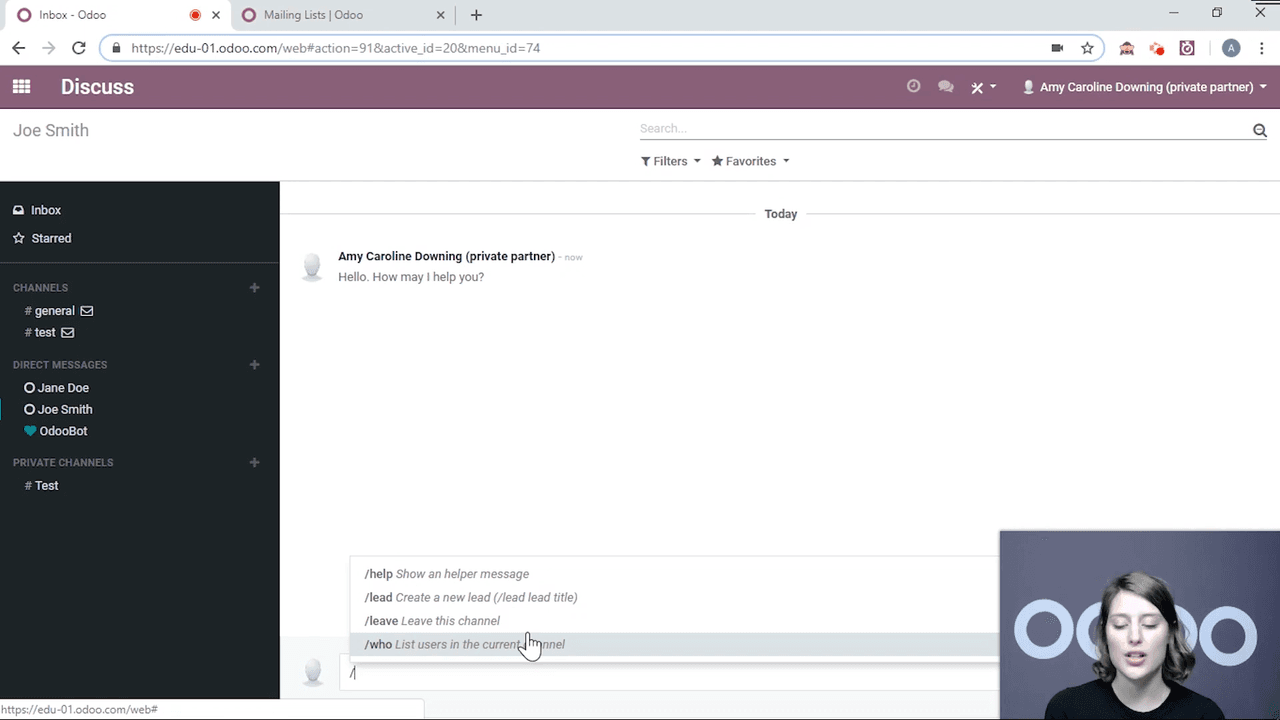
| Command | Action |
|---|---|
/leave | Quickly leave the current channel |
/lead | Create a new CRM lead directly from the conversation |
/help | Display the helper message |
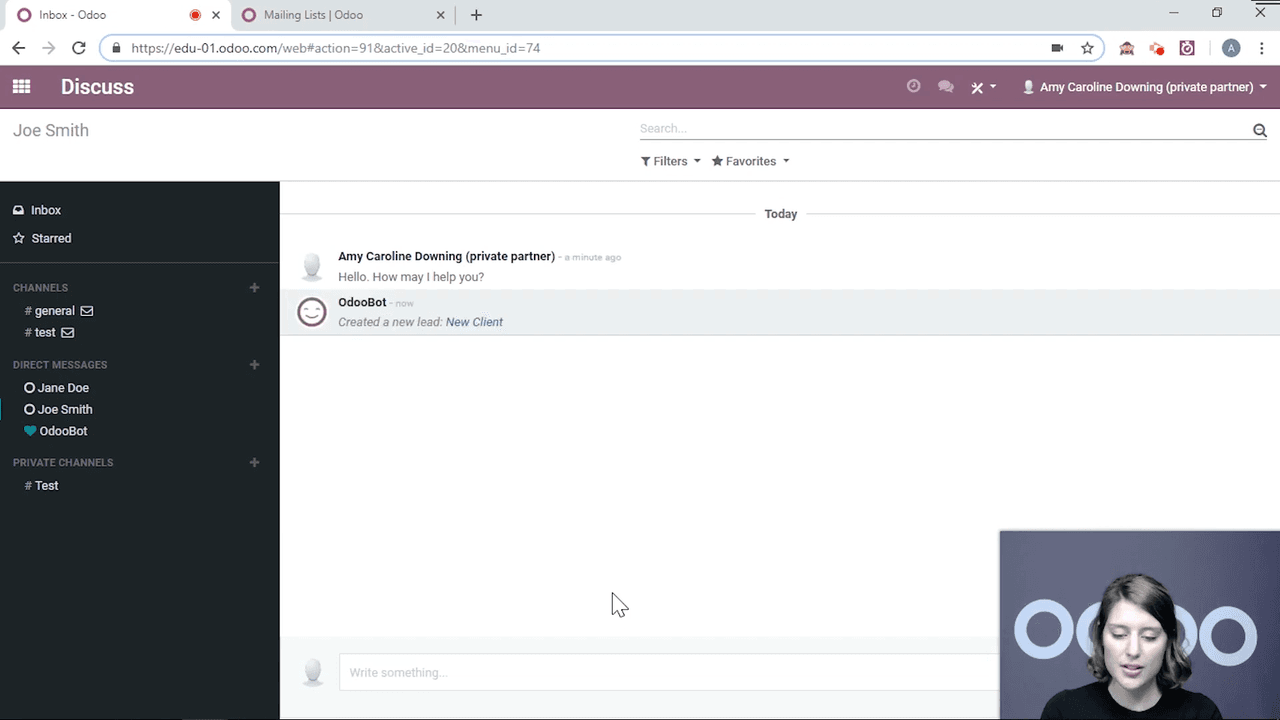
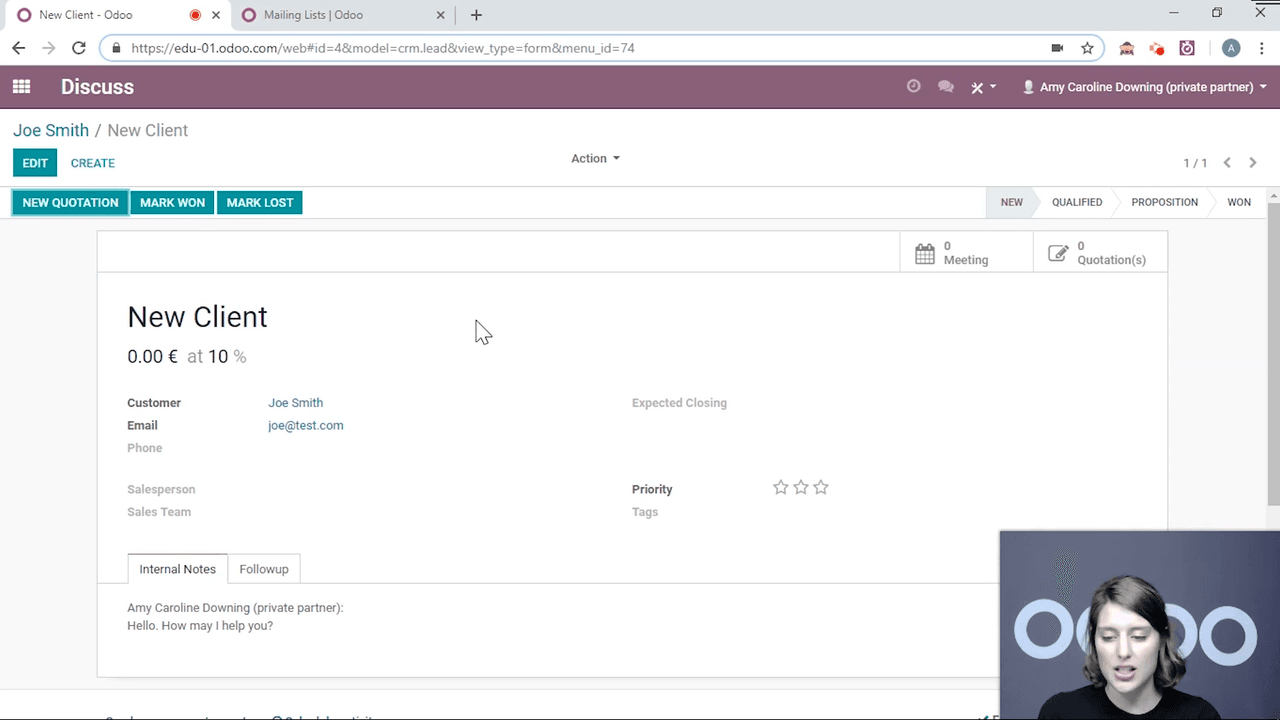
The /lead command is particularly useful for sales teams. Type /lead, enter a title (e.g., "New Client"), and a lead is created in your CRM. A link appears in the chat so you can click through to edit the lead details — contact information, assigned salesperson, follow-up notes — and then navigate back to the conversation with one click.
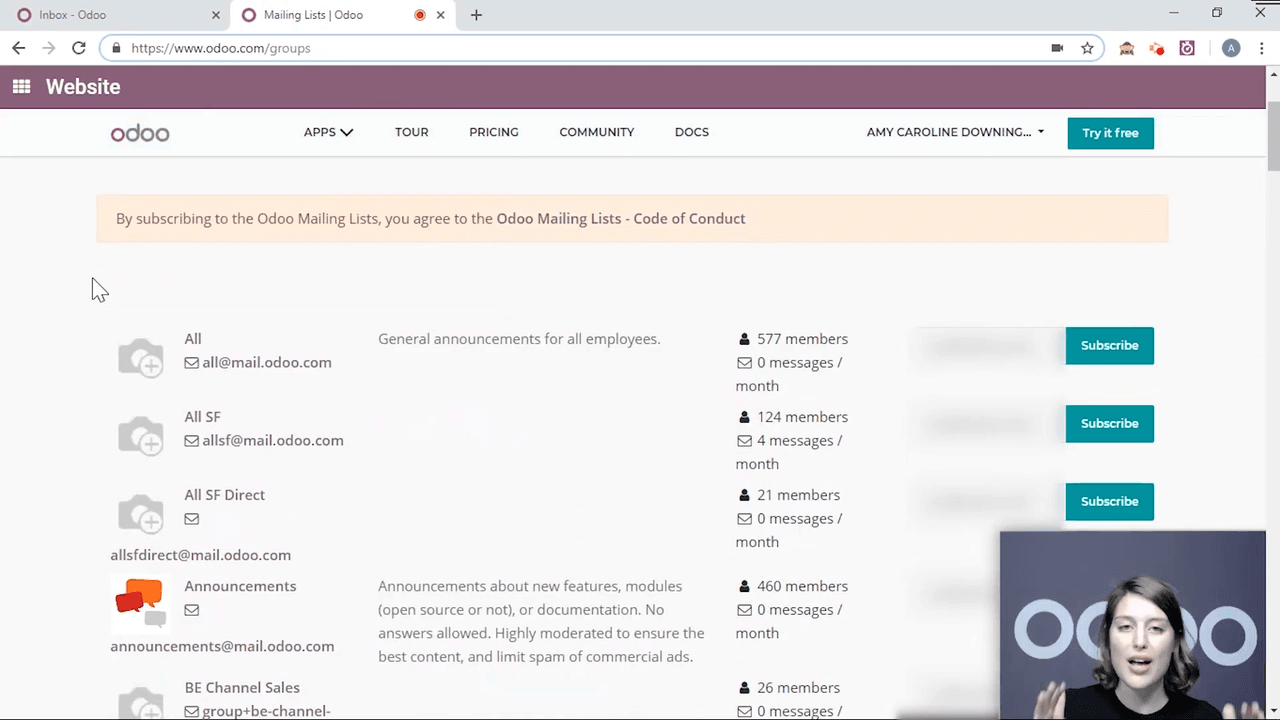
In some cases (depending on your version or plan, this may require the Website module), you can create a page where portal users (customers, vendors) can subscribe or unsubscribe from public channels on their own. This is a self-service feature that reduces administrative overhead.
Odoo Discuss works best when your team commits to using it instead of email for internal communication. Start with these steps:
The result is fewer emails, better context, and a communication trail that lives where your work happens.

Zoo AI is a certified Odoo partner in Hong Kong, delivering expert ERP implementation and AI automation for SMEs. Get in touch to learn more.