How to Issue a Credit Note in Odoo Accounting

How to Issue a Credit Note in Odoo Accounting

Yannis, Odoo Expert
5 min read

Table of Contents

When a customer receives damaged goods or returns a product, you need a clean way to adjust the amount they owe. In Odoo Accounting, credit notes handle this directly from the original invoice, keeping your books accurate and your customers informed.

This guide walks you through issuing credit notes in Odoo, from configuration to reconciliation.

What Is a Credit Note

A credit note is a document that reduces the amount a customer owes you. The most common reasons to issue one include:

  • A customer received a damaged product
  • A customer wants to return goods
  • A pricing error on the original invoice
  • A negotiated discount after invoicing

Rather than deleting or modifying the original invoice, a credit note creates a separate accounting entry that offsets part or all of the original amount.

Credit Note Journal Entry Logic

A credit note is essentially the reverse of an invoice. Where an invoice debits Accounts Receivable and credits an Income account, a credit note does the opposite:

EntryAccountDebitCredit
InvoiceAccounts ReceivableX
InvoiceIncomeX
Credit NoteIncomeX
Credit NoteAccounts ReceivableX

This reversal ensures that your revenue and receivables both decrease by the credited amount.

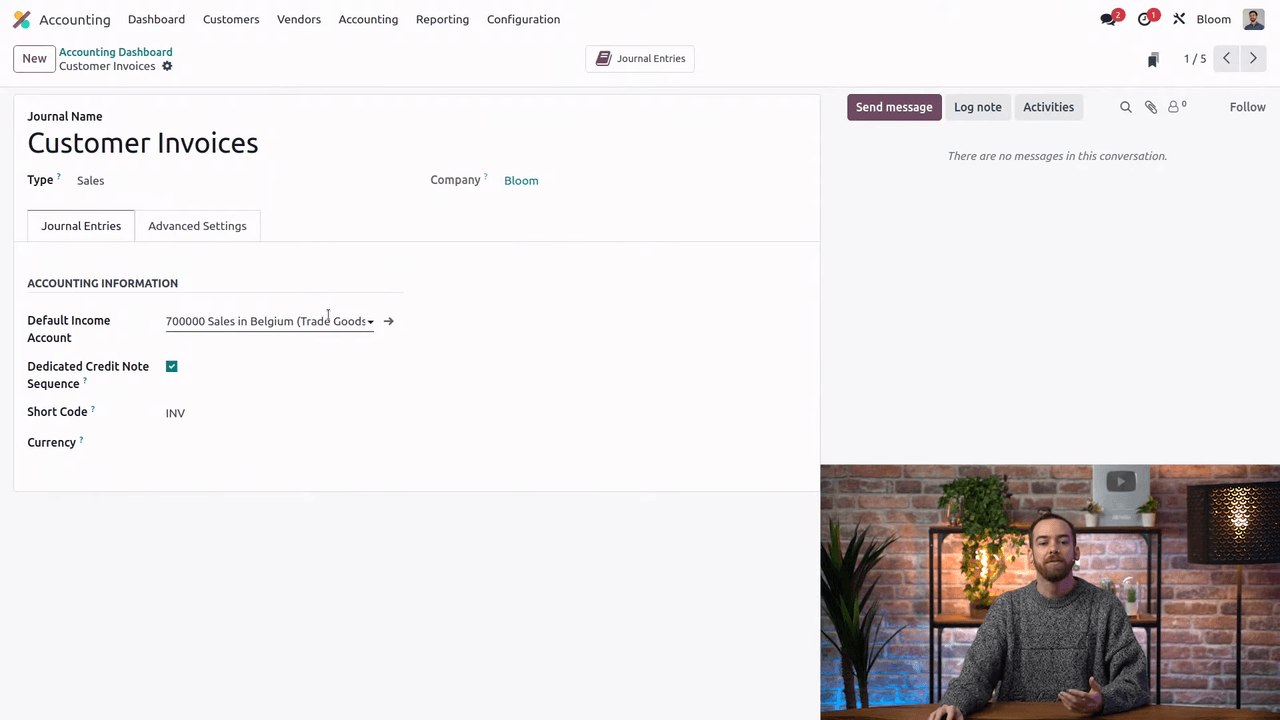
Setting Up a Dedicated Credit Note Sequence

By default, credit notes share the same numbering sequence as invoices. You can separate them for clearer record-keeping.
  1. Open the Accounting app
  2. Go to Configuration and open your Sales Journal

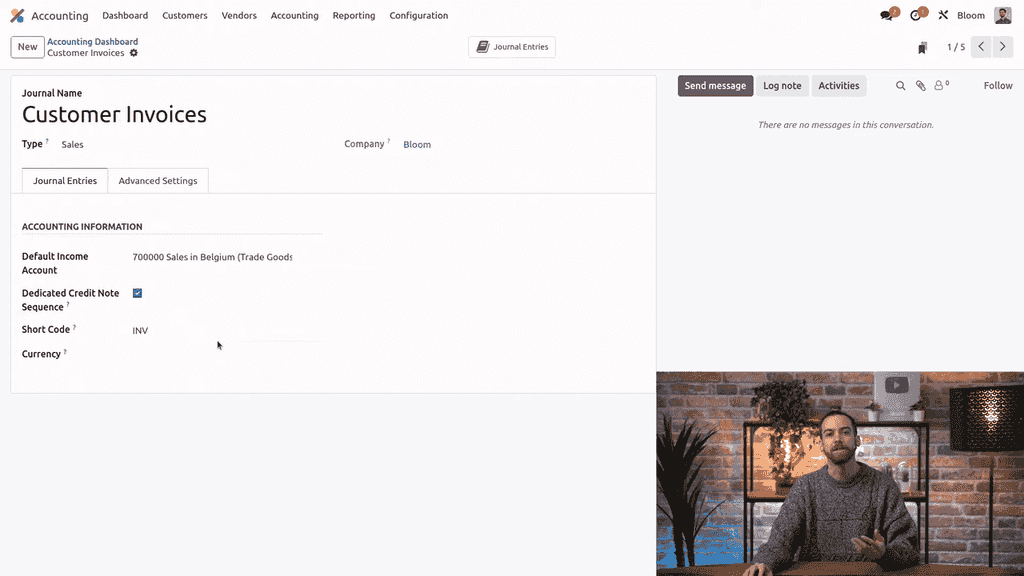
Sales Journal configuration showing the Dedicated Credit Note Sequence option

  1. Enable the Dedicated Credit Note Sequence option
  2. Odoo adds an "R" prefix to the journal short code for credit notes (e.g., RINV instead of INV)

Short code showing RINV prefix for credit notes

This separation makes it easy to distinguish credit notes from invoices at a glance in reports and lists.

Step-by-Step: Issue a Credit Note from an Invoice

While you can create credit notes from the Customers > Credit Notes menu, issuing one directly from the original invoice is faster and pre-fills the correct journal.
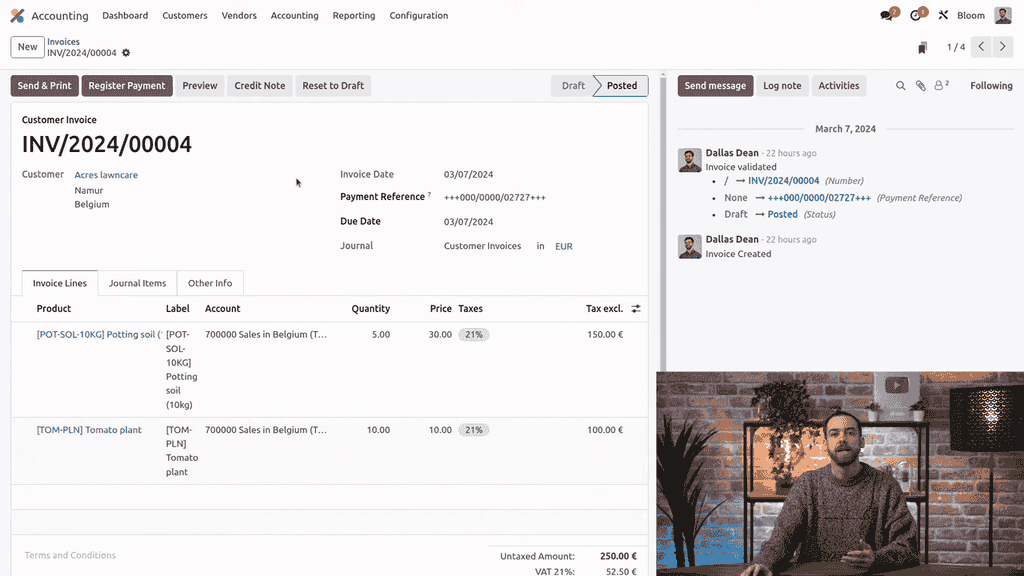
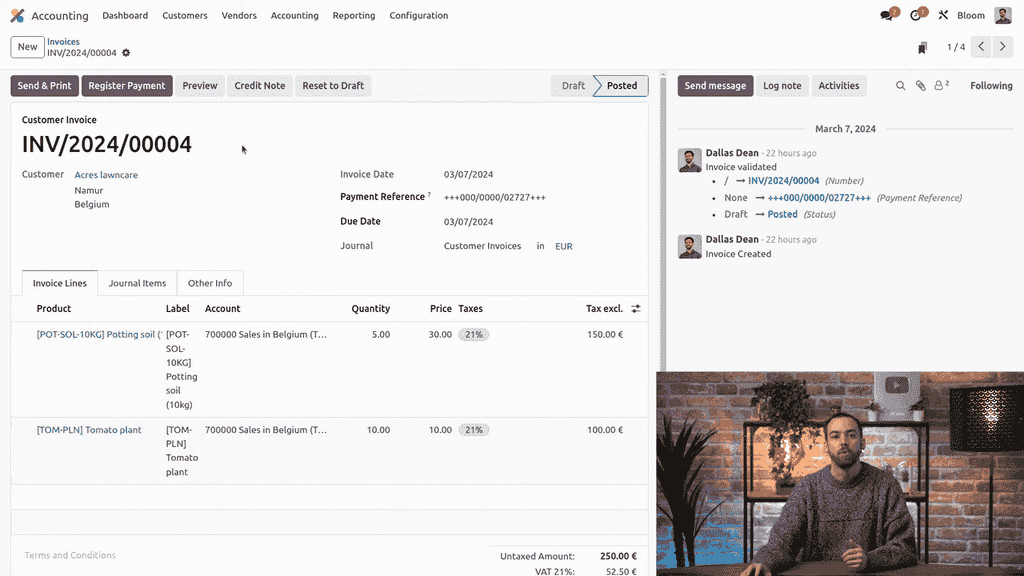
  1. Open the Accounting app and navigate to the posted invoice

Posted invoice showing unpaid status

  1. Click the Credit Note button on the invoice

Credit Note button on the invoice form

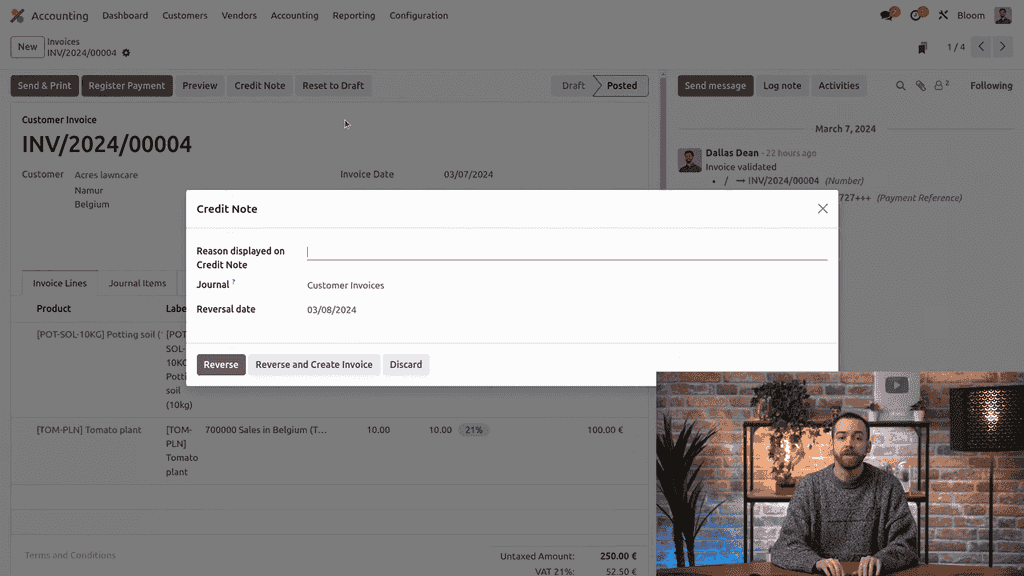
  1. Fill in the details:
    • Reason: Enter a description (e.g., "Damaged goods")
    • Journal: Pre-filled with the same journal as the invoice
    • Reversal Date: Defaults to today; adjust if needed

Credit note dialog with reason, journal, and reversal date fields

  1. Choose your reversal method (see next section)
  2. Click Reverse
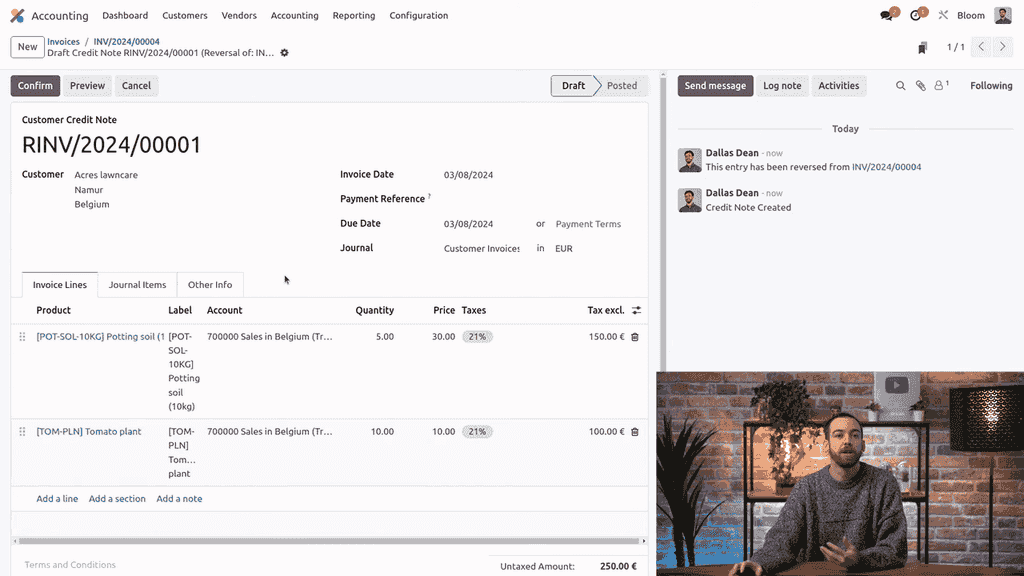
  3. A draft credit note opens with all original invoice lines

Draft credit note with all invoice lines

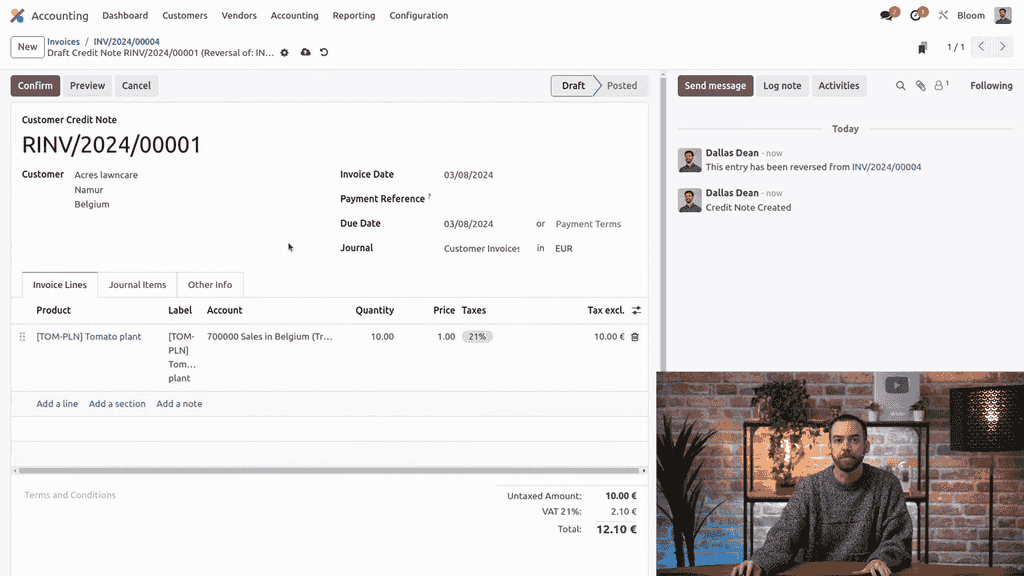
  1. Remove or adjust lines to reflect only the items being credited

Credit note with only the damaged item remaining

  1. Click Confirm to post the credit note

For example, if a customer ordered multiple products but only one arrived damaged, remove all lines except the damaged item. This creates a partial credit note for just that amount.

Reverse vs Reverse and Create Invoice

When issuing a credit note, Odoo offers two reversal methods:
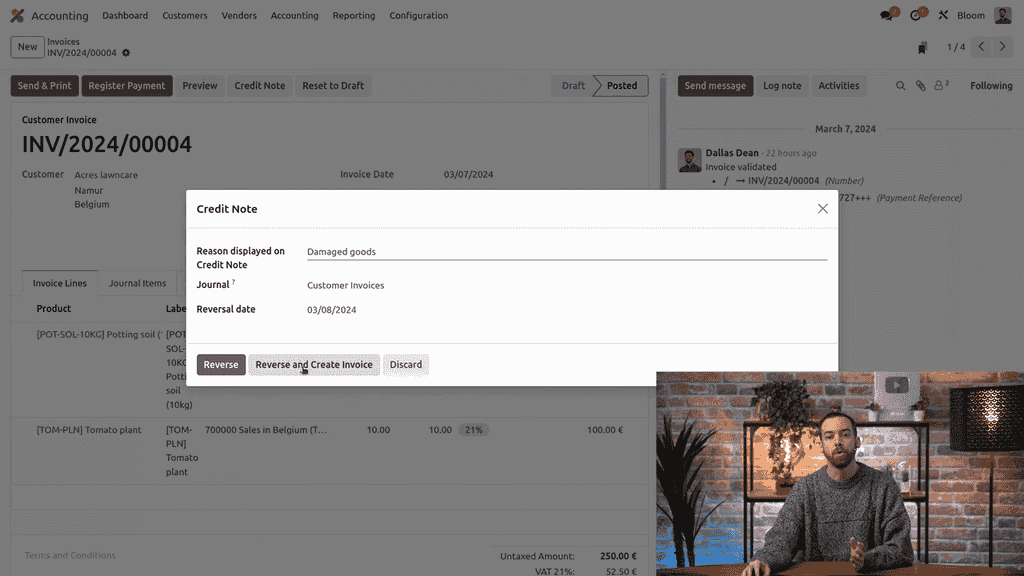
Reverse and Reverse and Create Invoice options in the dialog

Reverse

  • Creates a draft credit note that you can edit before confirming
  • Results in two documents: the original invoice and the partial credit note
  • Best for partial credits where only some items need adjustment

Reverse and Create Invoice

  • Fully reverses the original invoice and creates a new editable invoice
  • Results in three documents: original invoice, full credit note, and new invoice
  • Best when you need to significantly restructure the invoice

For most cases involving a single damaged or returned item, Reverse is the simpler option.

How Reconciliation Works Automatically

Odoo handles reconciliation differently depending on whether the customer has already paid.

If the invoice is unpaid:
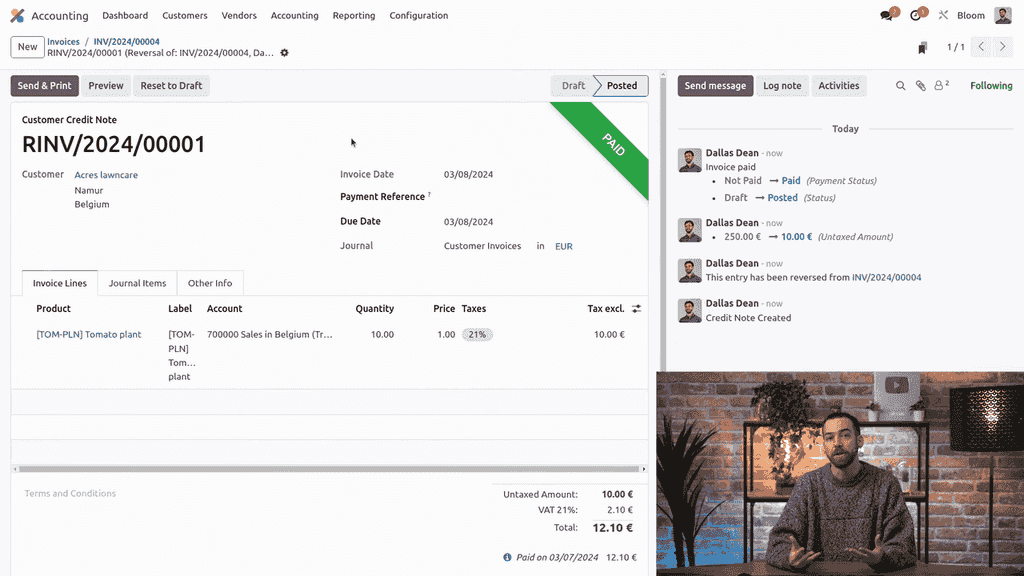
  • The credit note amount is reconciled directly against the invoice
  • The credit note is automatically marked as Paid
  • The invoice status changes to Partially Paid
  • No actual refund payment is needed

Credit note marked as Paid with info icon showing reconciliation details

If the invoice is already paid:

  • You may need to process a refund payment for the credited amount
  • The credit note still reconciles against the invoice in the accounting records

After reconciliation, both documents show an info icon with details about how they are linked. The invoice chatter also logs a reference back to the credit note for a complete audit trail.
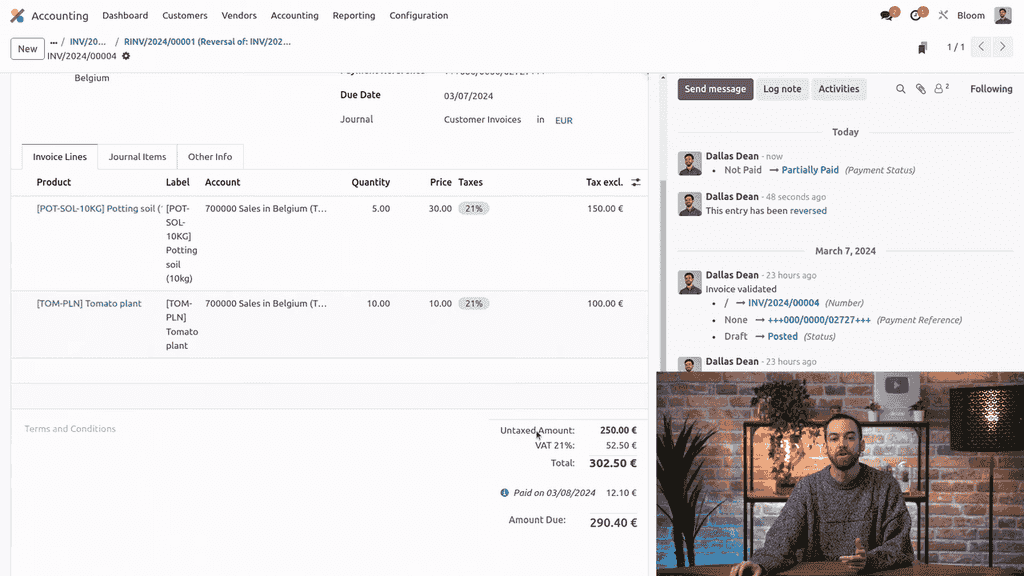
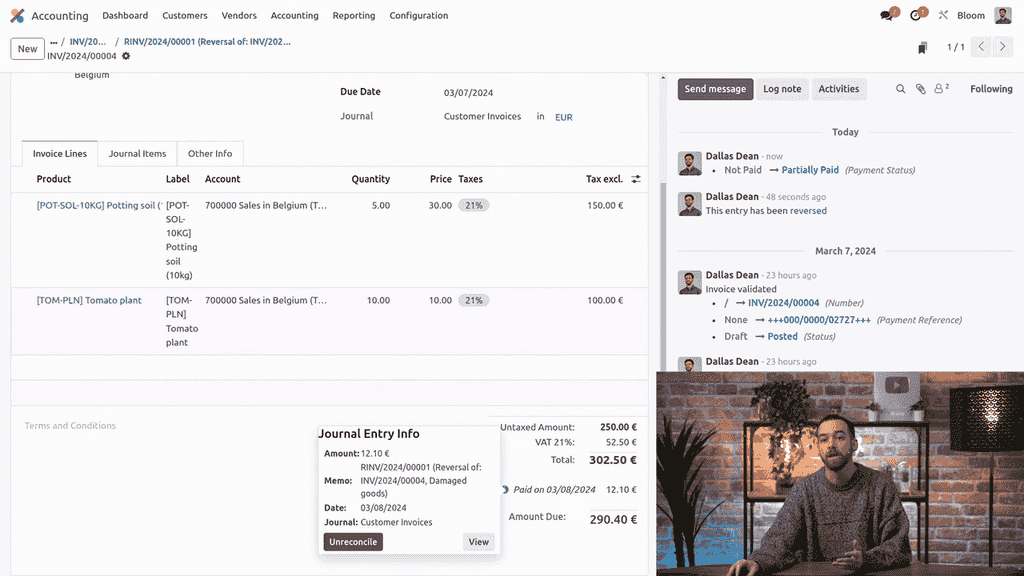
Original invoice showing Partially Paid status with info icon

Chatter log linking back to the credit note

Customers can view their credit notes alongside invoices in the Customer Portal, keeping everything transparent.

Customer portal showing invoices and credit notes

Key Takeaways

  • Credit notes reverse part or all of an invoice without modifying the original document
  • Issue credit notes directly from the invoice to pre-fill the journal and link the documents
  • Use Reverse for partial credits and Reverse and Create Invoice for full restructuring
  • Odoo automatically reconciles credit notes against unpaid invoices
  • Enable Dedicated Credit Note Sequence in journal settings for clearer numbering
  • Credit notes appear in the customer portal alongside invoices

References

Tags

OdooAccountingCredit NoteInvoicingRefundOdoo Accounting
Professional businesswoman working with data and analytics in modern office environment

Need Help with Odoo Implementation in Hong Kong?

Zoo AI is a certified Odoo partner in Hong Kong, delivering expert ERP implementation and AI automation for SMEs. Get in touch to learn more.