

Even small companies own assets that lose value over time — vehicles, laptops, office furniture. Rather than recording the full cost upfront, best practice is to spread that cost across the asset's useful life through depreciation. This means creating regular journal entries that reflect the declining value of each asset.
Odoo Accounting automates this process. You define the asset once, and Odoo generates all the depreciation entries for you.
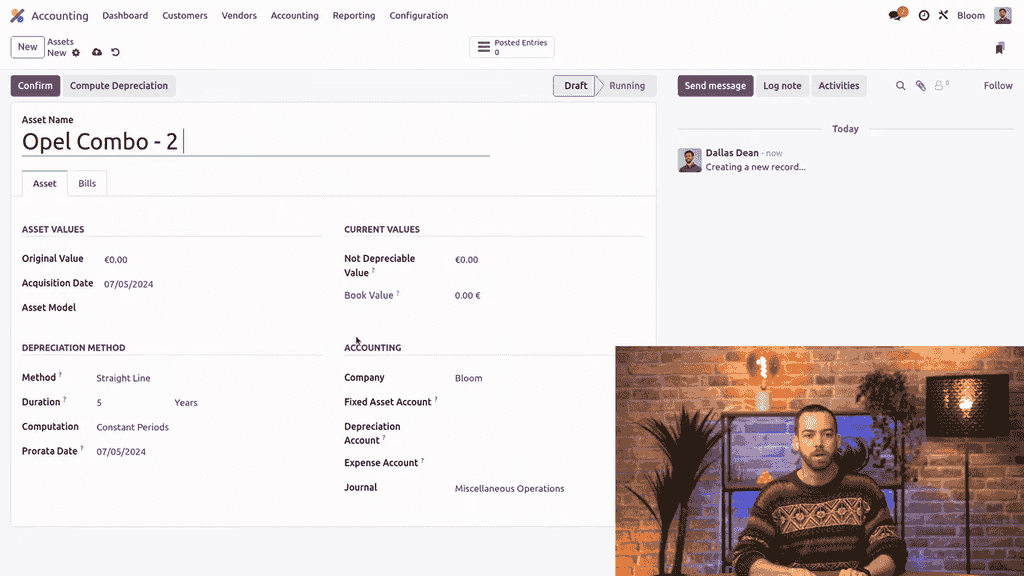
The top section of the asset form controls value-related fields:
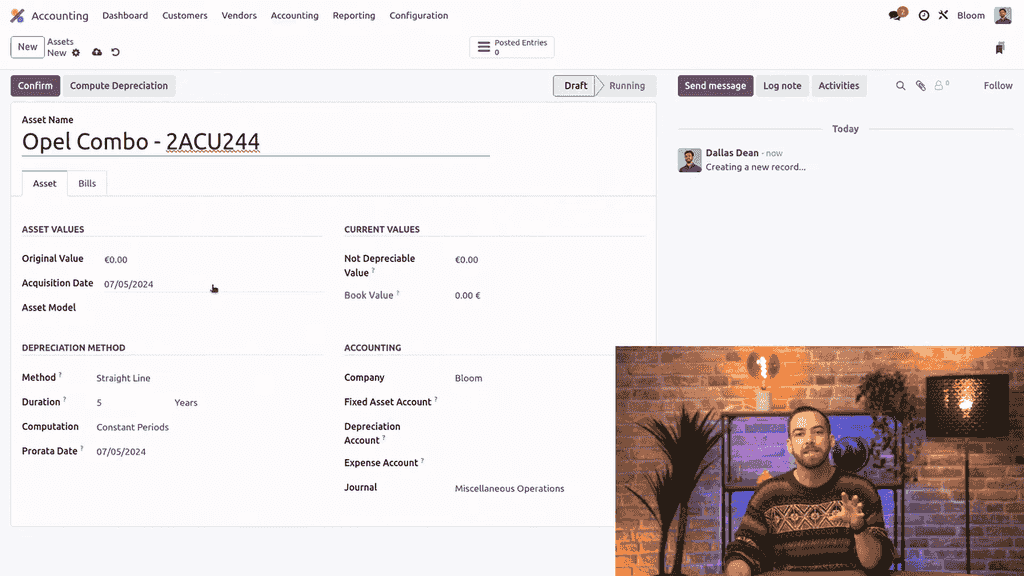
In this example, a vehicle worth 20,000 with a salvage value of 6,000 has 14,000 in depreciable value.
You can also apply an Asset Model to pre-fill depreciation settings. Asset models are covered in a separate guide on asset automation.
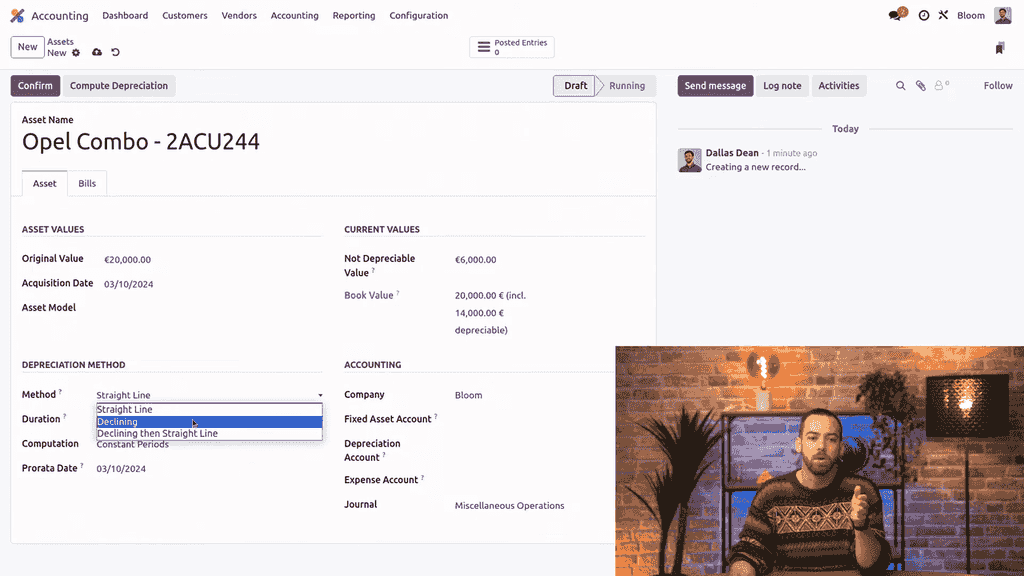
Odoo offers three depreciation methods:
| Method | How It Works |
|---|---|
| Straight Line | Equal depreciation amount each period |
| Declining | Depreciates by a fixed percentage each period, so amounts decrease over time |
| Declining then Straight Line | Starts with declining method, then switches to straight line |
You set the number of periods and the period type (months or years). This distinction matters:
Choose months if you want monthly depreciation entries, which is the more common approach.
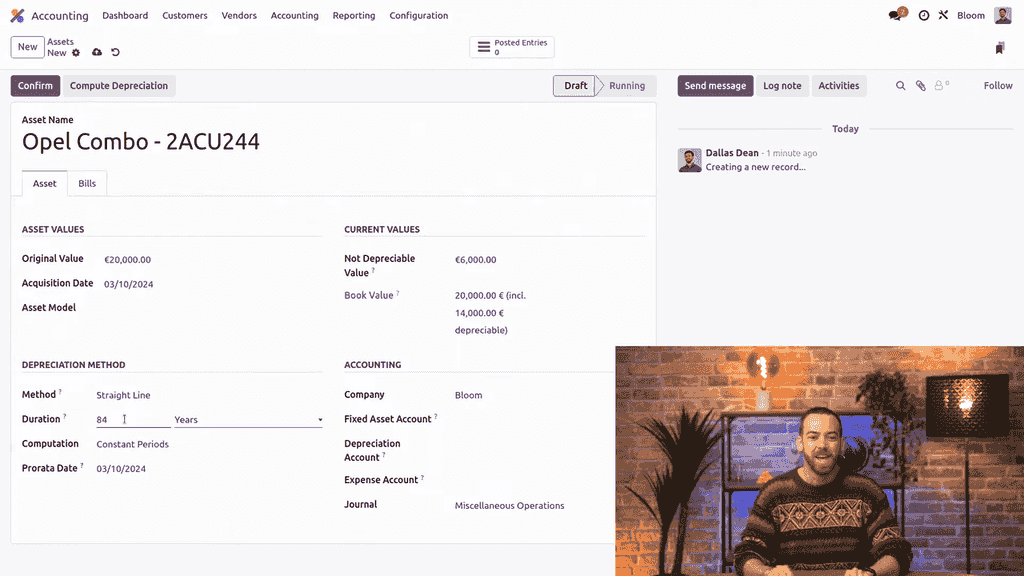
Tip: You can type calculations directly into number fields in Odoo. For example, type =7*12 to get 84.
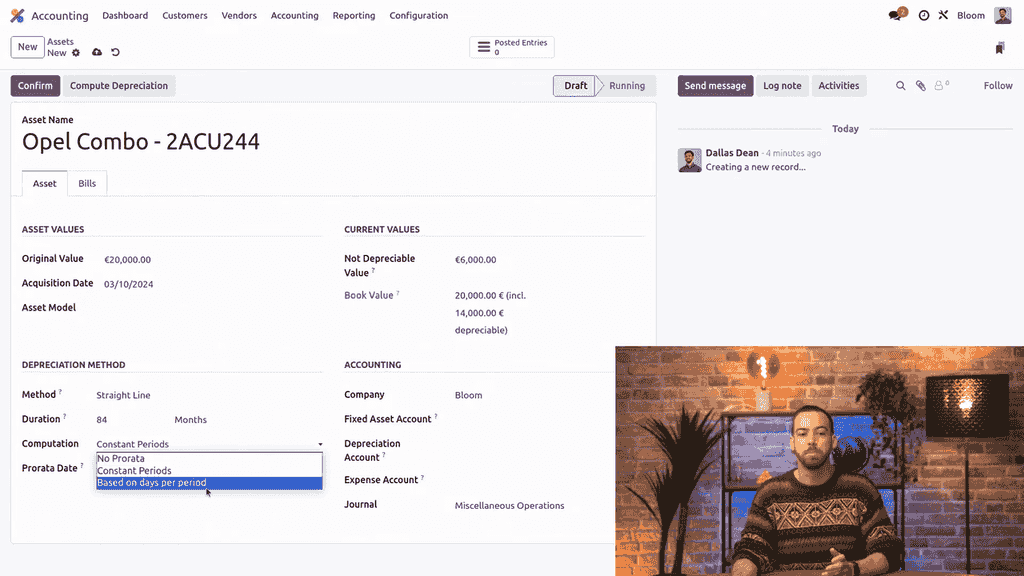
Odoo provides three computation modes:
For most use cases, Constant Periods is the standard choice.
The right side of the asset form has three account fields:
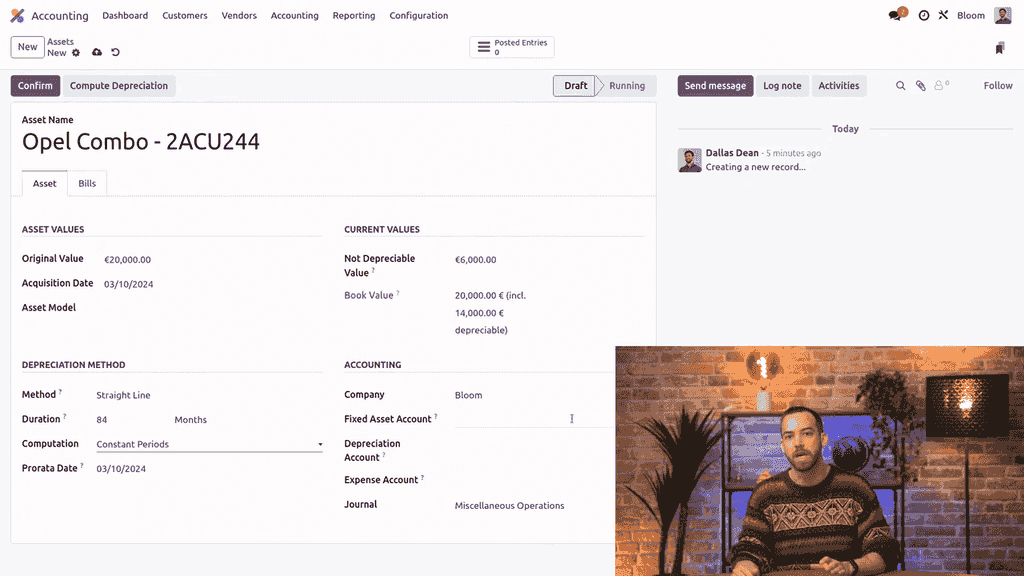
Fixed Asset Account — Stores the original value of the asset. Determines which account group the asset appears under in the depreciation schedule report. If left empty, the depreciation account is used instead. When creating an asset from a vendor bill, this defaults to the account on the bill.
Depreciation Account — Credited with each depreciation journal entry (tracks accumulated depreciation).
Expense Account — Debited with each depreciation journal entry (records the cost of the asset losing value).
You can also select:
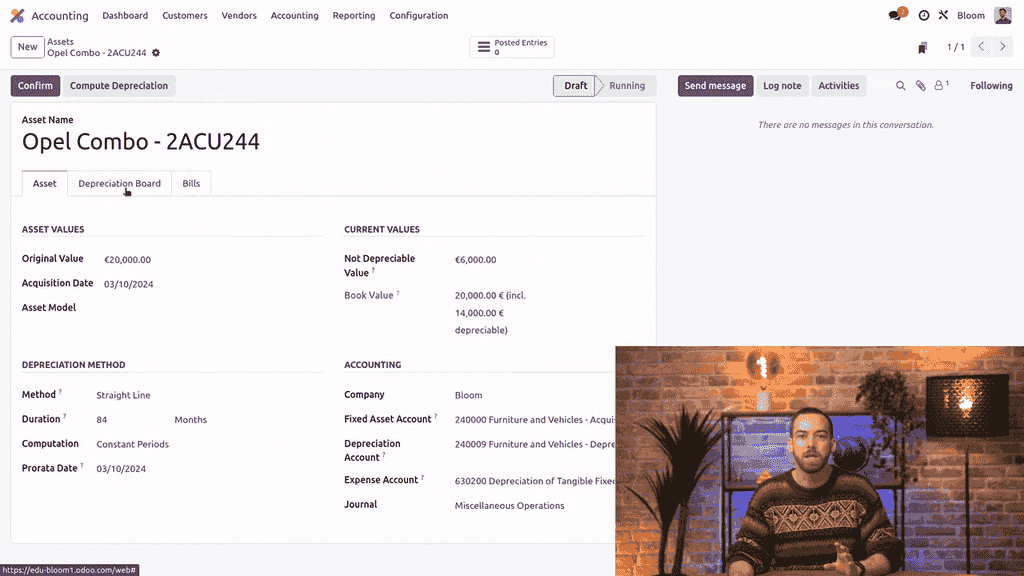
Before confirming the asset, click Compute Depreciation to generate the depreciation board. This tab shows:
| Column | Description |
|---|---|
| Depreciation | Amount depreciated in each entry |
| Cumulative Depreciation | Total depreciation to date |
| Remaining Depreciable Value | How much value is left to depreciate |
Review this board to verify the schedule matches your expectations before confirming.
After confirming the asset, Odoo creates all depreciation journal entries in draft. Access them through the Posted Entries smart button at the top of the asset form.
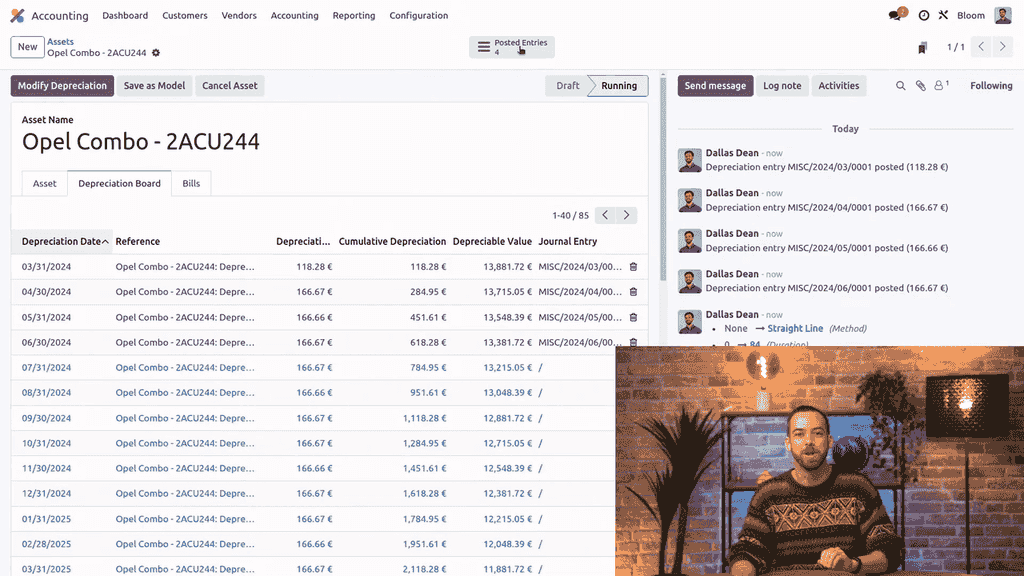
Each journal entry contains:
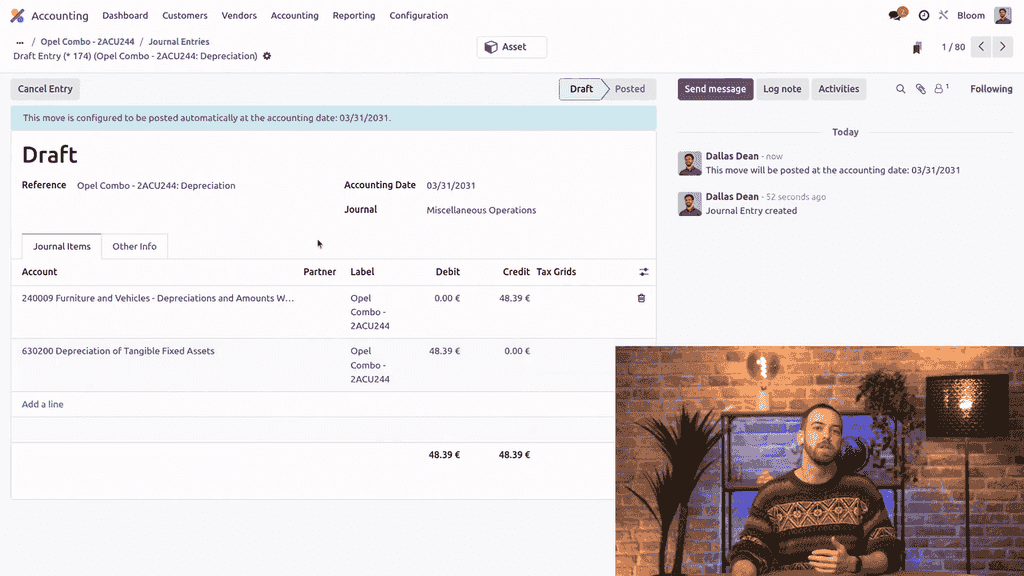
Draft entries are posted automatically when their scheduled date arrives.
For a high-level view of all assets:
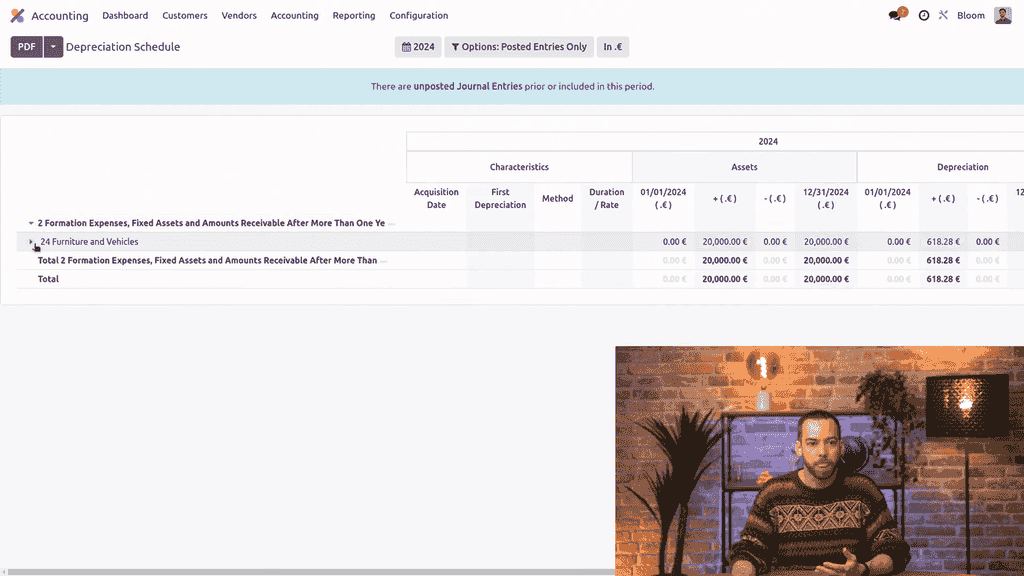
The report shows each asset's characteristics, depreciation amounts, and book value — all grouped by fixed asset account.
To include future depreciation, enable the Draft Entries filter. This previews what the schedule will look like as pending entries are posted.
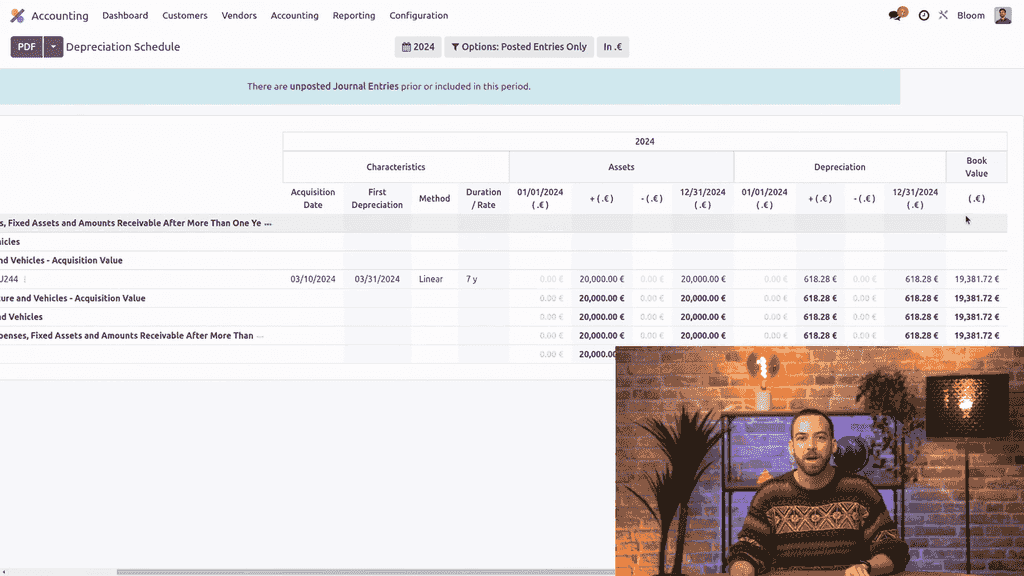
This report becomes especially valuable as your asset portfolio grows and you need a consolidated overview rather than checking each asset individually.

Zoo AI is a certified Odoo partner in Hong Kong, delivering expert ERP implementation and AI automation for SMEs. Get in touch to learn more.