How to Use Analytic Accounting in Odoo

How to Use Analytic Accounting in Odoo

Yannis, Odoo Expert
5 min read

Table of Contents

What Is Analytic Accounting?

Analytic accounting in Odoo gives you a cross-cutting view of your costs and revenue. Unlike your chart of accounts, which organizes transactions by nature (rent, salaries, sales), analytic accounts let you track the same transactions by purpose — a specific project, department, or cost centre.

This makes it straightforward to answer questions like:

  • How much did we spend on utilities last quarter?
  • Is this project profitable?
  • How does actual spending compare to the budget?

Enabling Analytic Accounting

Before you can use analytic features, enable them in settings:
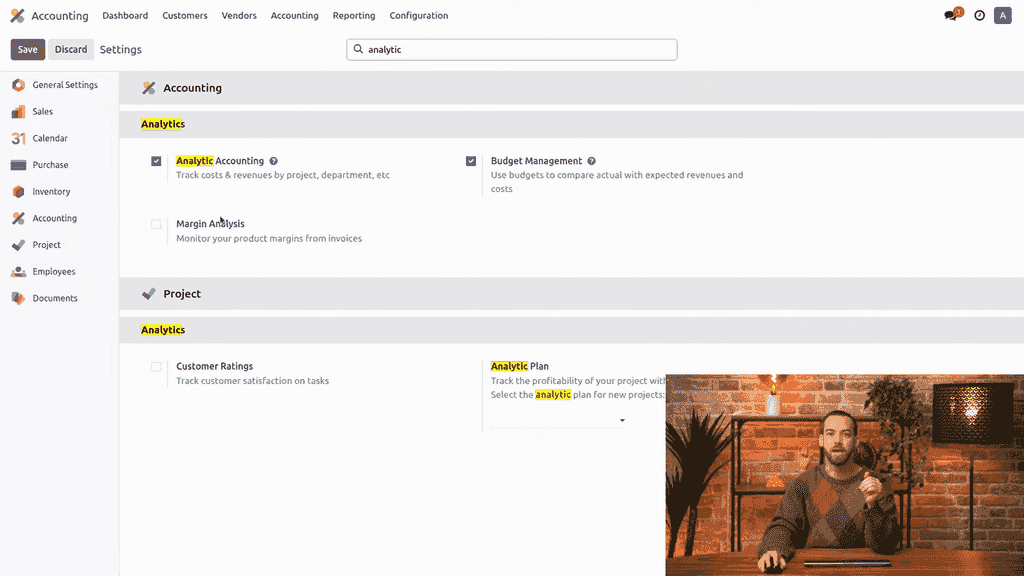
  1. Go to Accounting > Configuration > Settings
  2. Search for "Analytic"
  3. Enable Analytic Accounting
  4. Save

Analytic Accounting toggle in Odoo Settings

Once enabled, analytic fields appear on journal items across the system.

Setting Up Analytic Plans

Analytic plans group your analytic accounts and control when they appear on journal entries.

To create a plan:
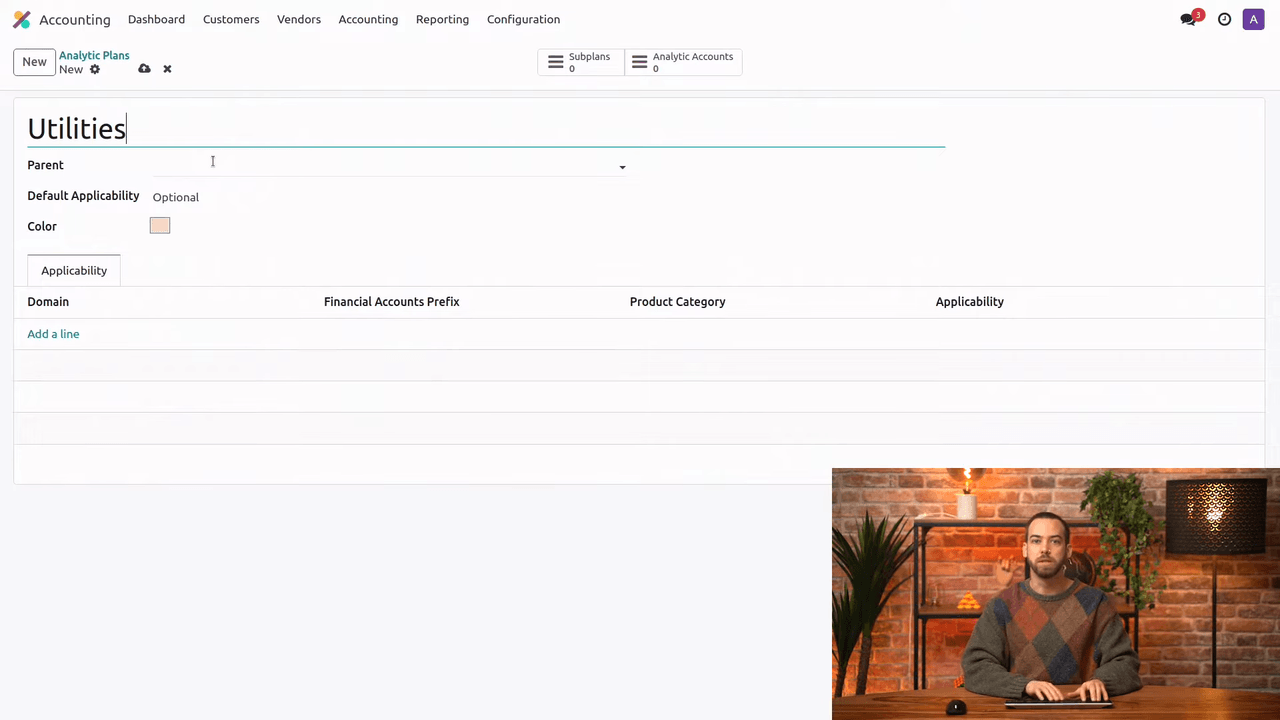
  1. Go to Accounting > Configuration > Analytic Plans
  2. Click New
  3. Enter a name (e.g. "Utilities")
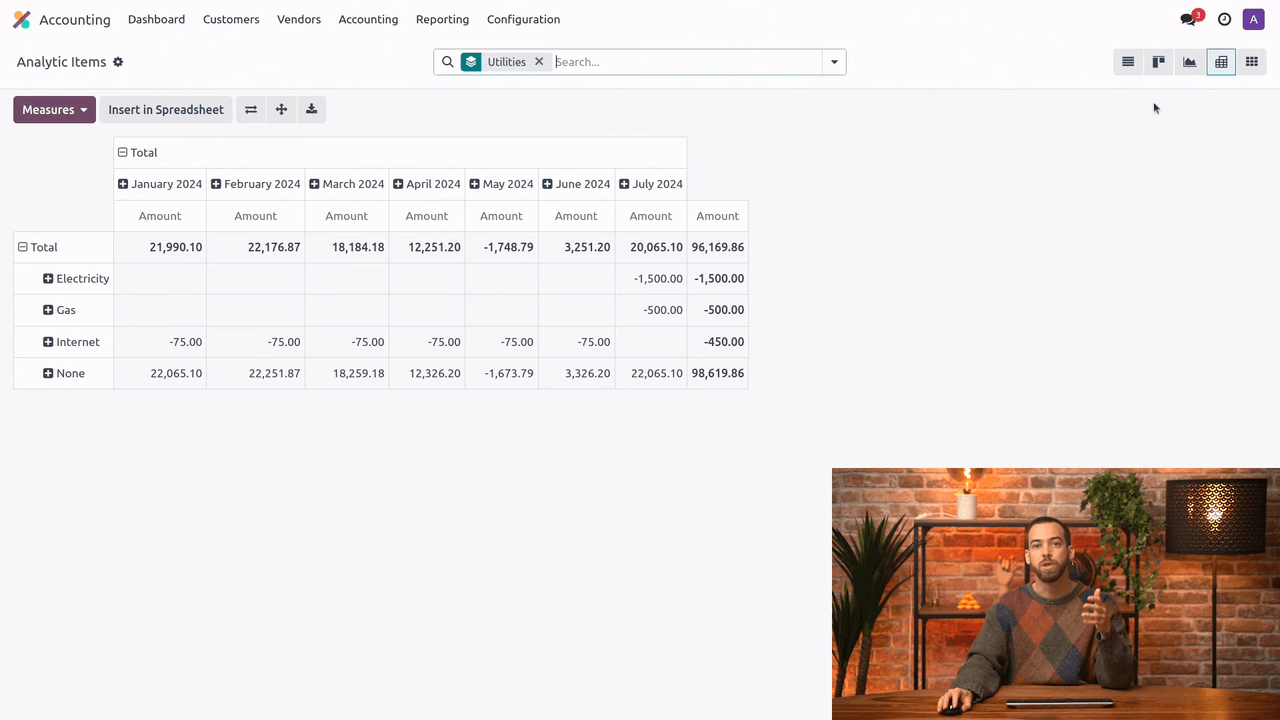
  4. Set the Default Applicability — this determines whether the plan is optional, mandatory, or unavailable on journal items

Creating a new analytic plan named Utilities

Applicability Options

SettingBehaviour
OptionalUsers can add analytic distribution but are not required to
MandatoryUsers must assign analytic distribution before confirming. The total must equal 100%
UnavailableThe plan does not appear on journal items

Default applicability dropdown showing Optional, Mandatory, Unavailable

Fine-Tuning Applicability

You can override the default applicability for specific scenarios using the domain section at the bottom of the plan form:
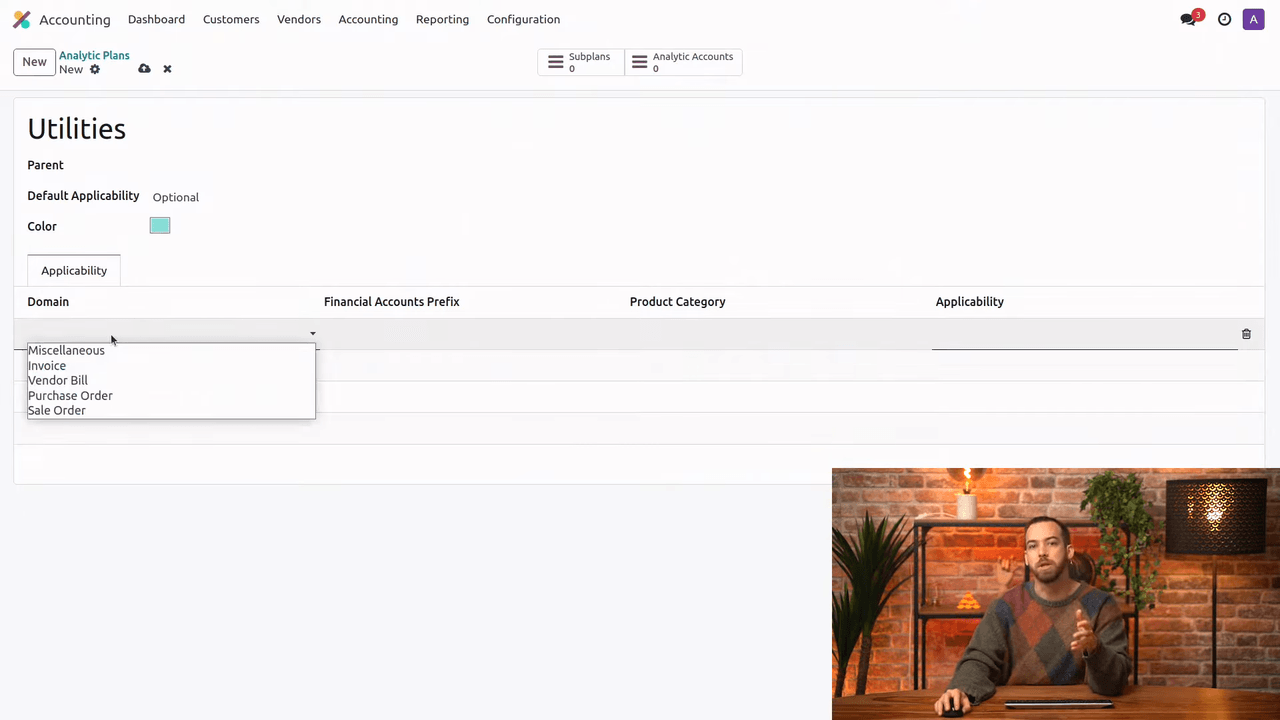
  • Document type — Apply different rules for vendor bills, customer invoices, etc.
  • Account prefix — Target lines using accounts that start with a specific code
  • Product category — Restrict to specific product categories

Domain fields for fine-tuning applicability on the plan form

Sub-Plans

Use the Sub Plans smart button to create parent-child hierarchies within your analytic structure, useful for organisations that need multiple levels of cost tracking.

Creating Analytic Accounts

Analytic accounts are the individual items you assign to journal entry lines.

From an analytic plan, click the Analytic Accounts smart button, then click New:
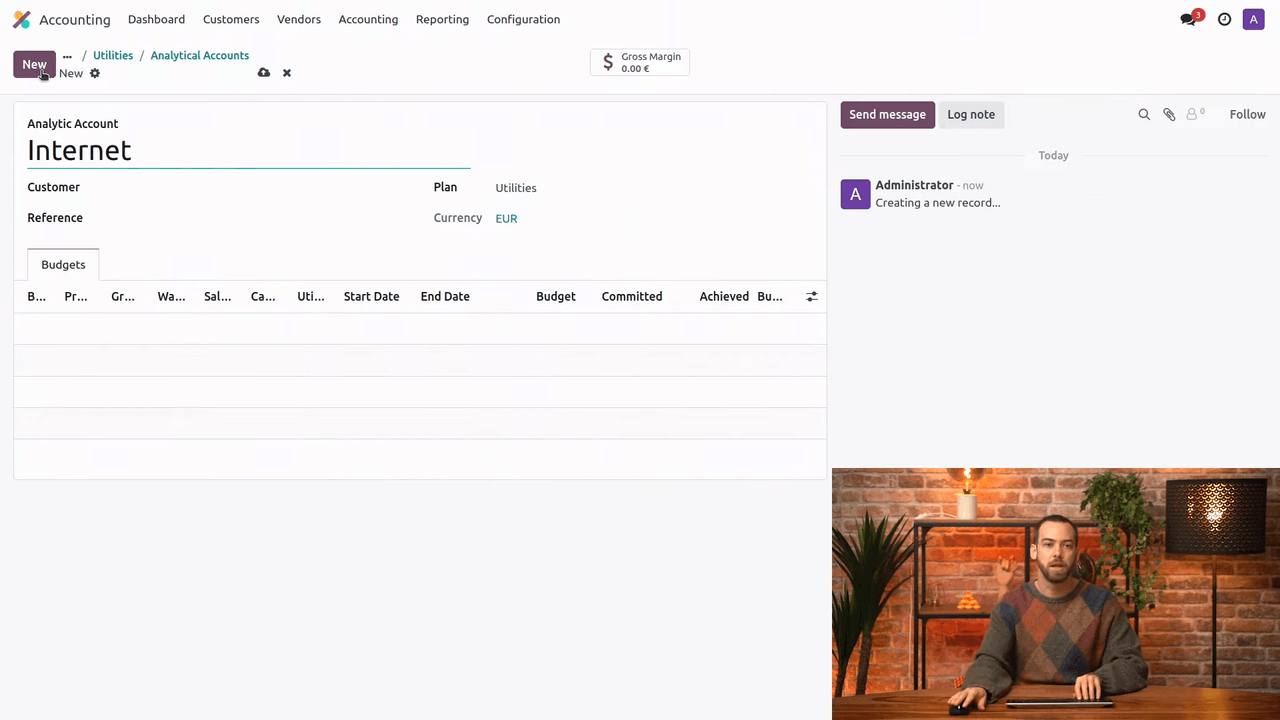
  • Name — A descriptive label (e.g. "Electricity", "Internet", "Gas")
  • Customer — Optionally link to a partner
  • Reference — An internal code
  • Currency — Defaults to company currency but can be changed

Creating analytic accounts (Electricity, Internet, Gas, Water) under the Utilities plan

When you create accounts from within a plan, the plan field is pre-filled automatically.

Using Analytic Distribution on Vendor Bills

When creating a vendor bill, each line can carry an analytic distribution:
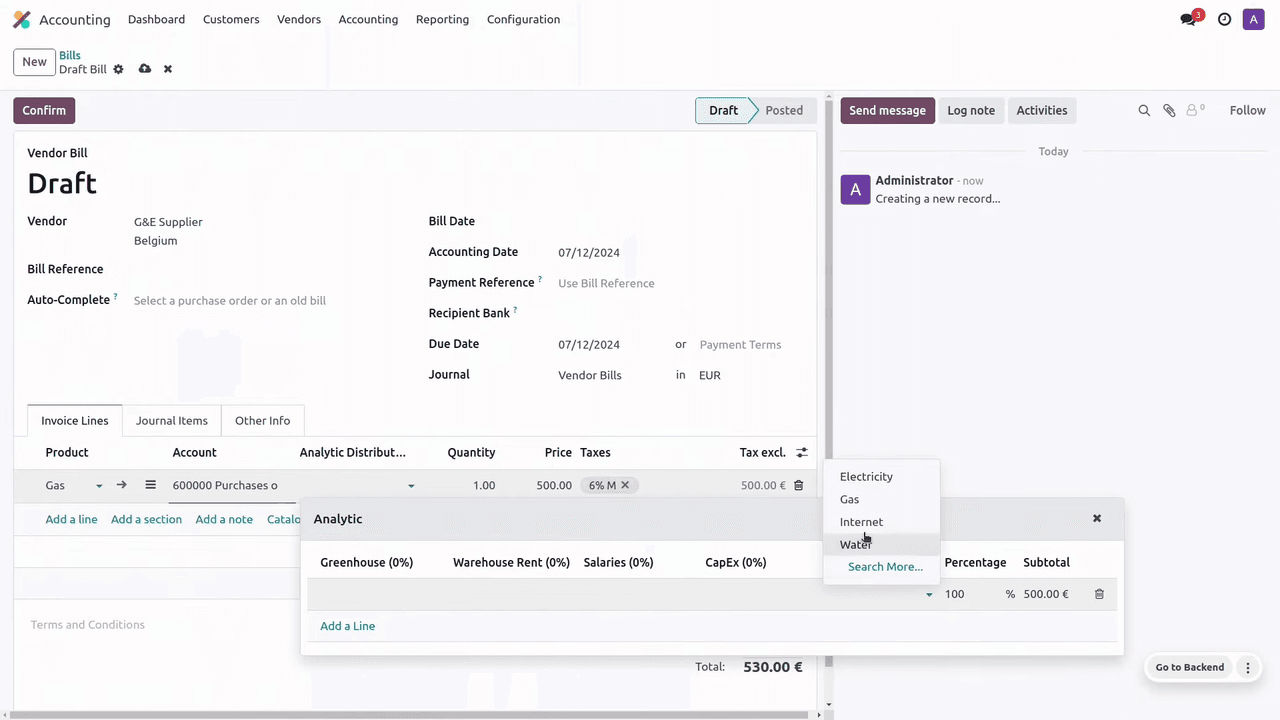
  1. Go to Accounting > Vendors > Bills and click New
  2. Select the vendor and add a line item
  3. In the Analytic Distribution column, select the plan and account
  4. Set the percentage (typically 100% for a single account)
  5. Confirm the bill

Vendor bill line with analytic distribution set to Utilities > Gas at 100%

If a plan is set to Mandatory, Odoo blocks confirmation until every line has a valid distribution totalling 100%.

Splitting Costs

You can distribute a single line across multiple analytic accounts. For example, an office supply bill might split 60% to the Marketing department and 40% to Operations. The percentages must total 100% for mandatory plans.

Creating Distribution Models

Distribution models automate analytic assignment. Instead of manually selecting the plan and account each time, Odoo applies the distribution automatically based on criteria you define.

To create a model:
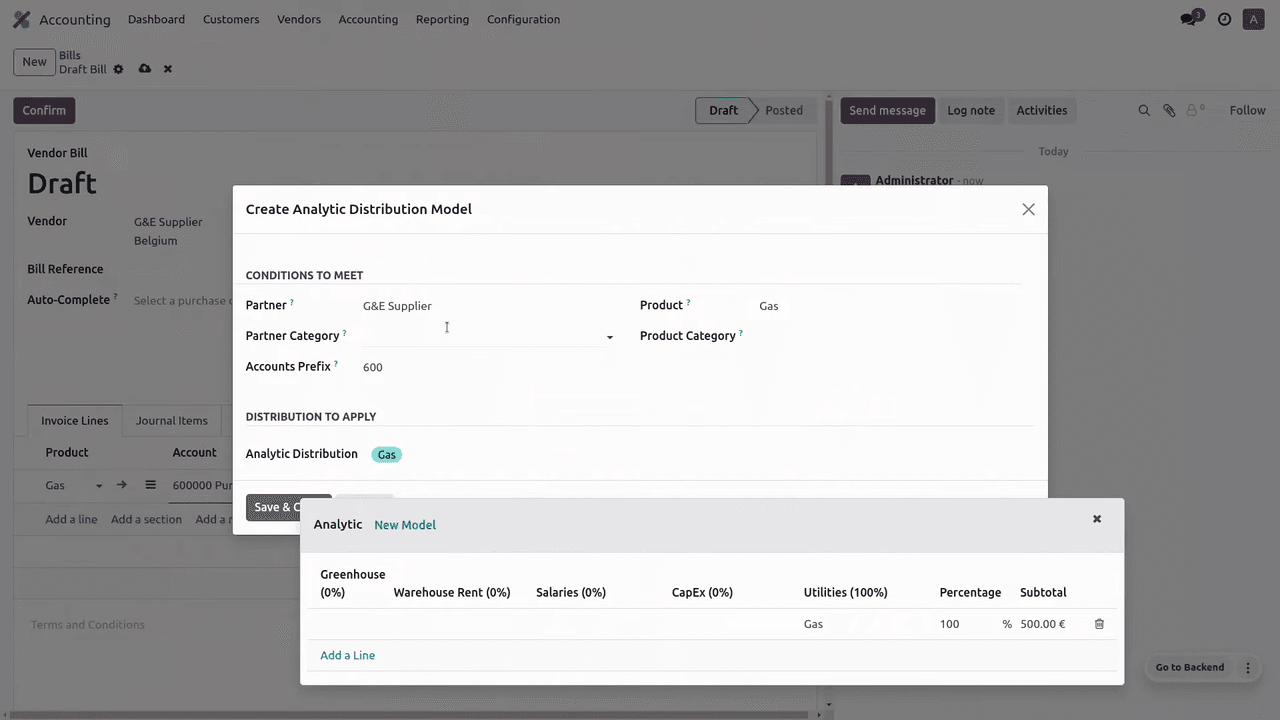
  1. On a vendor bill line, set the analytic distribution
  2. Click Save as Model
  3. Define matching criteria: vendor, product, account prefix, or product category

Save as Model dialog for creating an analytic distribution model

The next time you create a line matching those criteria, Odoo fills in the analytic distribution automatically.
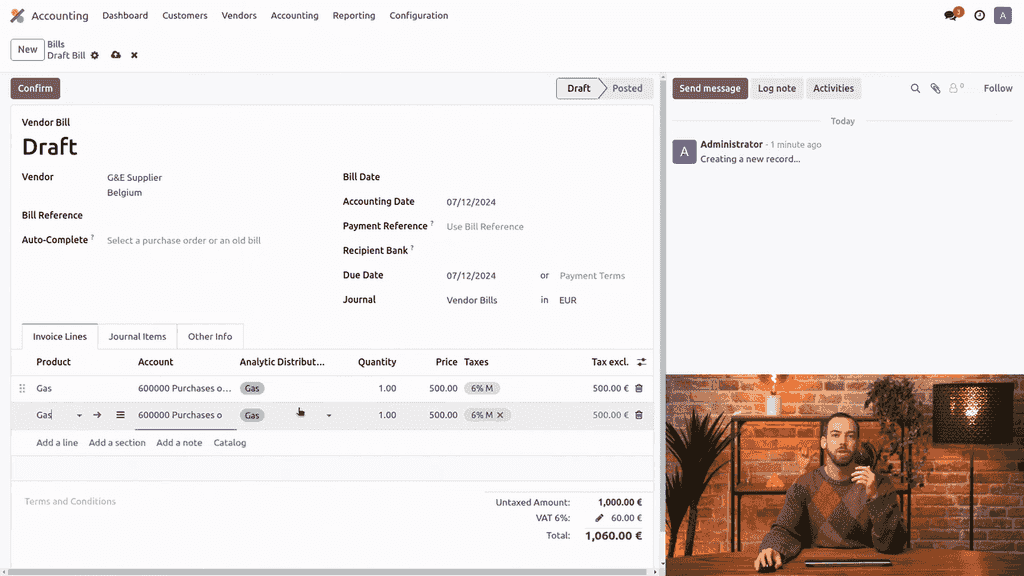
New vendor bill line with distribution auto-filled by the model

Mass Editing Analytic Distribution

You cannot change analytic distribution directly on confirmed vendor bills or invoices. However, you can update the underlying journal items:
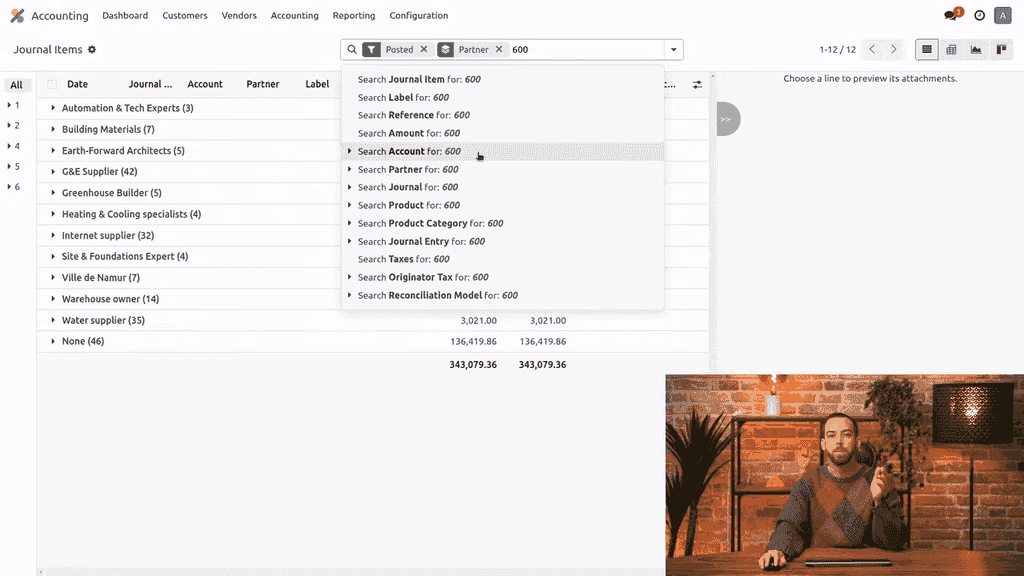
  1. Go to Accounting > Journal Items
  2. Group by Partner to find the relevant entries
  3. Filter by the target expense account
  4. Select the lines you want to update
  5. Use the mass edit feature to assign the analytic plan and account

Journal Items list view grouped by partner with mass edit for analytic distribution

This is useful when you start using analytic accounting on an existing database with historical entries.

Viewing Analytic Items

Odoo provides a dedicated view for analysing your analytic data:
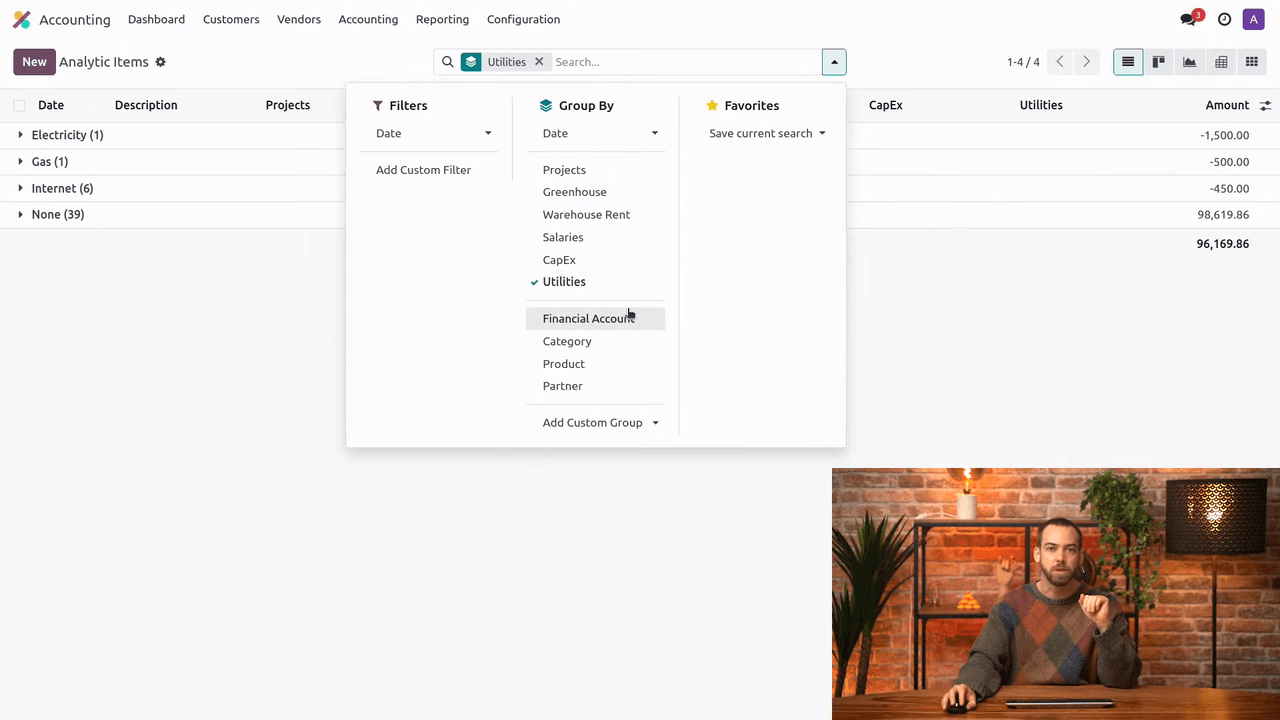
  1. Go to Accounting > Analytic Items
  2. Group by analytic plan to see totals per category
  3. Switch to Pivot View for a spreadsheet-like breakdown of amounts

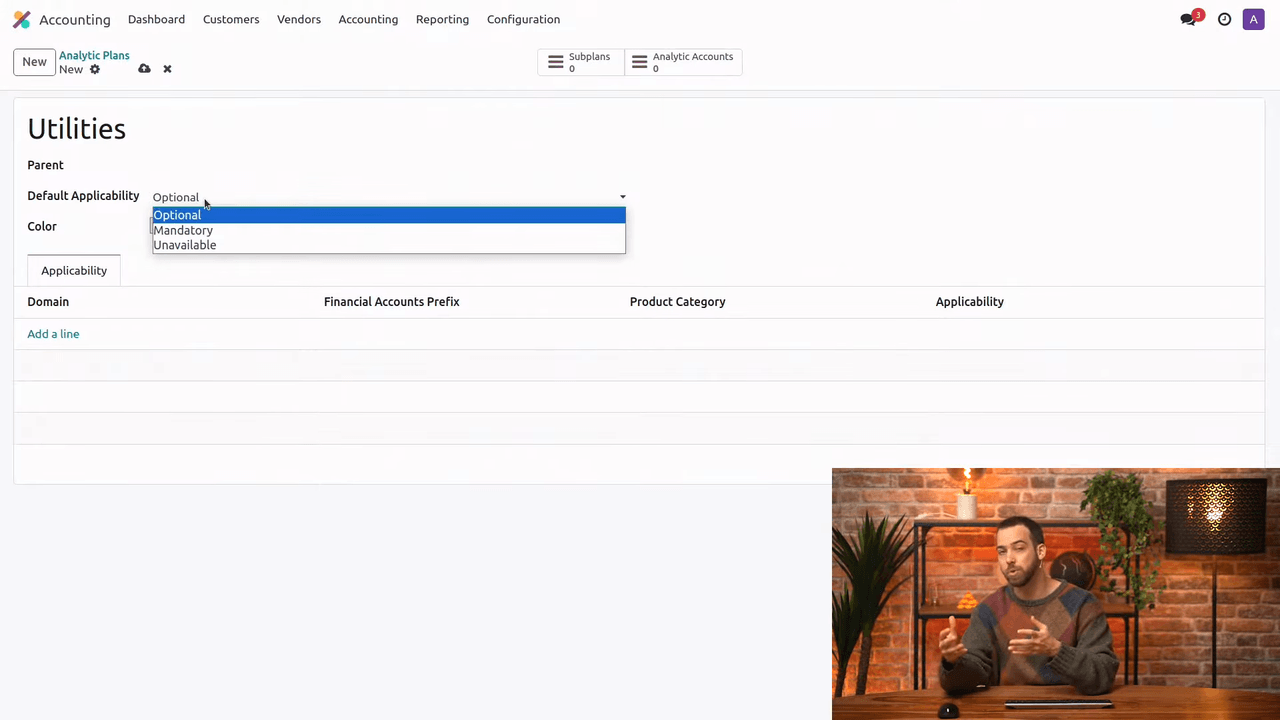
Analytic Items grouped by Utilities plan showing totals

Pivot view of analytic items showing amount breakdown

This view helps you monitor spending patterns and compare actual costs against budgets. For deeper financial planning, combine analytic accounting with Odoo's budget management features.

Next Steps

  • Set up analytic plans for your key cost centres (departments, projects, locations)
  • Create distribution models for recurring vendor bills
  • Use the pivot view in Analytic Items to review spending monthly
  • Explore Odoo's Budget Management module to set targets against your analytic accounts

References

Tags

OdooAnalytic AccountingCost TrackingBudgeting
Professional businesswoman working with data and analytics in modern office environment

Need Help with Odoo Implementation in Hong Kong?

Zoo AI is a certified Odoo partner in Hong Kong, delivering expert ERP implementation and AI automation for SMEs. Get in touch to learn more.