Table of Contents
Why You Need an Opening Balance
When transitioning from a previous accounting software to Odoo, you need to import your opening entries so that your account balances start from the right place. Without this step, your financial records in Odoo will be incomplete.
A typical opening balance migration consists of four parts:
- General ledger — the balance of each account
- Open receivables and payables — any unpaid invoices, bills, or credit notes
- Bank balance — your current bank account balance (the same process applies for multiple accounts)
- Current inventory accounts — if using manual inventory valuation
Best Practices Before You Start
Before importing, follow these guidelines to avoid errors:
- Use end-of-period data. Transition using data from the end of your fiscal year or tax period.
- Ensure the general ledger is balanced. Total debits must equal total credits.
- Verify receivables. The accounts receivable balance on the general ledger must equal the sum of unpaid customer invoices minus unpaid customer credit notes.
- Verify payables. The accounts payable balance must equal the sum of unpaid vendor bills minus vendor credit notes.
The Suspense Account Trick
You cannot simply import the general ledger as-is. Here is why:
When you create an invoice or bill in Odoo, it automatically hits the accounts receivable or payable. If you also import the receivable balance from the general ledger, you end up with double the amount in that account.
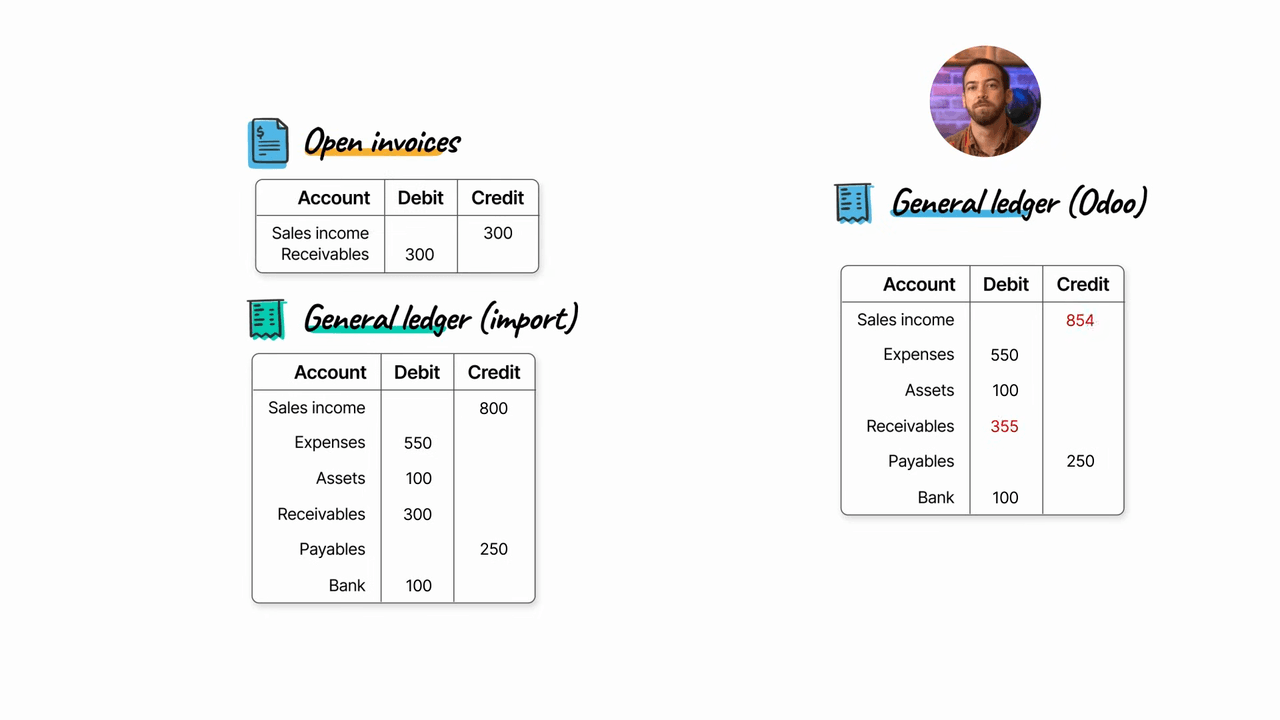
Removing receivables and payables from the general ledger is not an option either, because the ledger would no longer be balanced.
The solution: use a suspense account to temporarily hold the receivable and payable balances.
- Replace the receivable and payable accounts on the general ledger with a suspense account
- When importing invoices and bills, they also hit the same suspense account
- The suspense account balances out, leaving your receivable and payable accounts correct
Handling the Bank Account
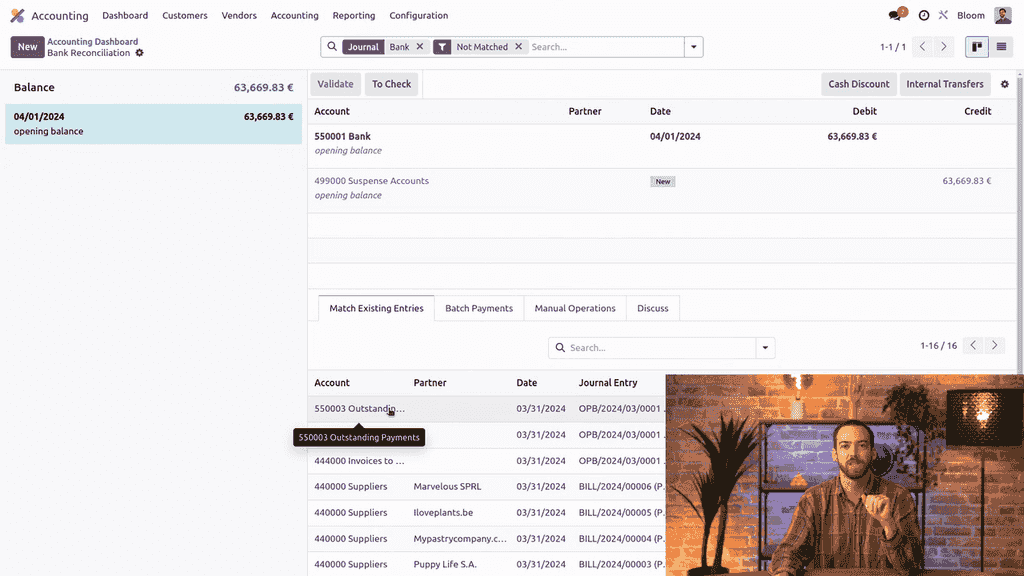
A similar issue applies to the bank account. If you import the balance directly to the bank account, there will be nothing to reconcile the opening bank transaction against.
The fix: on the general ledger import, replace the bank account with the bank outstanding receipts account (if you have a positive balance). For a negative balance, use the bank outstanding payments account instead.
Preparing Your Spreadsheet
Your import file needs multiple sheets:
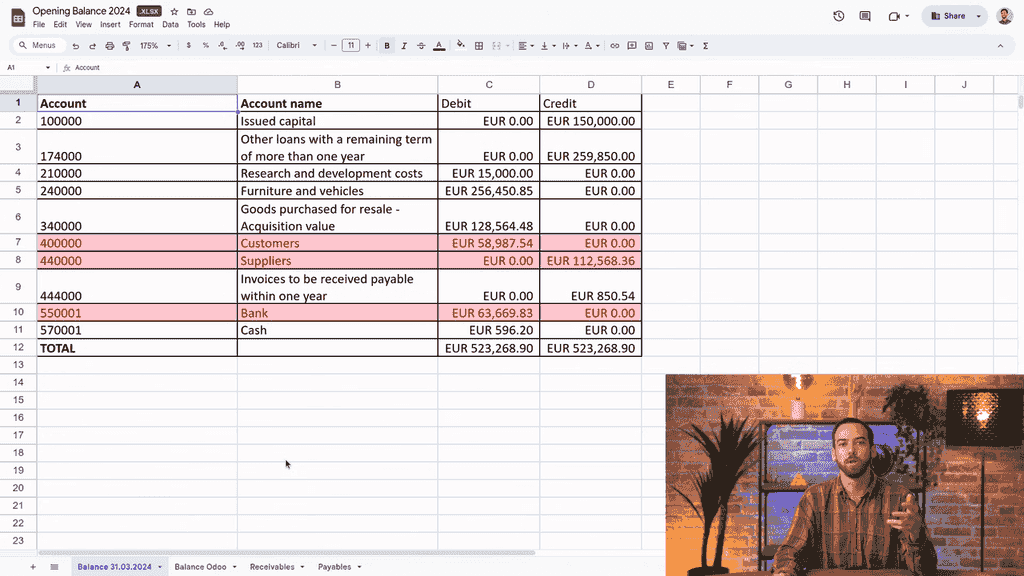
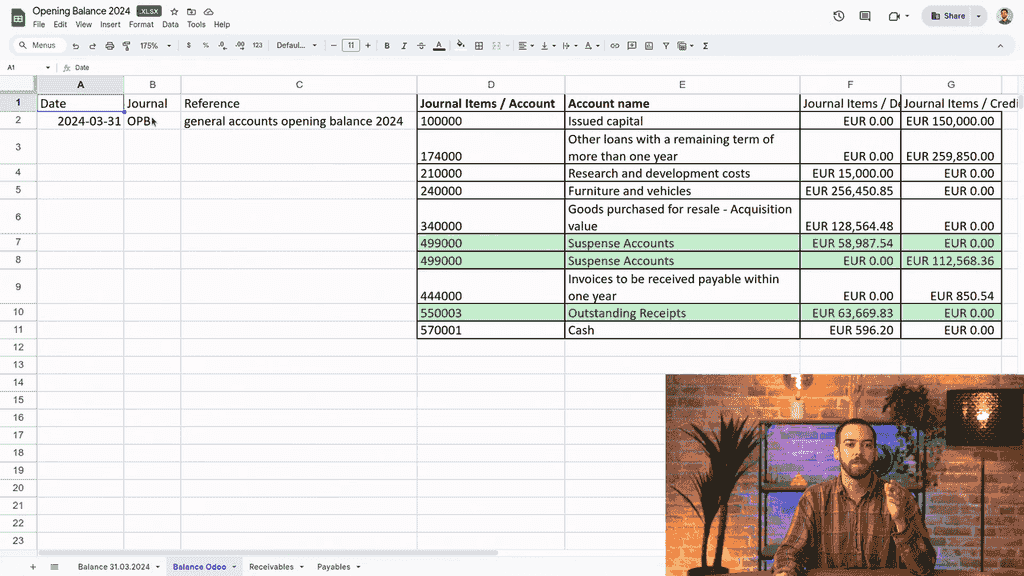
Sheet 1: General Ledger (Balance)
| Column | Content |
|---|
| Date | The opening balance date |
| Journal | A dedicated "Opening Balance" journal (e.g., short code OPB) |
| Reference | A label for the entry |
| Account Code | The account number for each line |
| Debit | Debit amount (cannot have both debit and credit on the same line) |
| Credit | Credit amount |
Key changes from your old system's export:
- Replace receivable/payable accounts with the suspense account code
- Replace the bank account with the outstanding receipts account
Sheet 2: Receivables
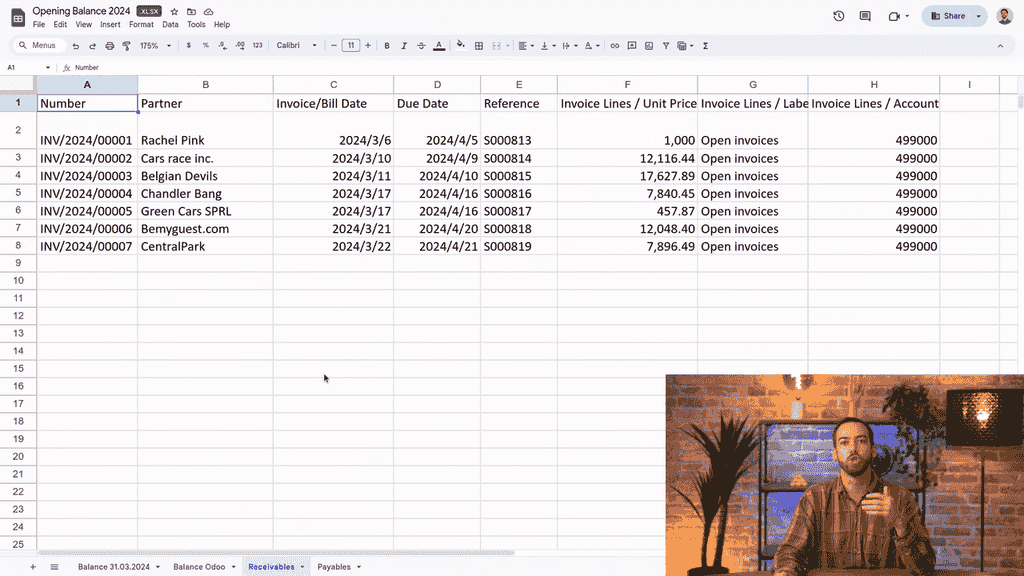
One line per unpaid invoice:
- Customer name, invoice number, dates, total amount due
- A column indicating the source (e.g., "Opening Balance")
- The suspense account code (must match the one used in the general ledger sheet)
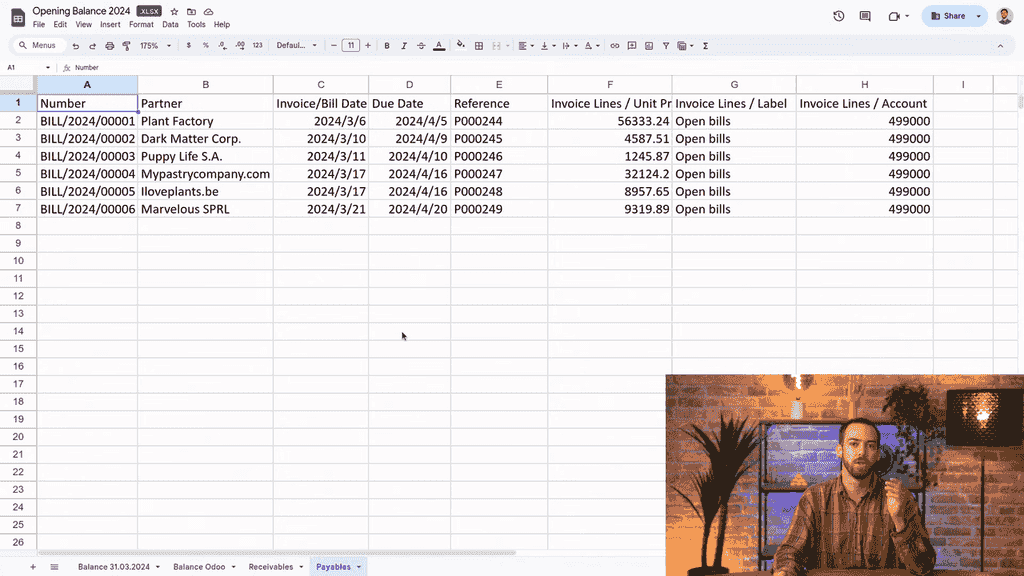
Sheet 3: Payables
Same structure as receivables, but for vendor bills:
- Use "Bill" prefix instead of "INV" in the number sequence
- Reference column lists purchase orders from the old system
- The reference field is optional if you have nothing to enter
Step-by-Step Import Process
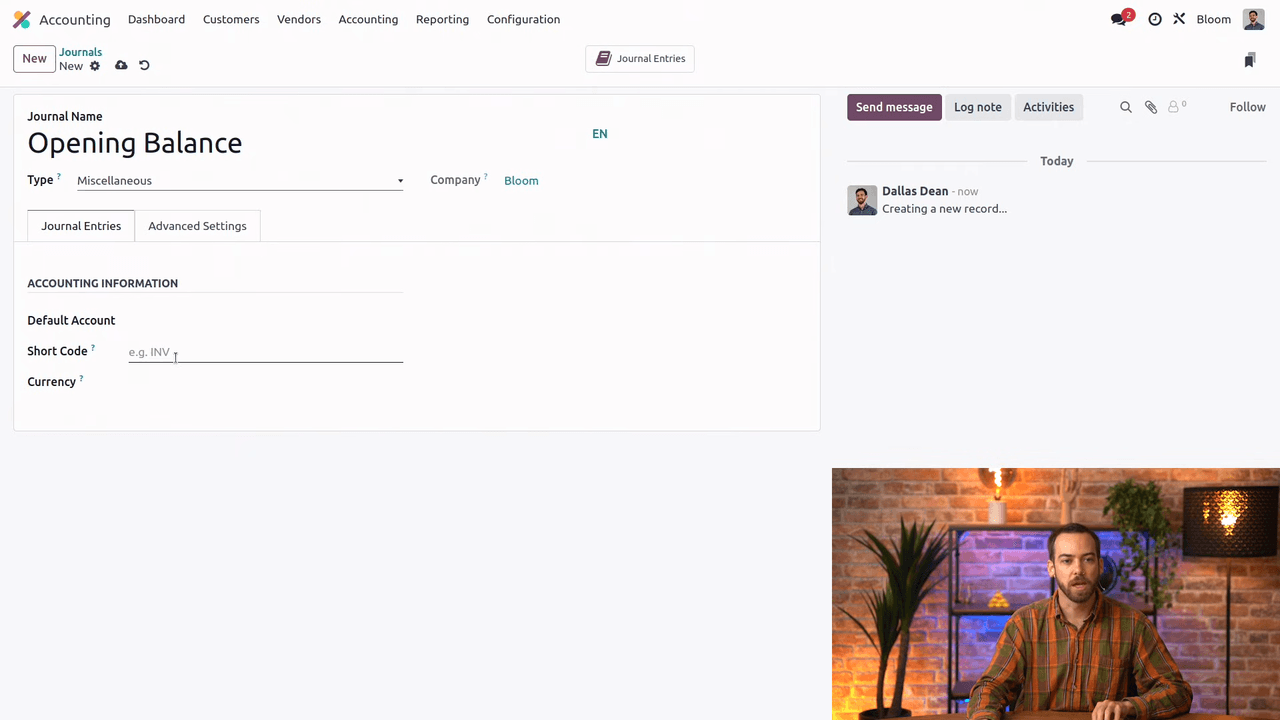
Step 1: Create an Opening Balance Journal
- Go to Accounting > Configuration > Journals
- Create a new journal named "Opening Balance"
- Set the type to Miscellaneous
- Set the short code to OPB
Step 2: Import the General Ledger
- Go to Accounting > Journal Entries
- Click Action > Import Records
- Upload your spreadsheet and select the general ledger sheet
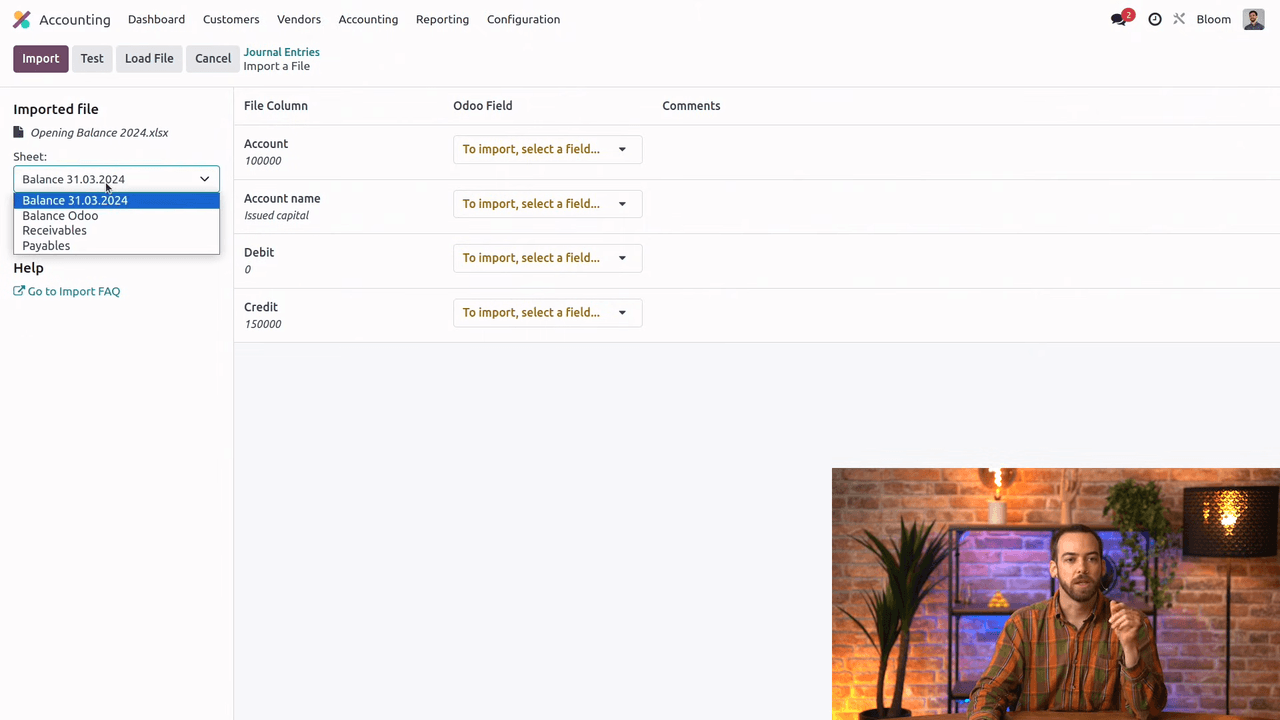
- Odoo auto-maps columns by name — verify the mappings are correct
- Skip the "Account Name" column if you are identifying accounts by code
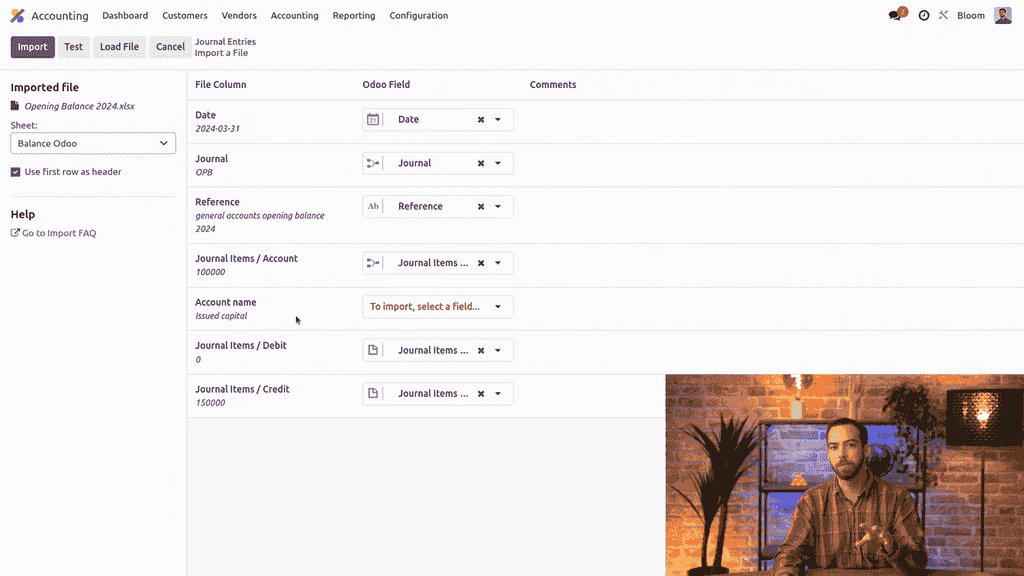
- Click Test to validate before importing
- Click Import
- Remove the "Posted" filter to find your draft entry
- Open it, review, and click Post
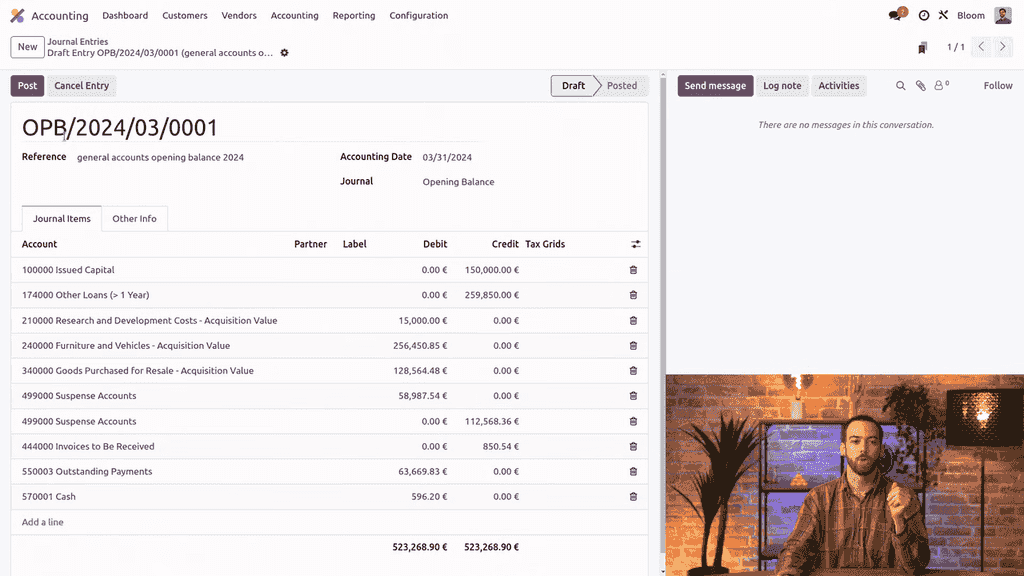
Step 3: Import Customer Invoices
- Go to Customers > Invoices
- Click Action > Import Records
- Upload the same file and select the receivables sheet
- Test, then import
- Select all imported invoices and post them at once
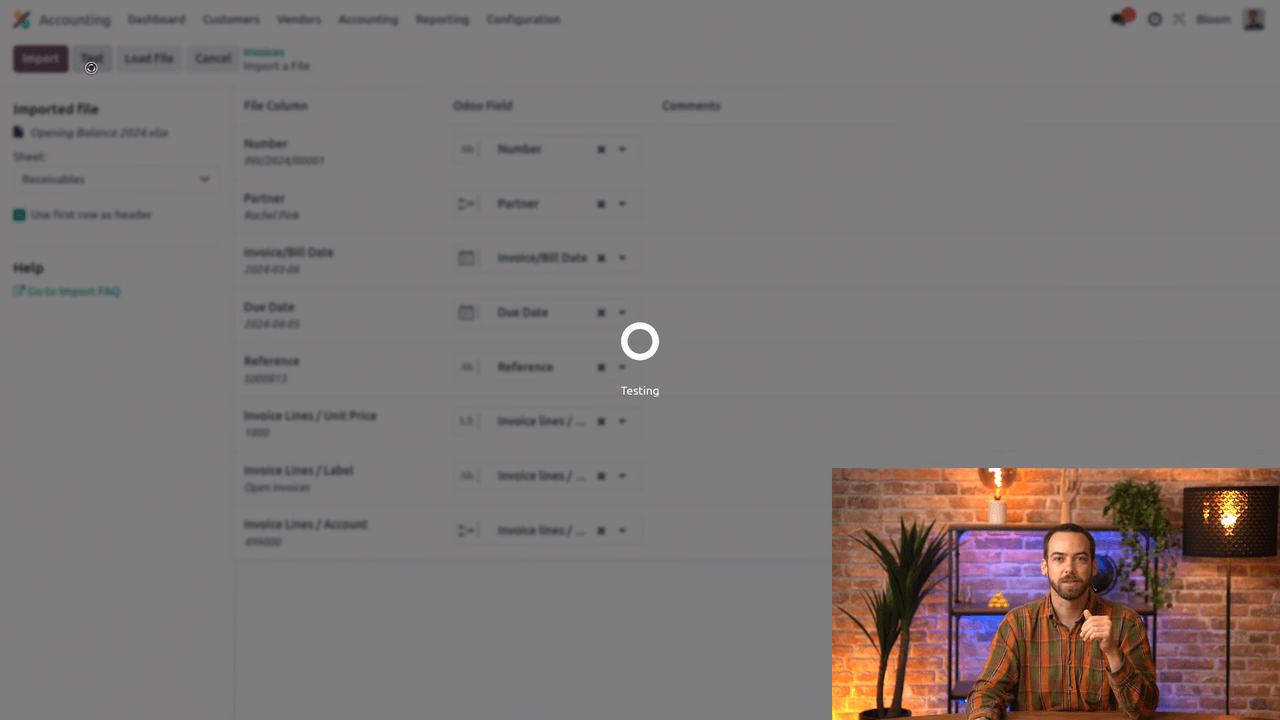
Step 4: Import Vendor Bills
- Go to Vendors > Bills
- Click Action > Import Records
- Upload the file and select the payables sheet
- Test, then import
- Select all imported bills and post them at once
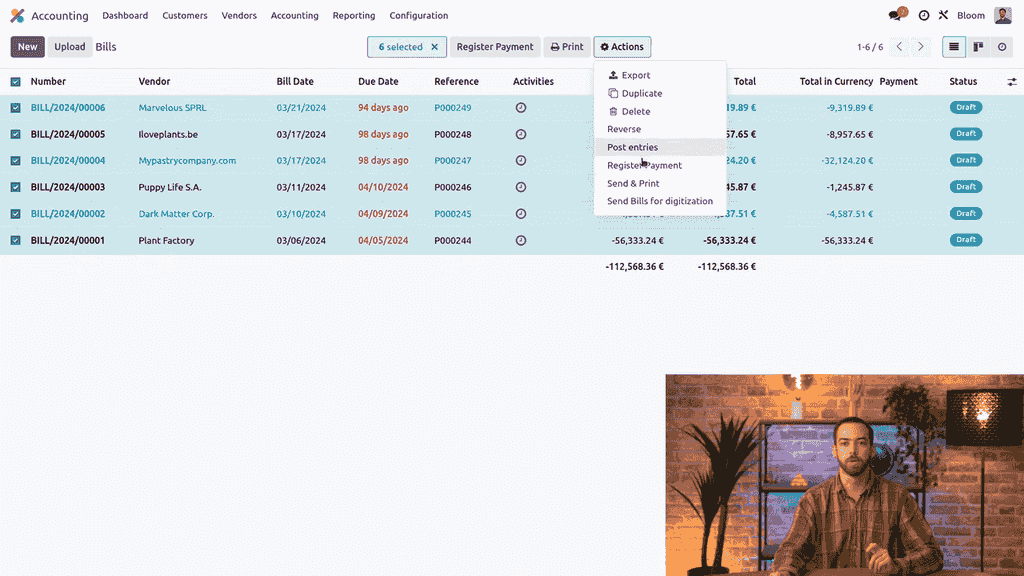
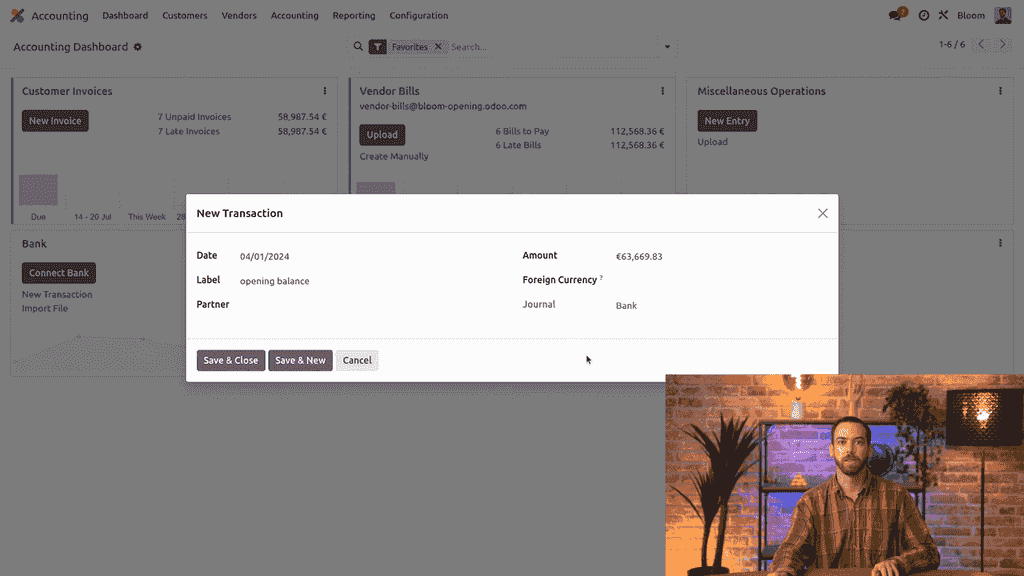
Step 5: Reconcile the Bank Balance
- Go to the Accounting Dashboard
- Click New Transaction on your bank account
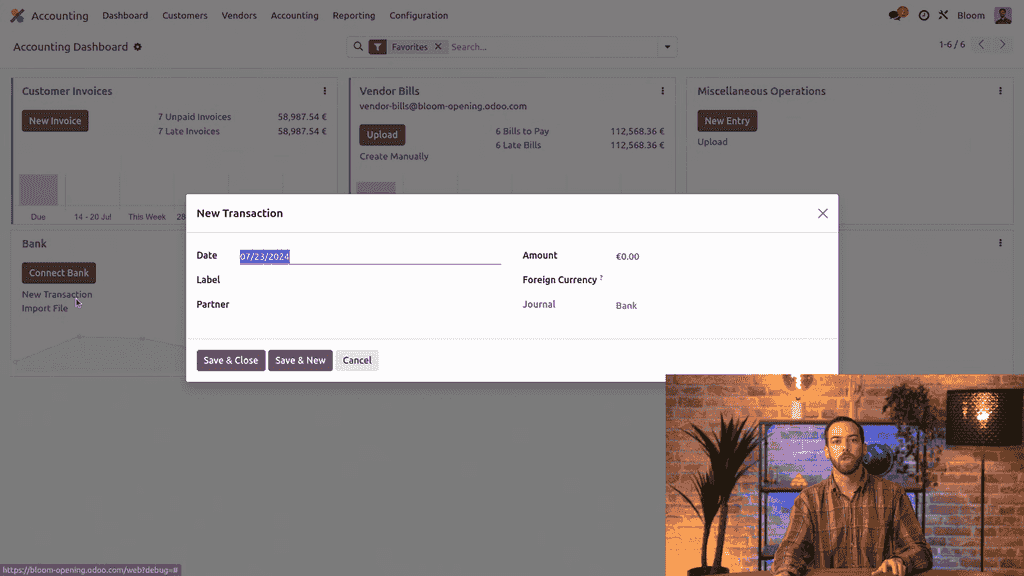
- Enter "Opening Balance" as the label
- Set the date to your opening balance date
- Paste in the bank balance amount
- Save and close
- Click Reconcile — Odoo will suggest the matching opening entry
- Select it and click Validate
Verify Your Results
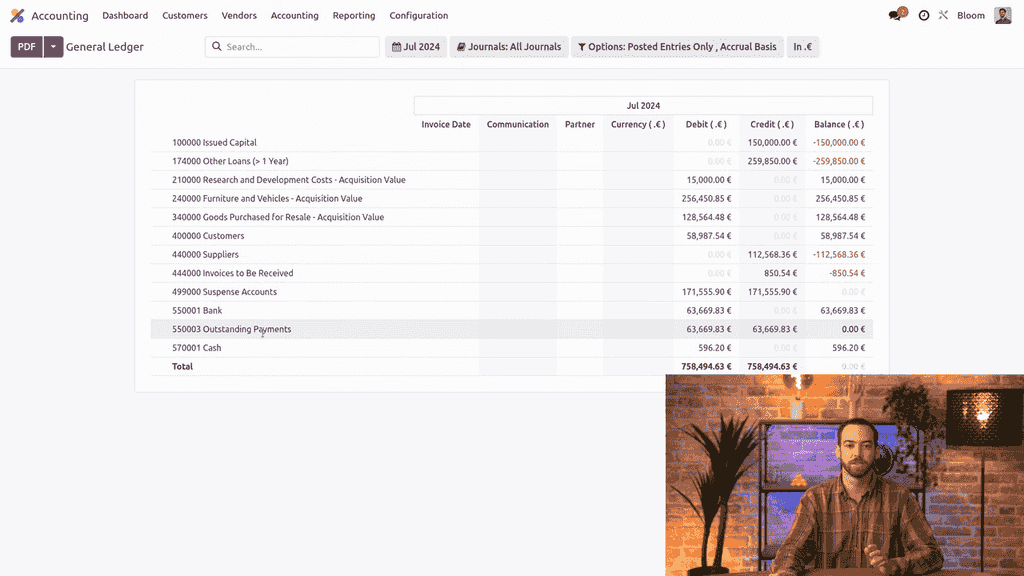
After completing all steps, check your general ledger:
- The suspense account should be fully balanced (zero balance)
- Receivable and payable accounts should show the correct balances
- The bank account should reflect the correct balance
- The outstanding receipts/payments account should be balanced
- Your general ledger should match the one from your old system
Summary
| Step | Action | Import Model |
|---|
| 1 | Create OPB journal | — |
| 2 | Import general ledger | Journal Entry |
| 3 | Import open invoices | Customer Invoice |
| 4 | Import open bills | Vendor Bill |
| 5 | Reconcile bank balance | Bank Transaction |
This method provides a standard, reliable approach for importing opening balances into Odoo. While complex scenarios may require additional adjustments, this workflow covers the needs of most businesses migrating to Odoo Accounting.
References


