

Product variants let you manage a single product that comes in different variations — such as a t-shirt available in multiple sizes and colors. Instead of creating separate products for each combination, you define one product template with attributes, and Odoo generates the variants automatically.

This approach is essential in industries like fashion, furniture, and electronics where customers expect multiple options. It keeps your product catalog clean, simplifies inventory tracking, and gives customers a smooth purchasing experience without exposing the underlying complexity.
Before creating variants, enable the feature in your Sales settings:
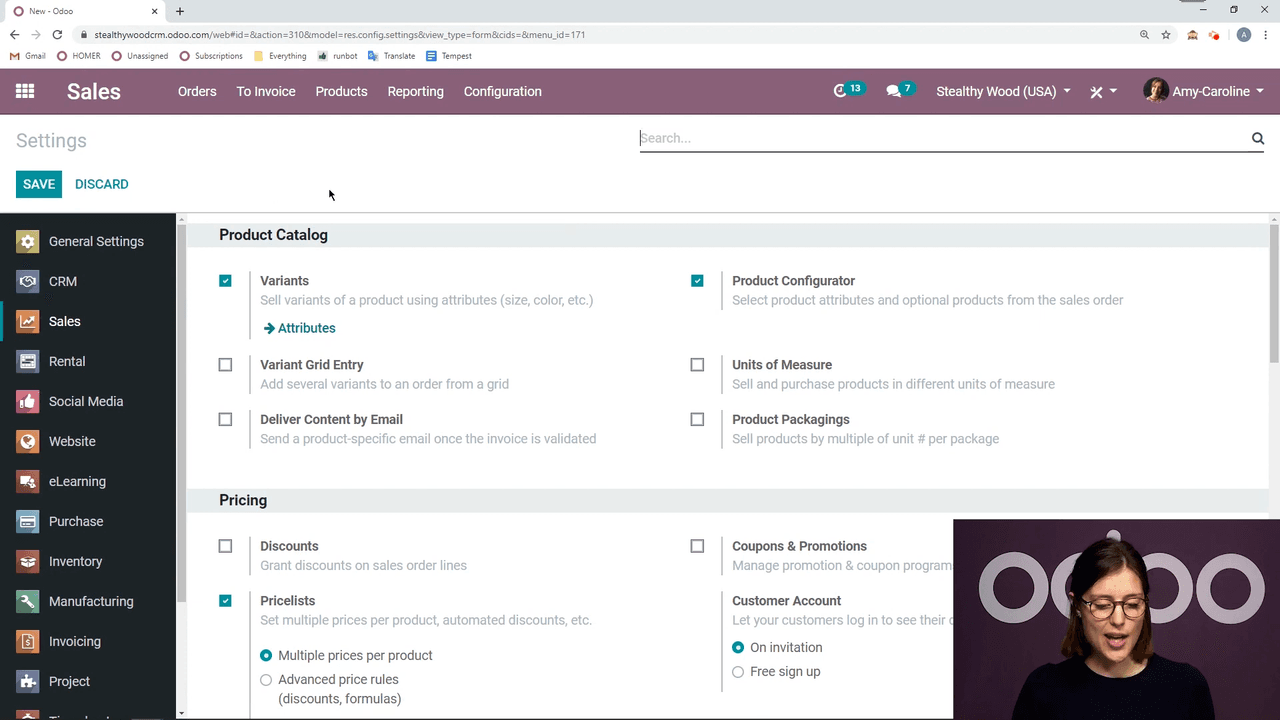
Once enabled, you gain access to the Attributes menu under Configuration, where you define the characteristics your products can have.
Attributes define the categories of variation (e.g., Color, Size, Legs), while values are the specific options within each attribute (e.g., Red, Blue, Large).
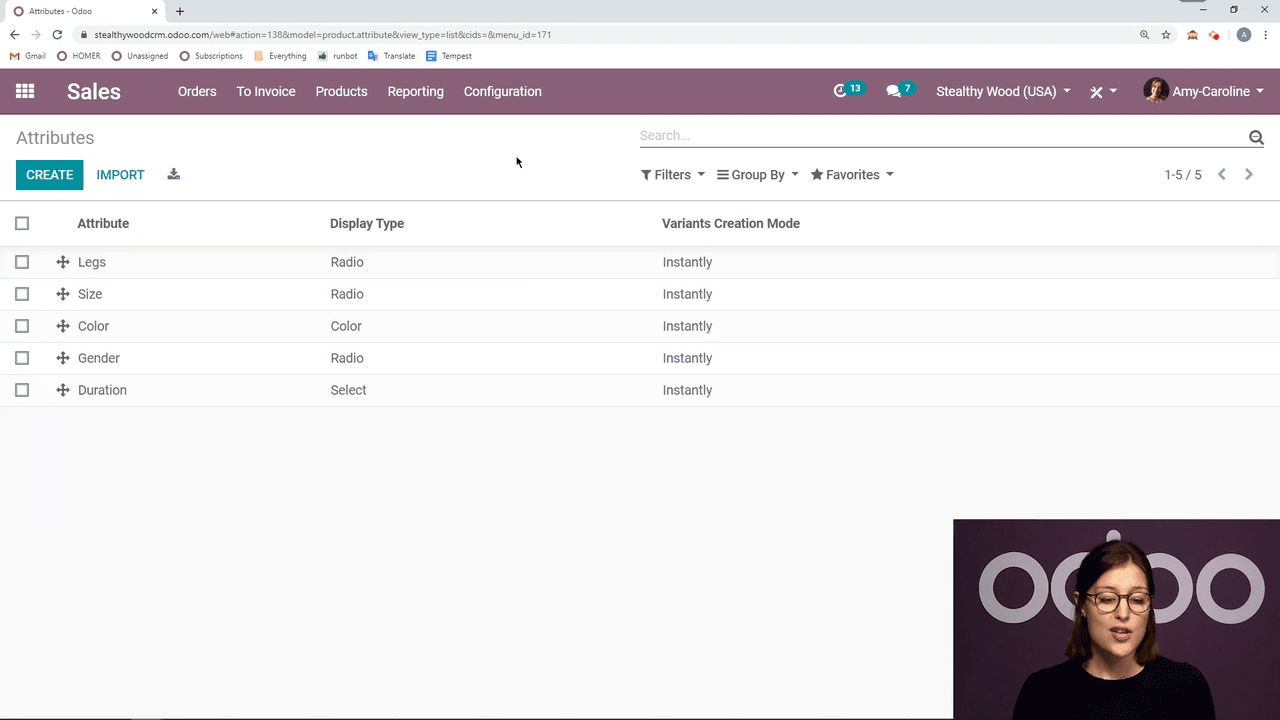
Navigate to Configuration > Attributes and click Create. Each attribute requires three settings:
| Setting | Options | Description |
|---|---|---|
| Attribute Name | Free text | The name shown to customers (e.g., "Color") |
| Display Type | Radio, Select, Color | How values appear on the storefront |
| Variant Creation Mode | Instantly, Dynamically, Never | When Odoo generates variant records |
Important: Once variants have been created for an attribute, you cannot change the variant creation mode. Choose carefully during initial setup.
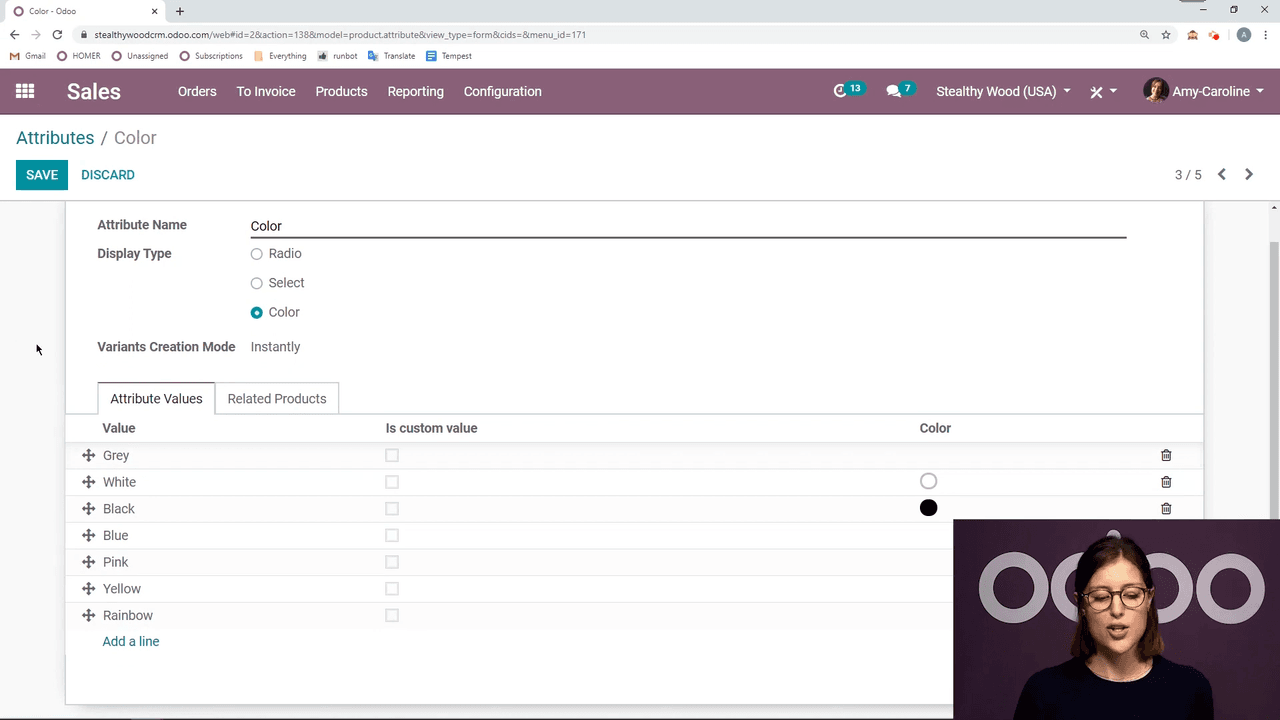
Within each attribute, add the specific values your products can use:
A typical Color attribute might include values like Grey, White, Black, Blue, Pink, Yellow, and Rainbow. Each can have an associated HTML color code so customers see a color swatch rather than just a text label.
Once your attributes are ready, apply them to individual products:
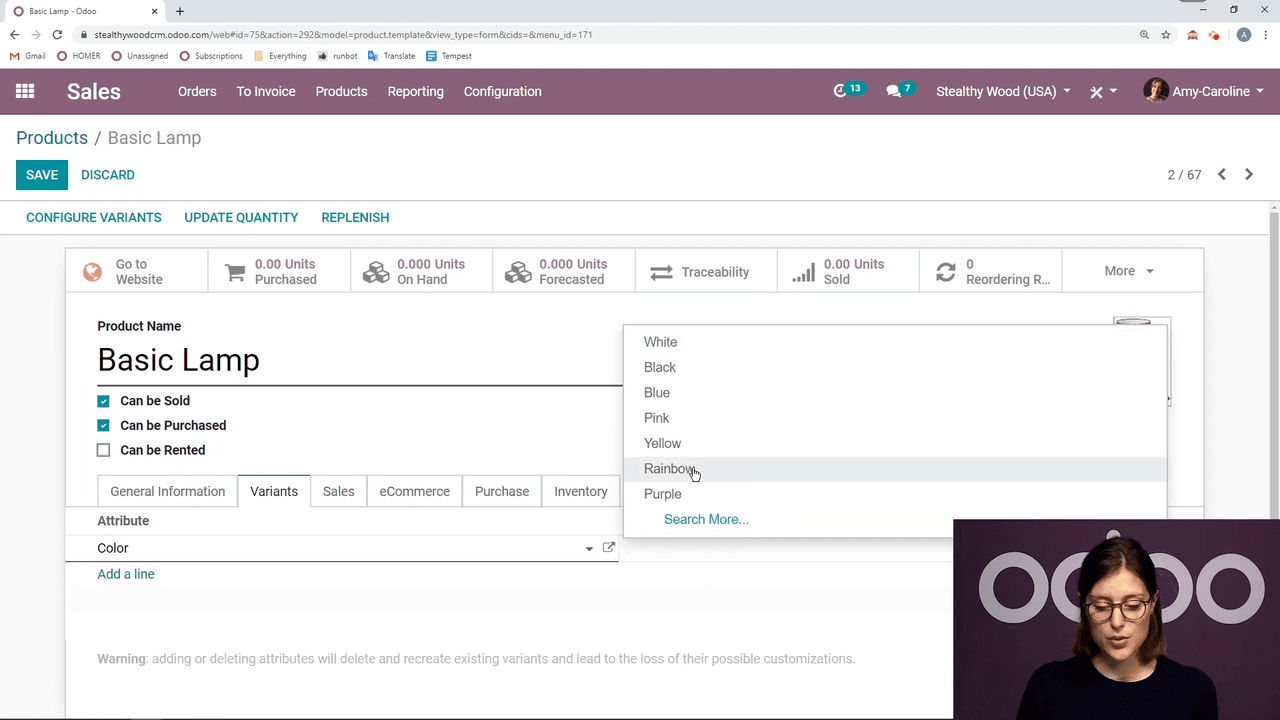
Odoo generates the variants based on your selection. If variant creation mode is set to Instantly, the variants appear right away. You can always add more values later — for example, introducing a new color option for an existing product.
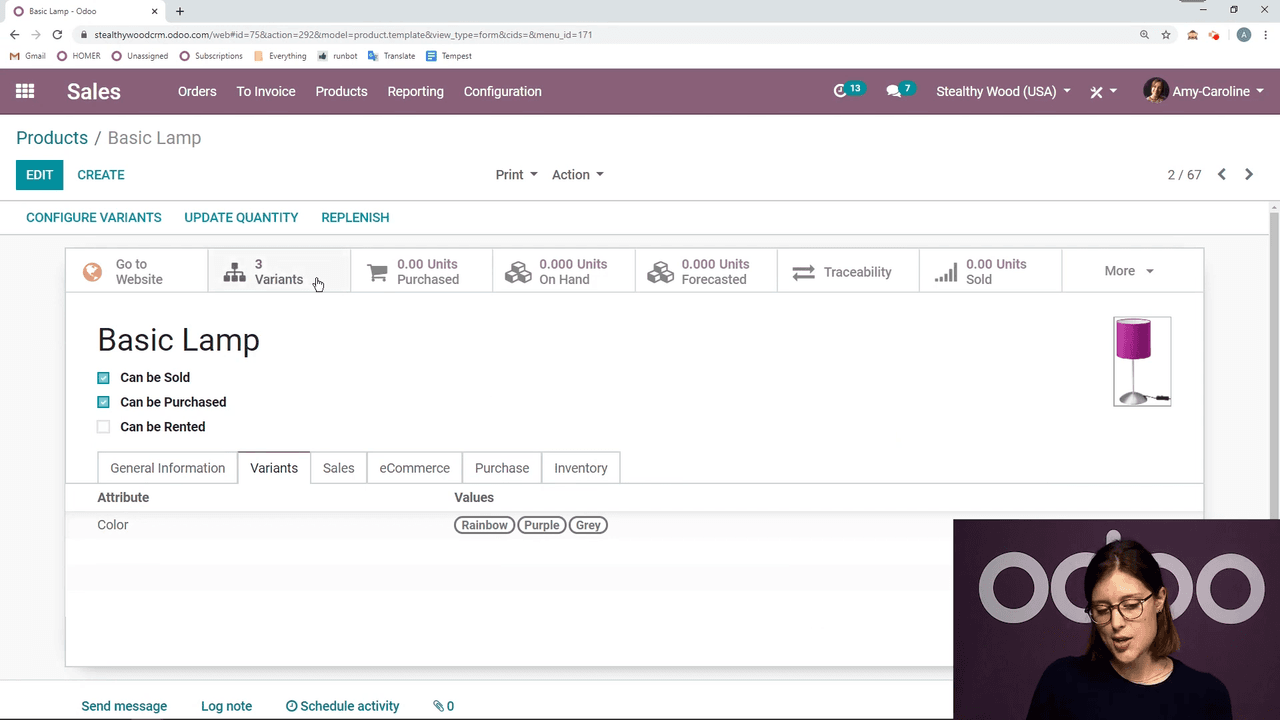
Click Configure Variants on the product to fine-tune each variant:
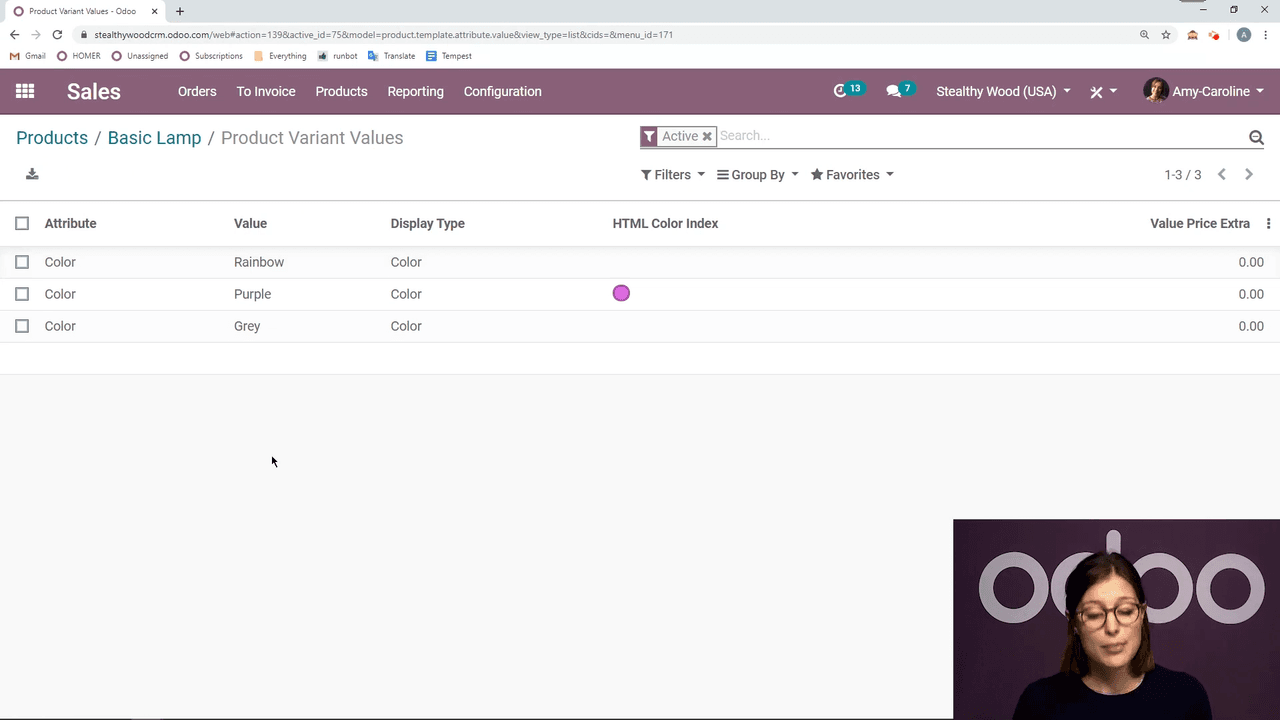
Add a price premium to specific variants. For example, if a rainbow-colored lamp is in high demand, you can set an extra price of $5. This amount is added on top of the base product price.
Define incompatible combinations between attribute values. This is useful when certain options cannot physically or logically coexist. For example:
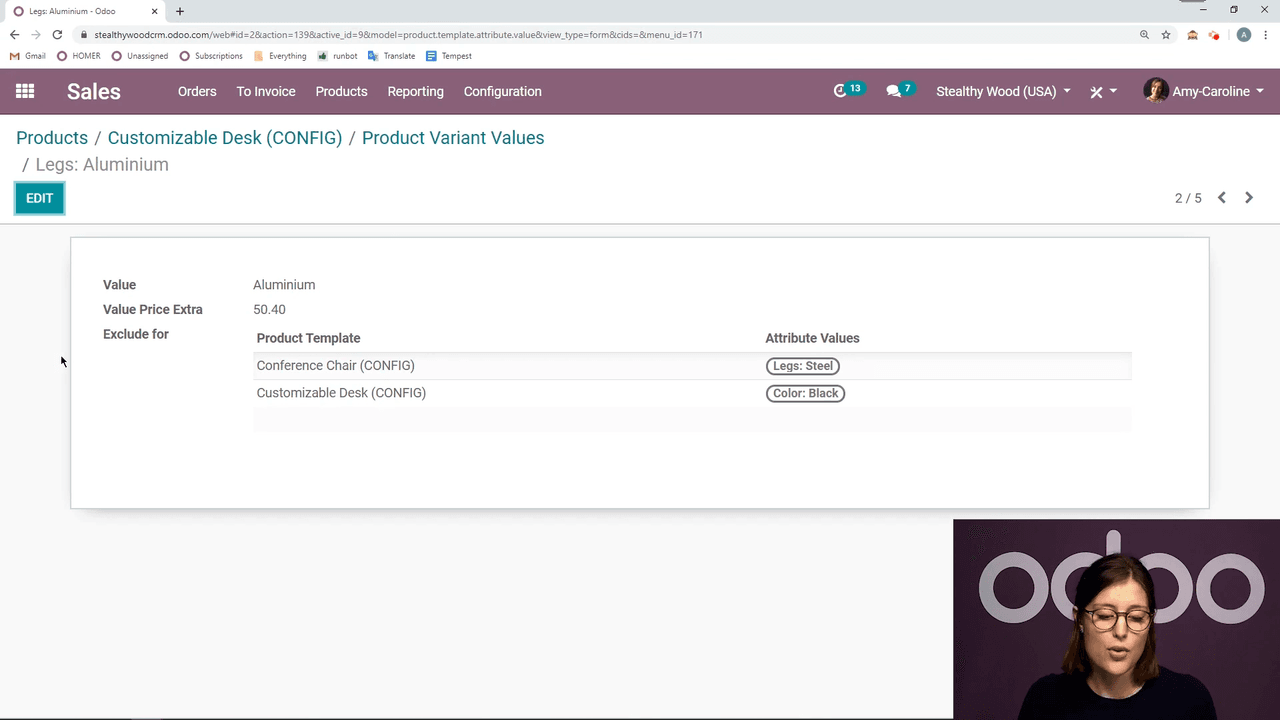
Exclusions work across the product configurator to prevent customers from selecting invalid combinations.
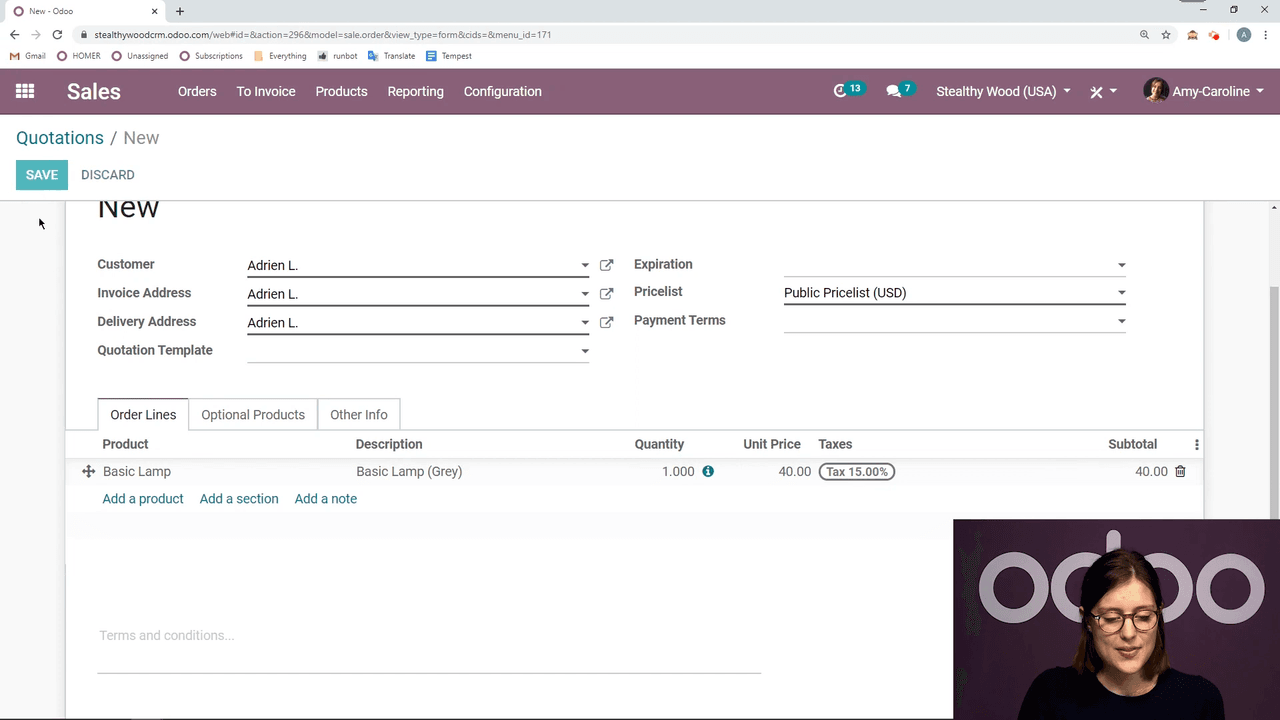
When creating a quotation, the product configurator streamlines variant selection:
The Product Configurator pops up automatically, displaying all available attributes with their values. Prices update in real time — if a variant has an extra price, it shows immediately so you and your customer can see the total before confirming.
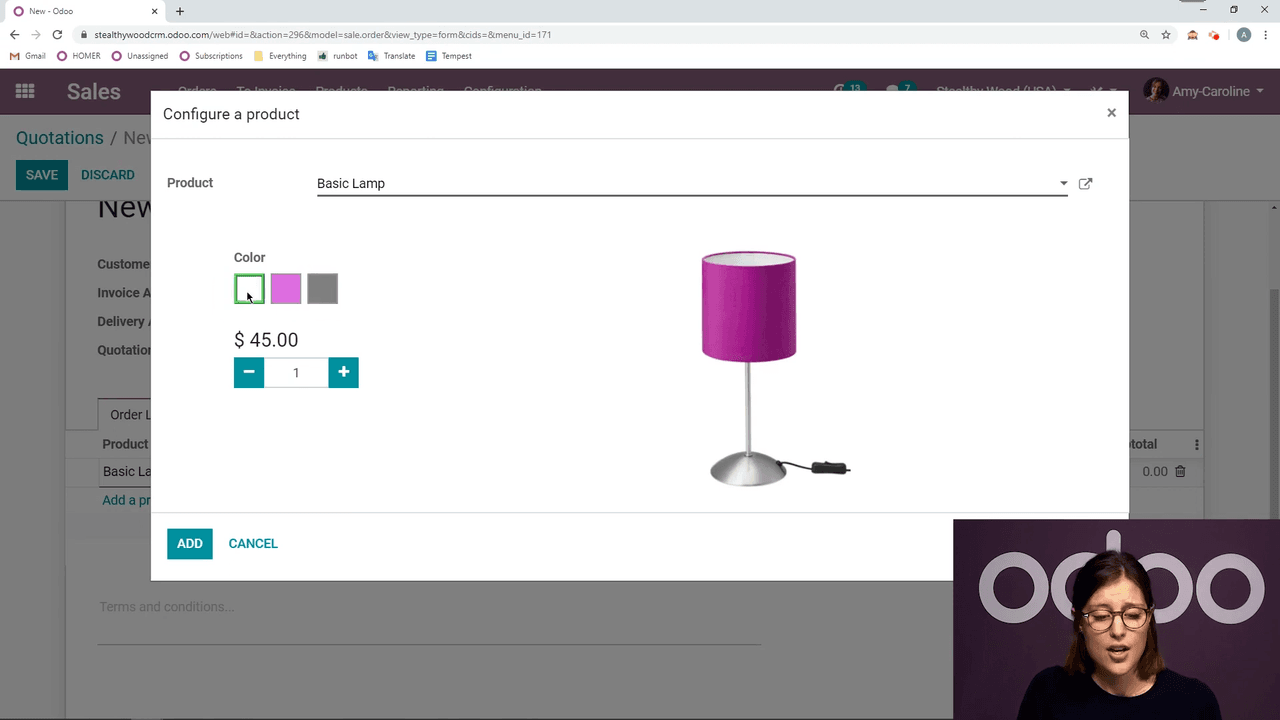
Prerequisite: Ensure the Product Configurator option is activated in your Sales settings to see this popup.
After selecting the desired variant, click Add to place it on the quotation. You can then proceed with the standard sales flow — confirming the order, generating invoices, and managing delivery.
With product variants configured, consider these related features to enhance your sales workflow:

Zoo AI is a certified Odoo partner in Hong Kong, delivering expert ERP implementation and AI automation for SMEs. Get in touch to learn more.