

Bank reconciliation is the process of matching bank transactions with accounting entries. While not strictly a legal requirement on its own, it is essential for maintaining accurate financial records — which is a legal requirement.
Regular reconciliation also helps you:
To start reconciling in Odoo:
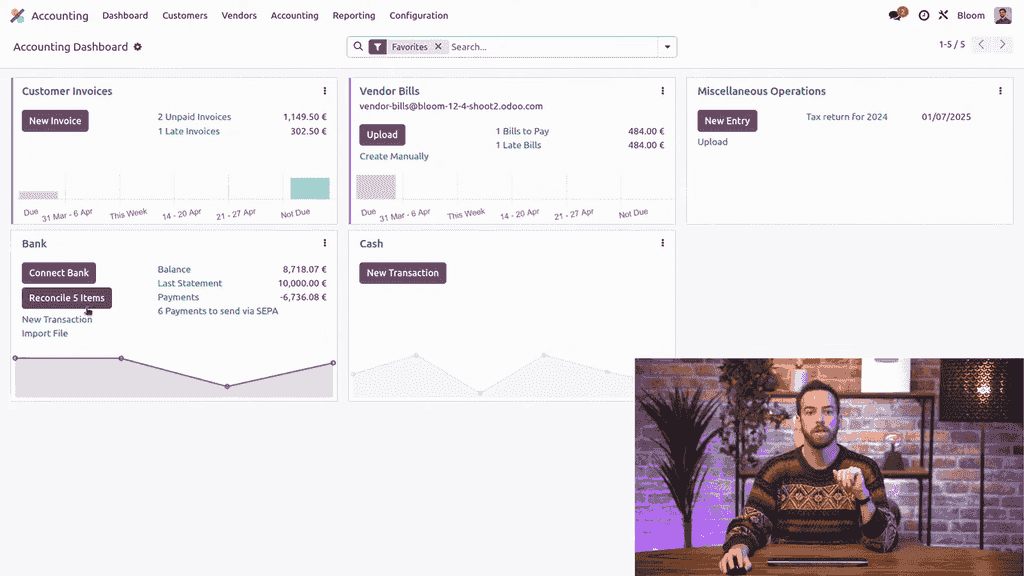
The reconciliation view is split into three main areas:
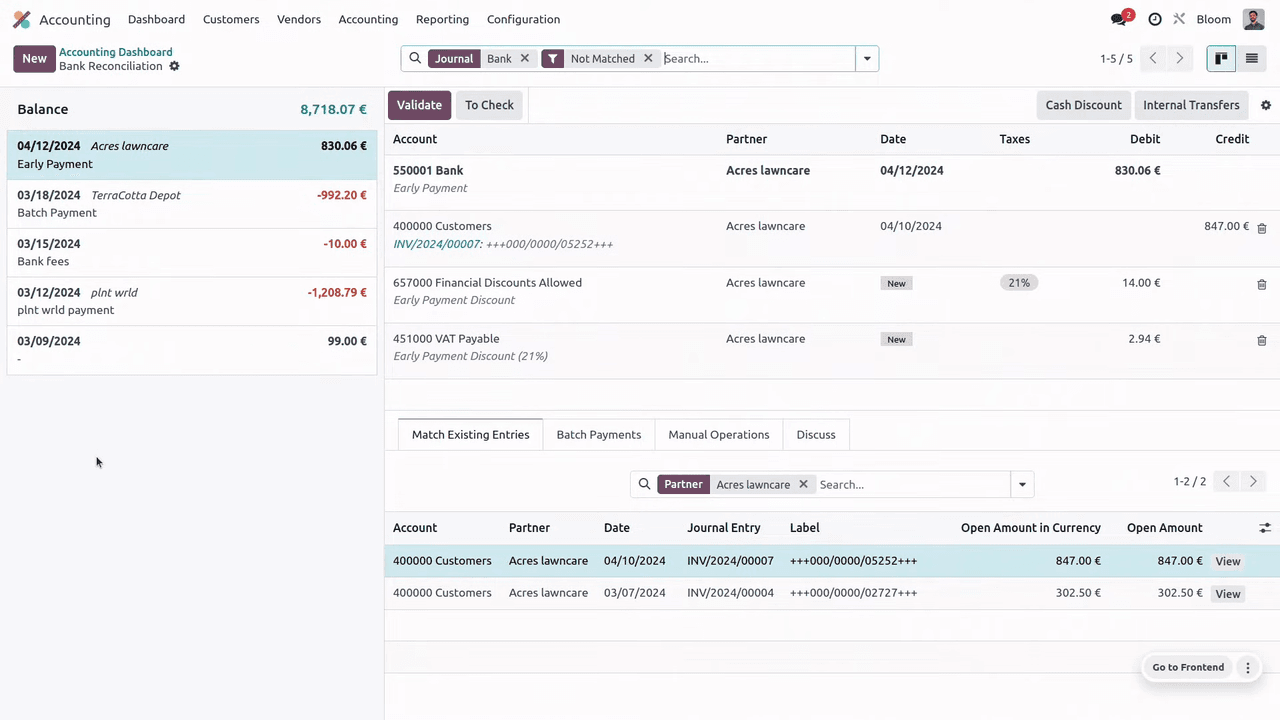
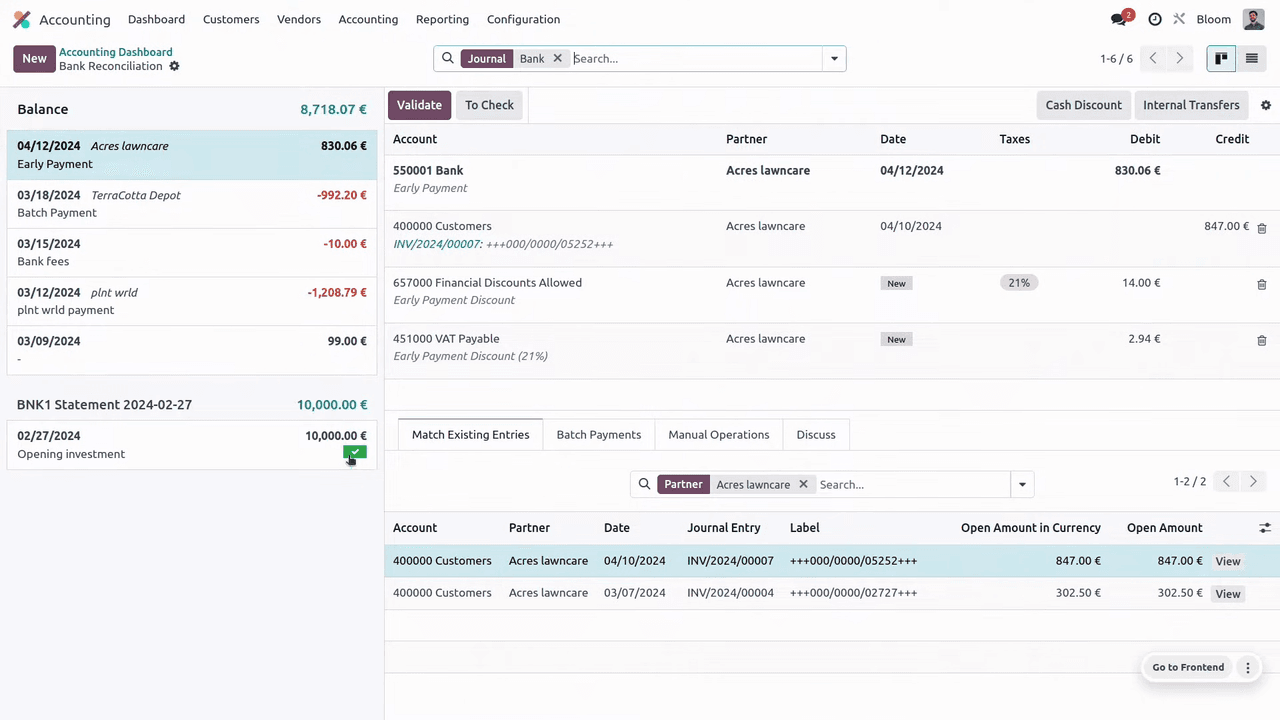
By default, Odoo filters to show only unmatched transactions. Remove the "Not Matched" filter to see previously reconciled entries, indicated by a green check mark.
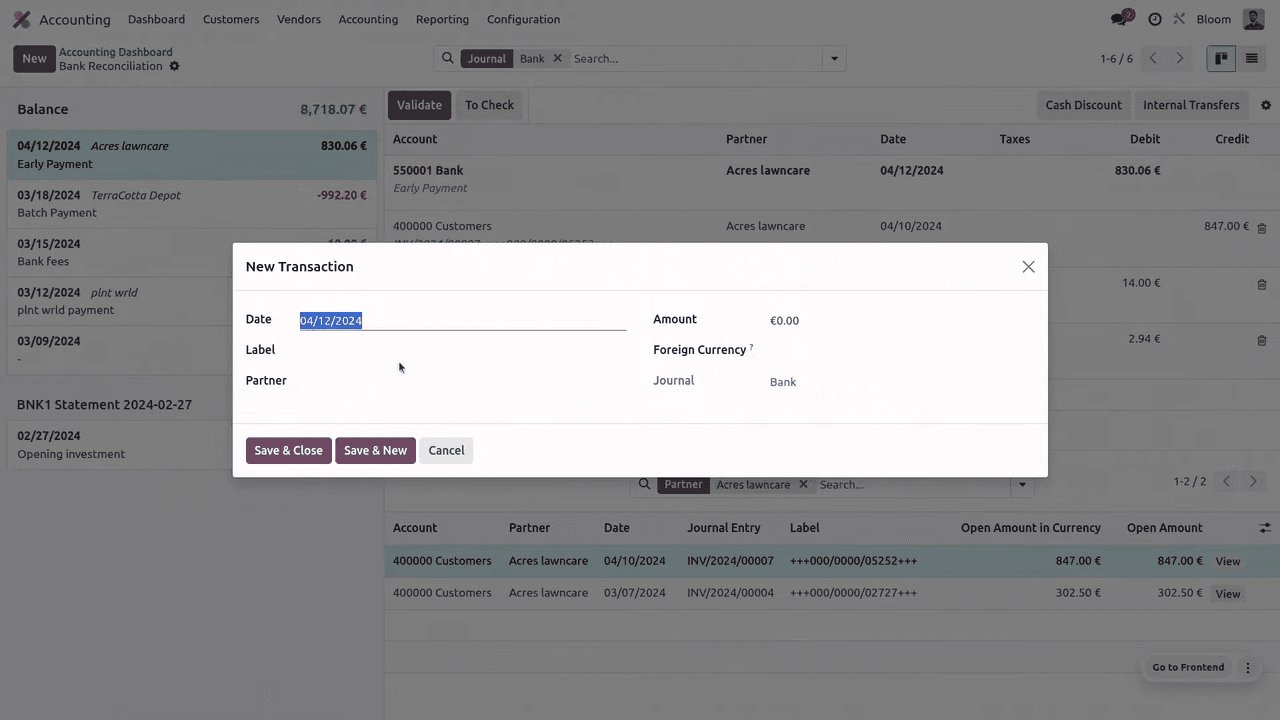
Click the New button in the reconciliation view, fill in the transaction details, and save.
To create a bank statement:
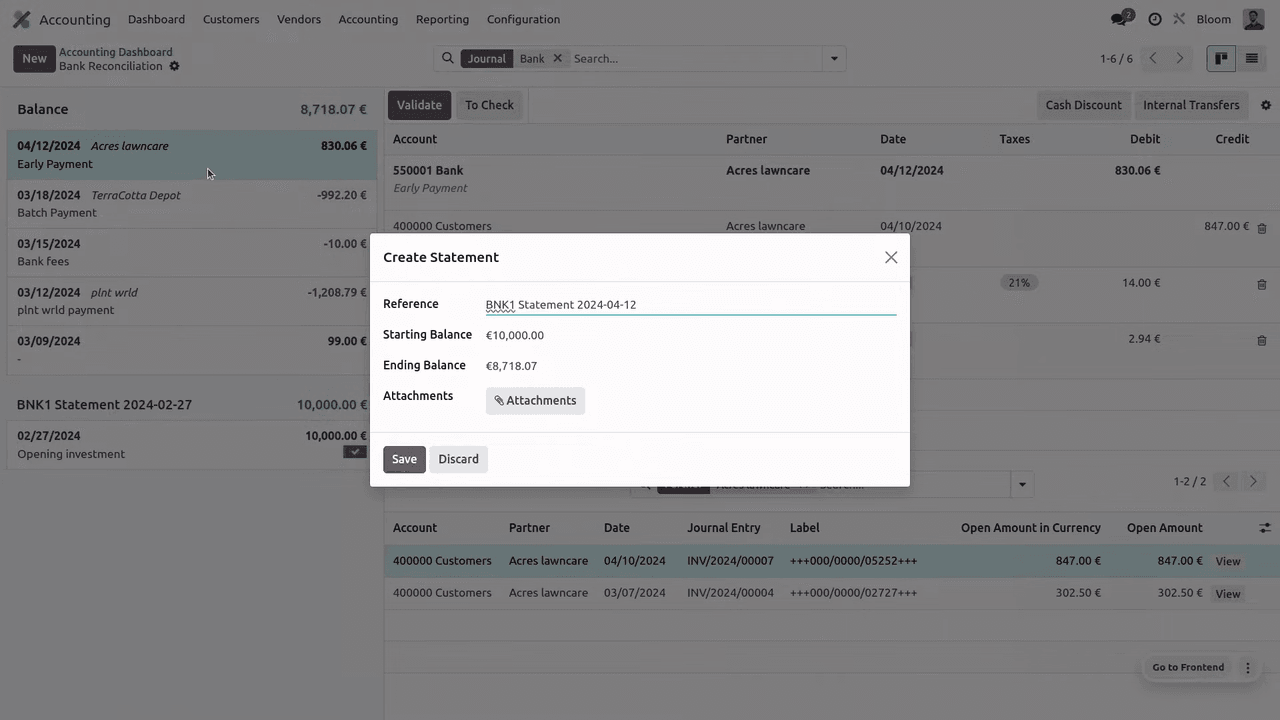
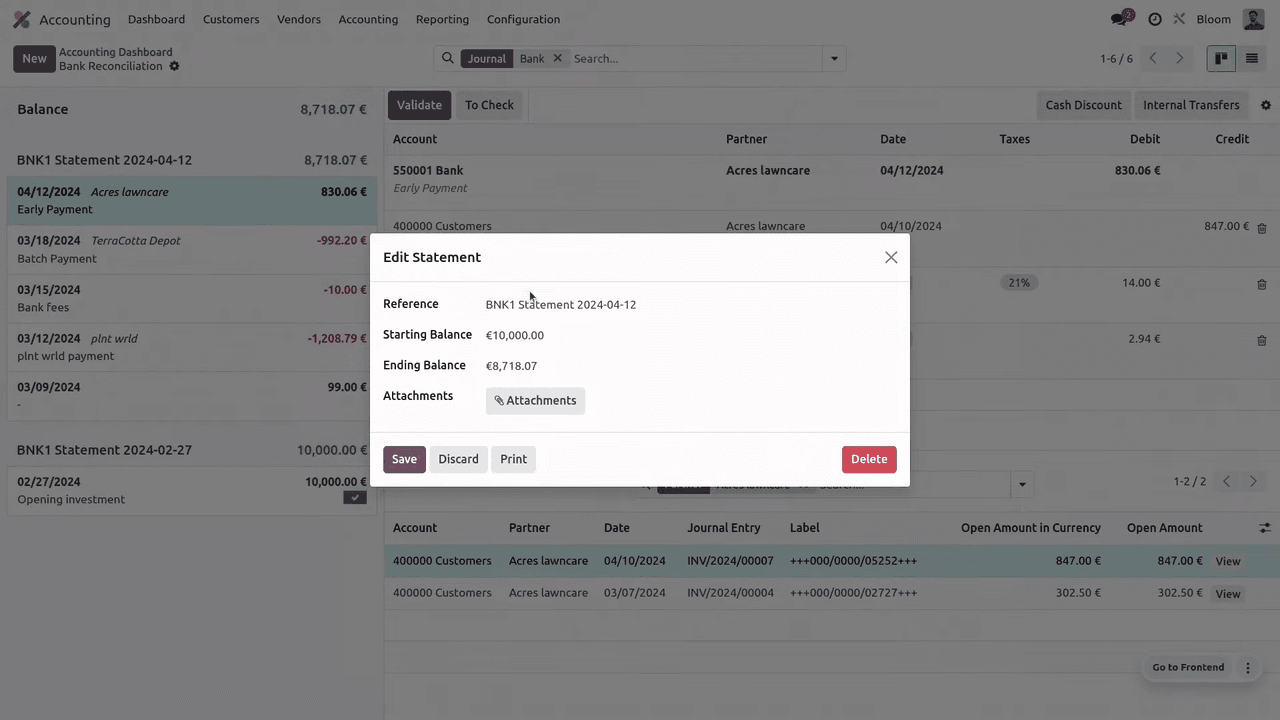
Access any statement later by clicking its ending balance on the reconciliation view. From there you can edit, print, or delete it.
Odoo highlights suggested matches in blue based on the partner, reference, or amount. Here are the most common scenarios:
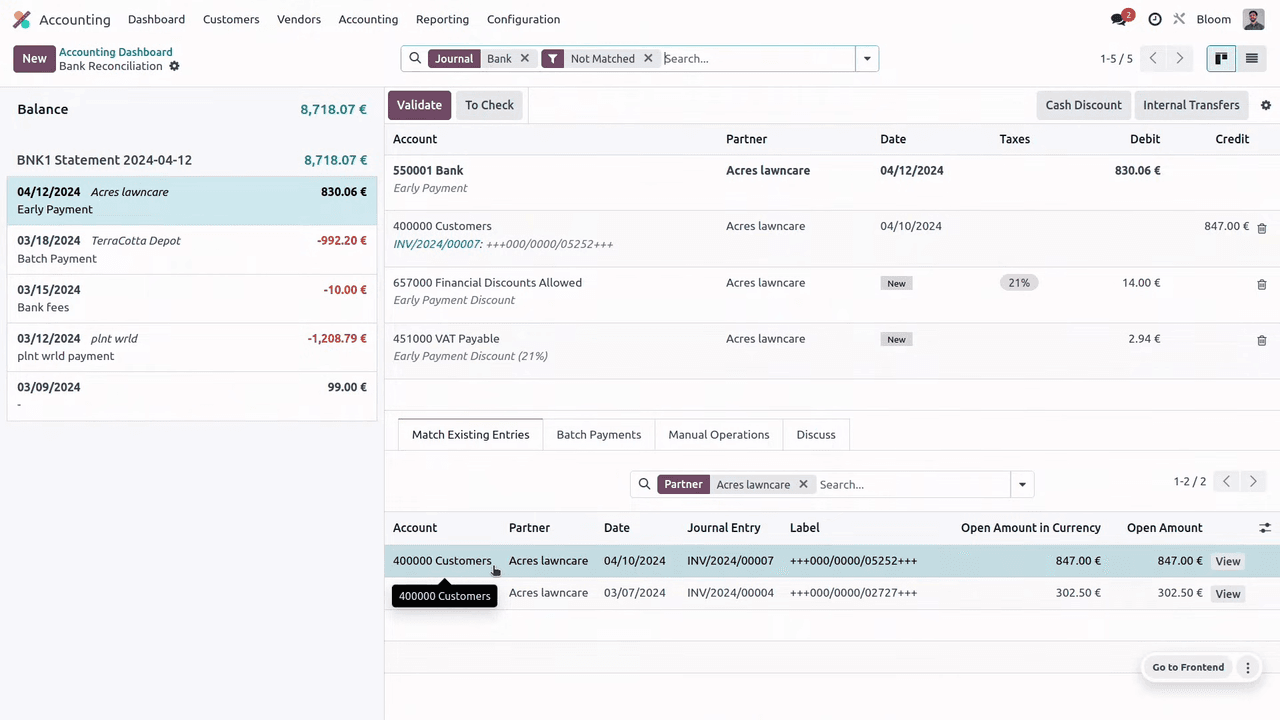
When a payment amount does not exactly match the invoice amount due to an early payment discount, Odoo detects the difference and suggests posting it to the appropriate discount account. Click Validate to confirm.
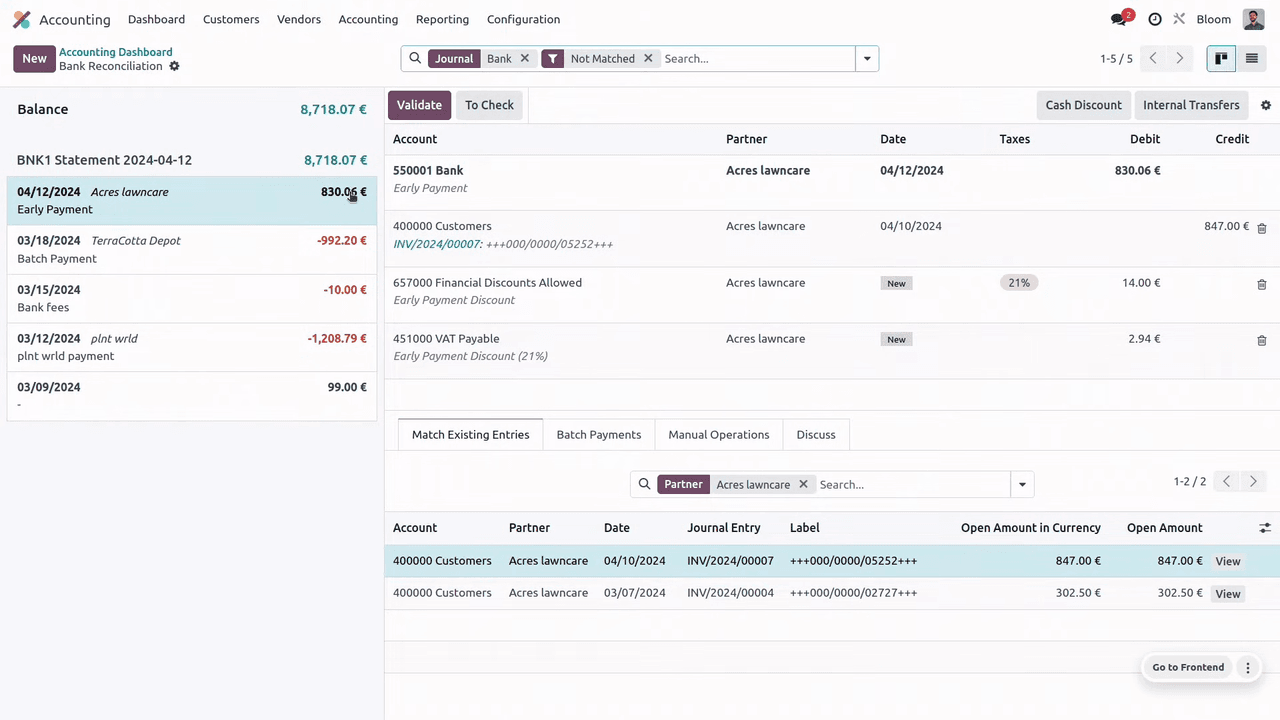
You can also click the invoice link to review the original document before validating.
When a single bank transaction covers multiple invoices, navigate to the Batch Payments tab, select the correct batch, and validate.
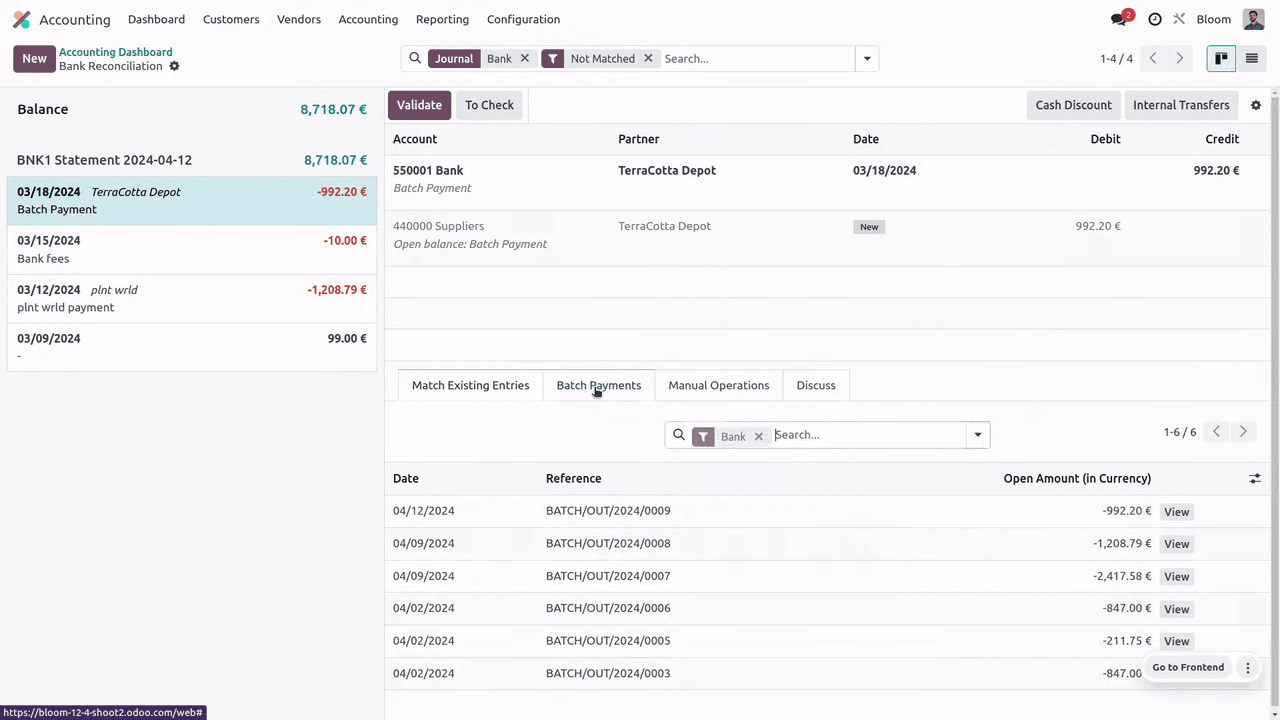
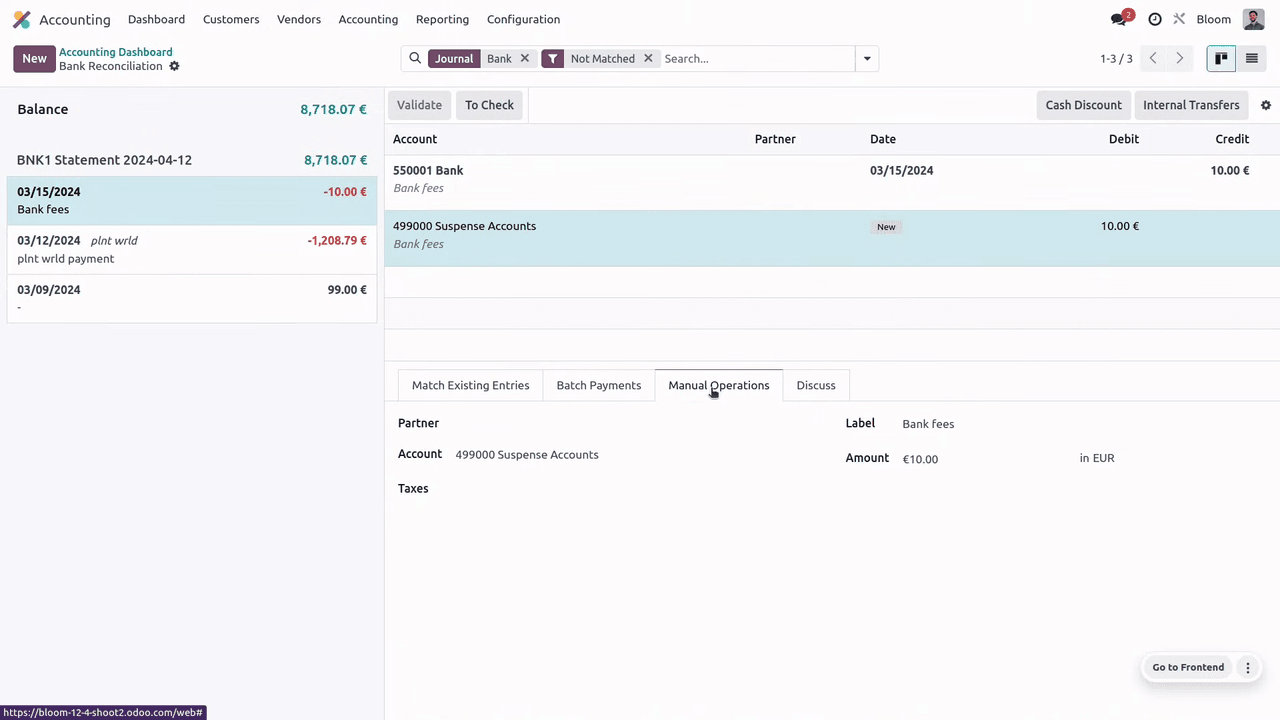
For transactions like bank fees without a matching open item:
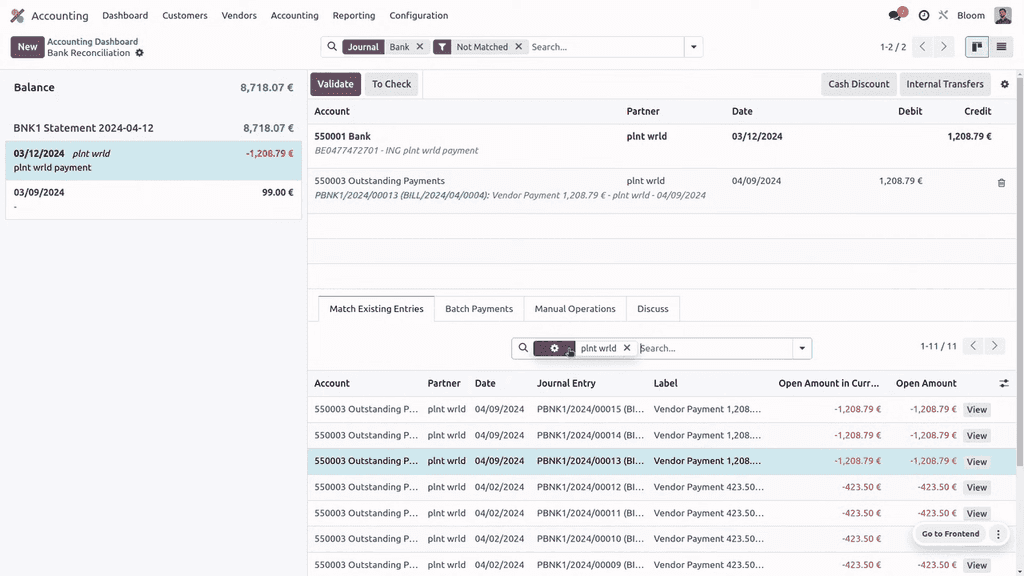
Each transaction may have a default partner filter applied. You can modify this filter and search by:
This is useful when you need to match a payment against a specific bill rather than the suggested entry.
For transactions without a reference or clear match:
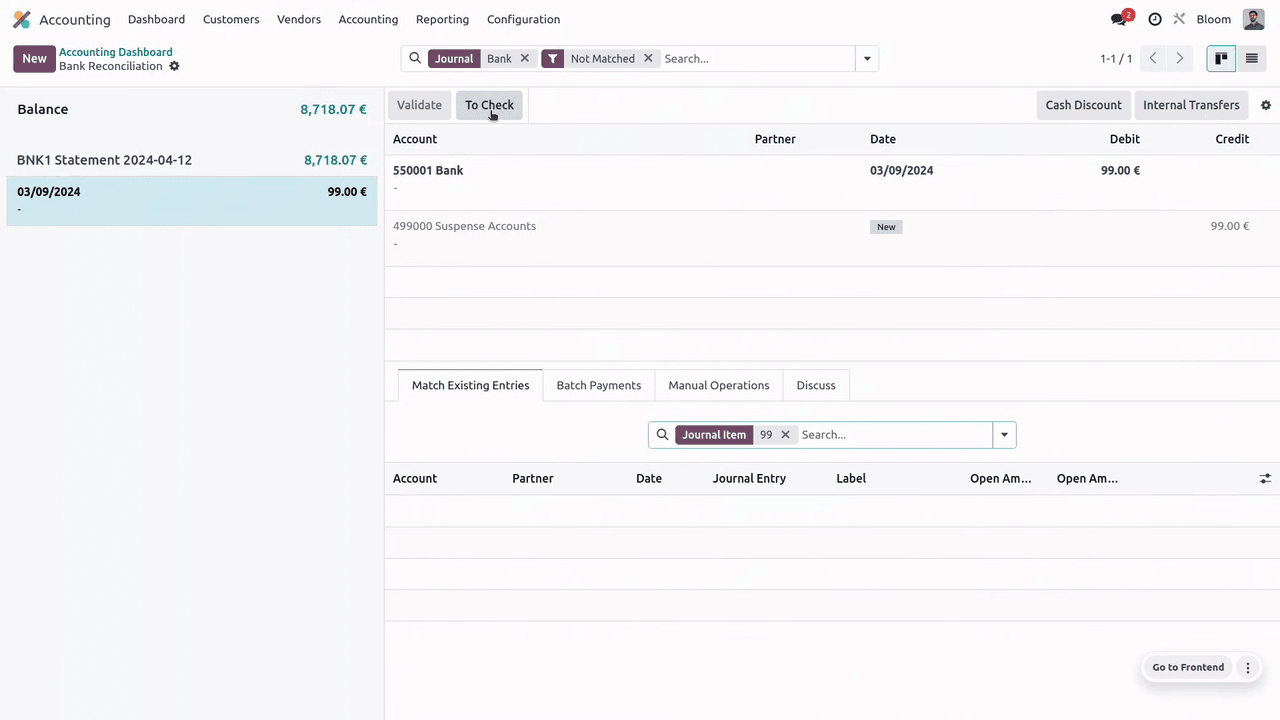
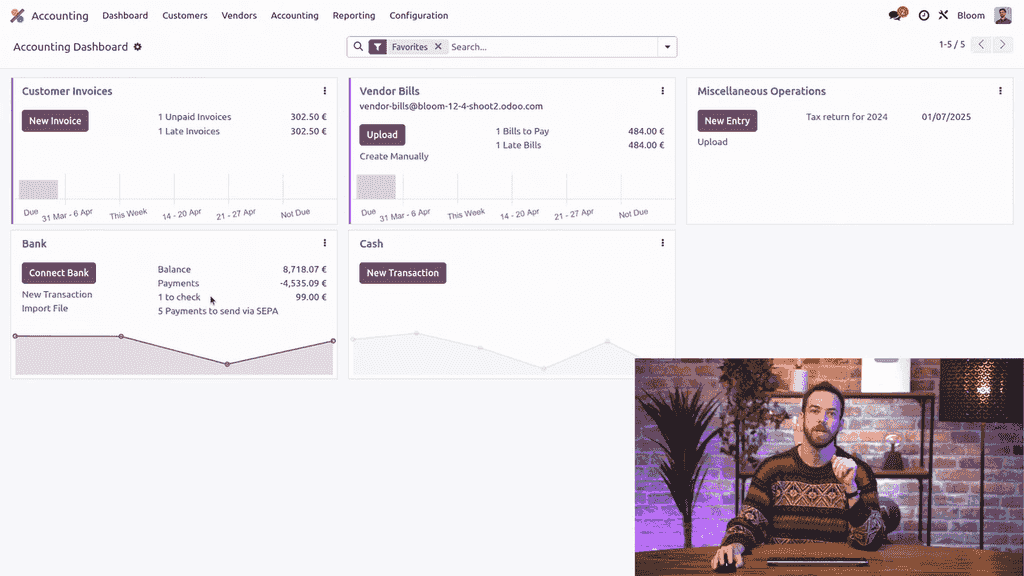
Find all "to check" transactions from your bank journal dashboard under the To Check link.
For more advanced workflows, explore Odoo's bank synchronization and reconciliation models features.

Zoo AI is a certified Odoo partner in Hong Kong, delivering expert ERP implementation and AI automation for SMEs. Get in touch to learn more.