How to Create Products in Odoo eCommerce

How to Create Products in Odoo eCommerce

Yannis, Odoo Expert
5 min read

Table of Contents

Why Odoo eCommerce

An online store gives your business a 24/7 global presence. Odoo eCommerce makes it straightforward to create products, manage listings, and customize your storefront — all without needing a separate platform or technical skills.

This guide walks you through creating products from both the frontend (website editor) and the backend (admin panel), plus how to bulk import and customize product pages.

Creating a Product from the Frontend

The fastest way to add a product is directly from your website's shop page.
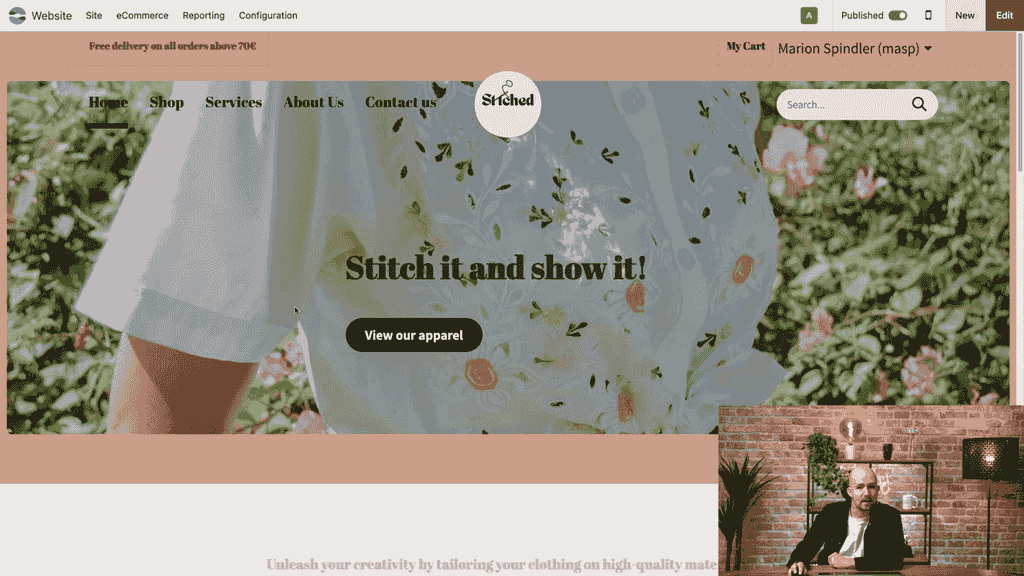
  1. Open the Website app
  2. Navigate to your Shop page

Shop page with New button visible

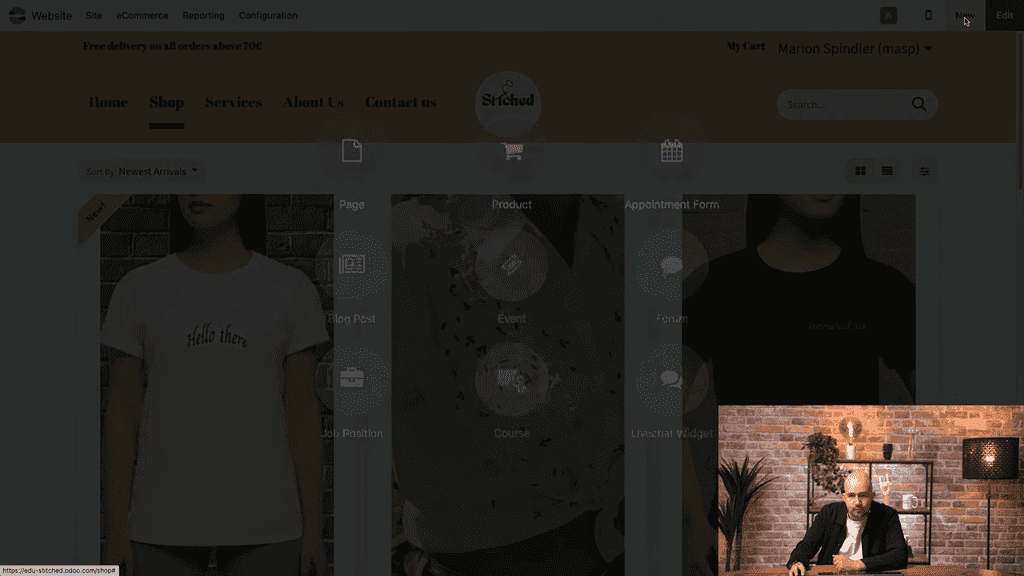
  1. Click the New button and select Product

Selecting Product from New menu

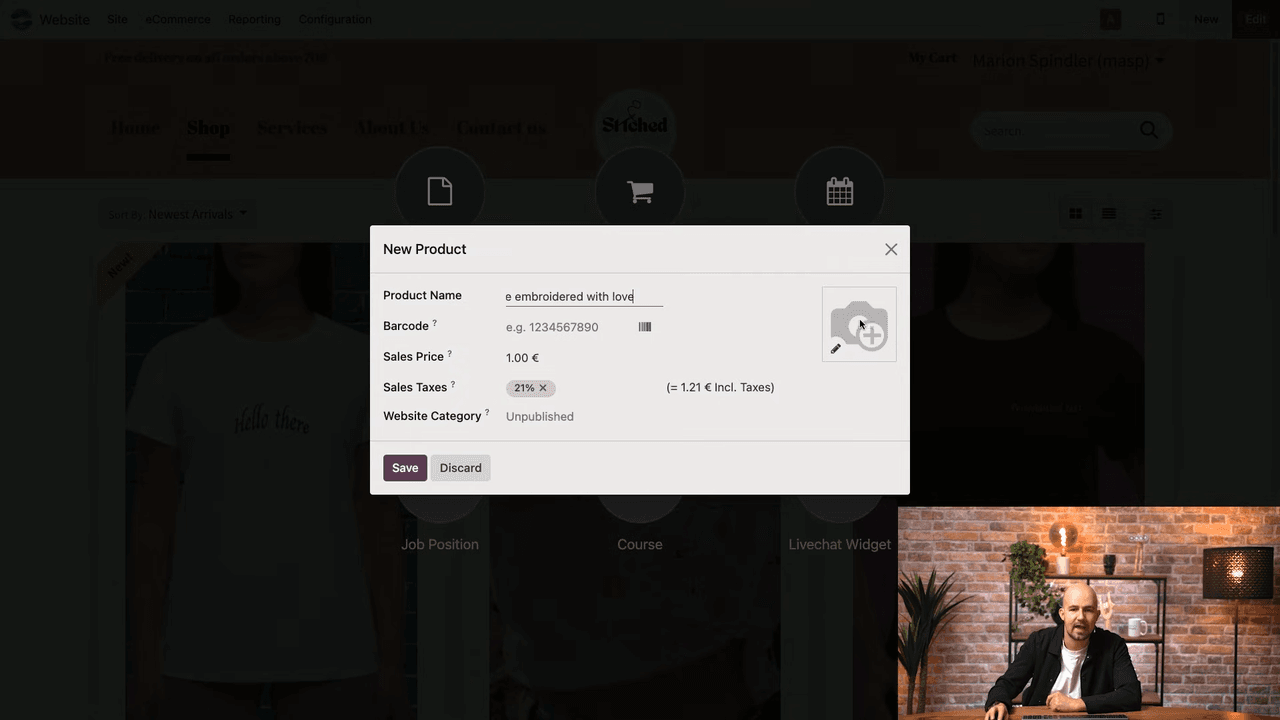
  1. Enter the product name (e.g., "White T-shirt — Embroidered with Love")
  2. Upload a product image

Product name and image upload

  1. Set the price (e.g., €35)
  2. Click Save

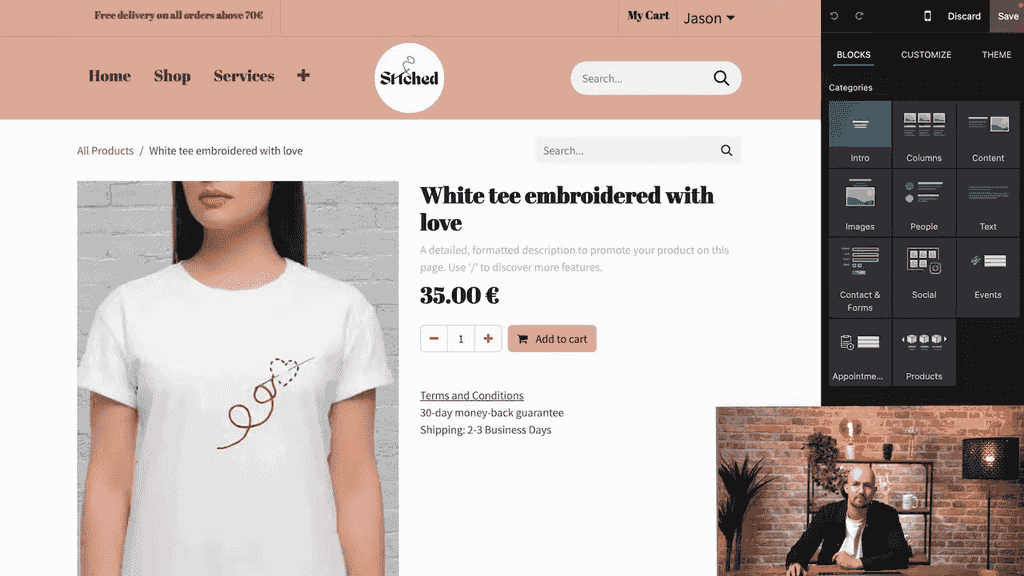
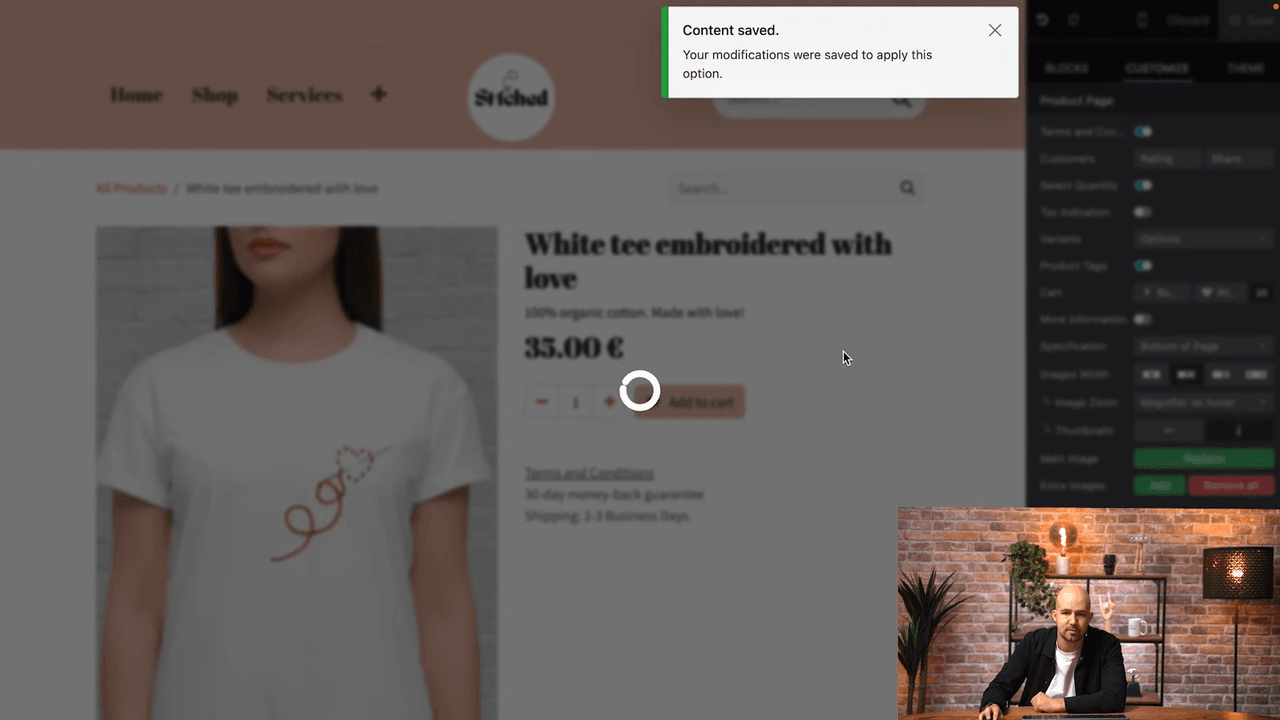
Product page after saving

Your product page is created instantly and automatically published on your website. This is the key difference from backend creation — frontend products go live immediately.

Adding Product Details

A product page with just a name and price won't convert visitors into buyers. Add details to make it more appealing:

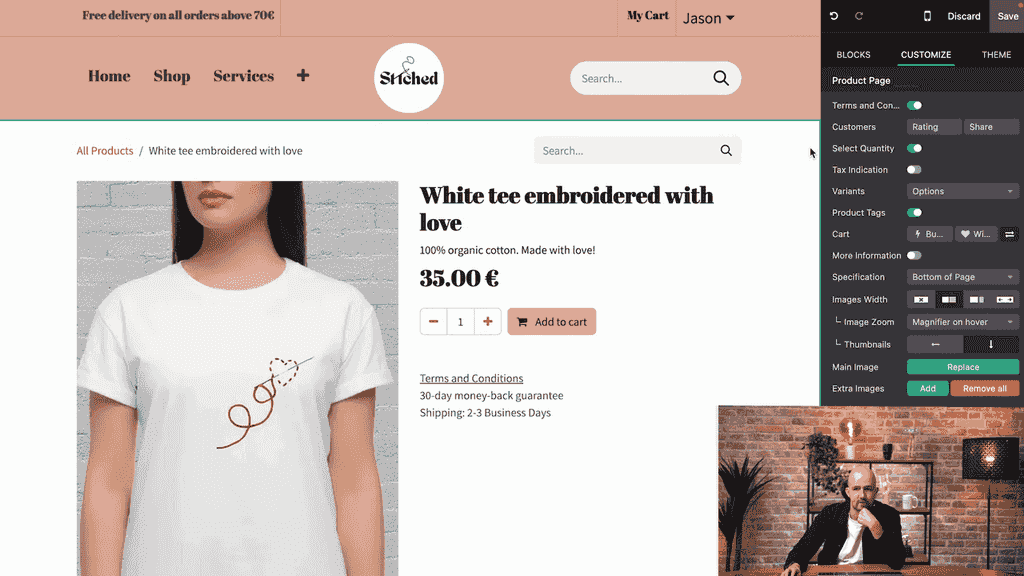
  • Description: Write a concise product description highlighting key features (e.g., "100% organic cotton, made with love")

Adding product description

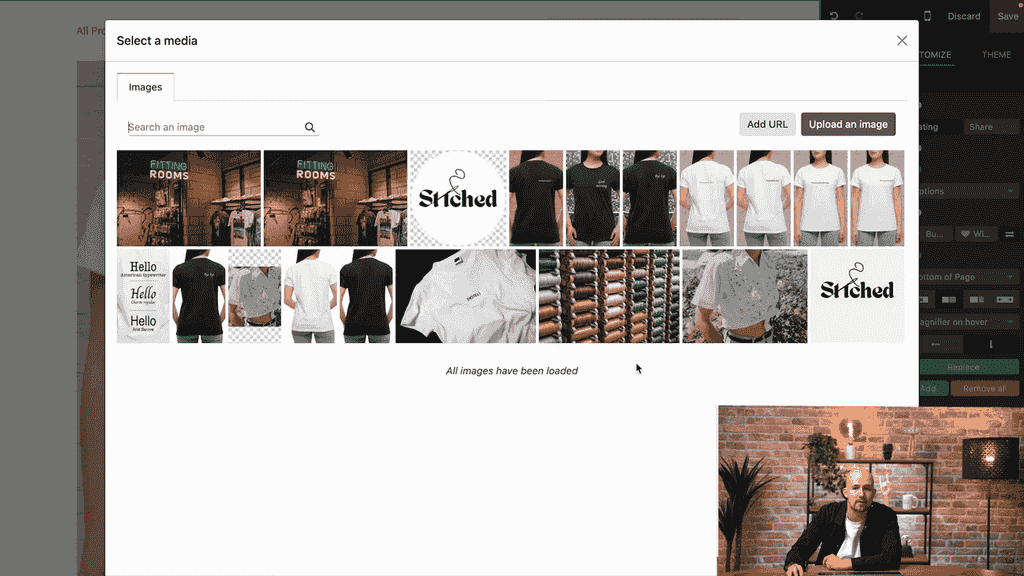
  • Extra images: Click the add button in the image section to upload additional product photos

Adding extra product images

Keep descriptions focused on what matters to buyers: materials, quality, and unique selling points.

Enabling Social Sharing and Ratings

Odoo lets you add interactive features to product pages through the Customize tab:

FeatureWhat It Does
Share buttonsAdds social media icons so visitors can share your product
Rating optionLets customers rate and review your product

To enable these:

  1. Click the Customize tab on the product page editor

Customize tab with share and rating options

  1. Toggle on Share to display social media icons
  2. Toggle on Rating to enable customer reviews

Social media icons and rating on product page

Explore the other customization options available in this tab to find what works for your store.

Creating a Product from the Backend

You can also create products from the admin panel, which gives you access to more configuration options.
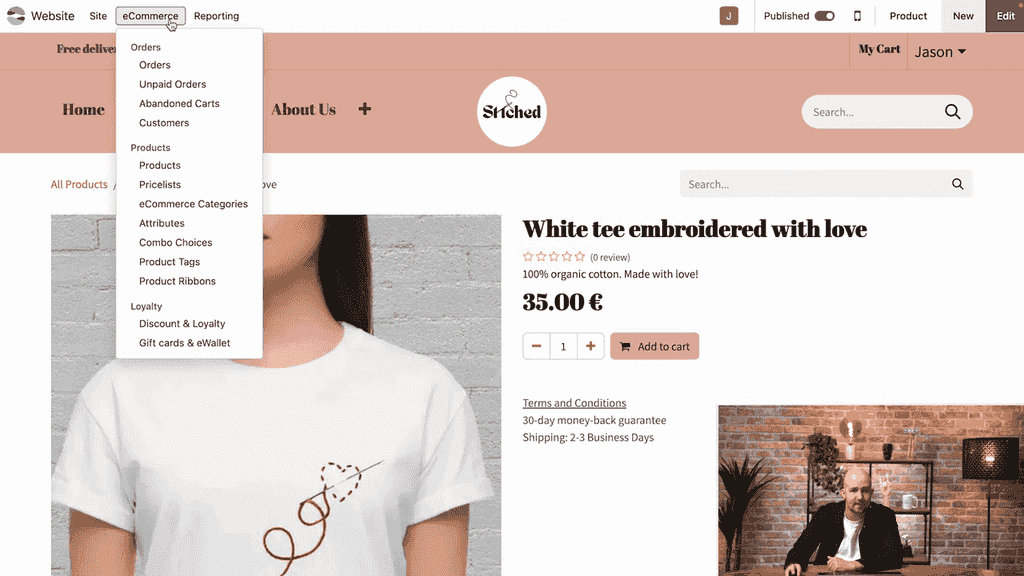
  1. Go to eCommerce > Products

eCommerce Products list in backend

  1. Click New to create a product
  2. Fill in the product details
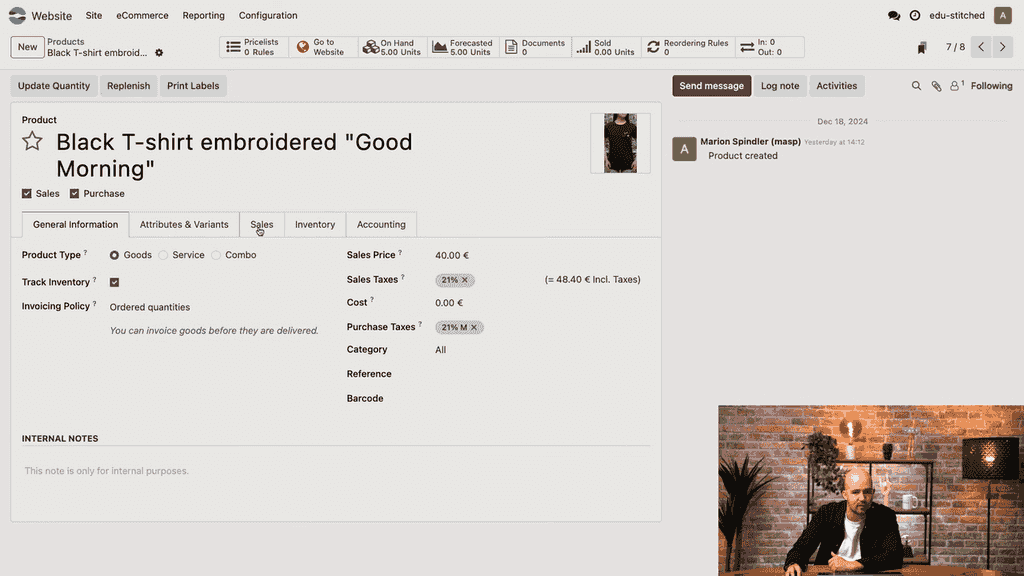
  3. Navigate to the Sales tab
  4. Check the Published checkbox to make it visible on your website

Sales tab with Published checkbox

  1. Click Save

Important: Products created from the backend are not published by default. You must manually check the "Published" checkbox in the Sales tab to make them appear on your website.

To preview your product on the website, click the Go to Website button from the backend product page.
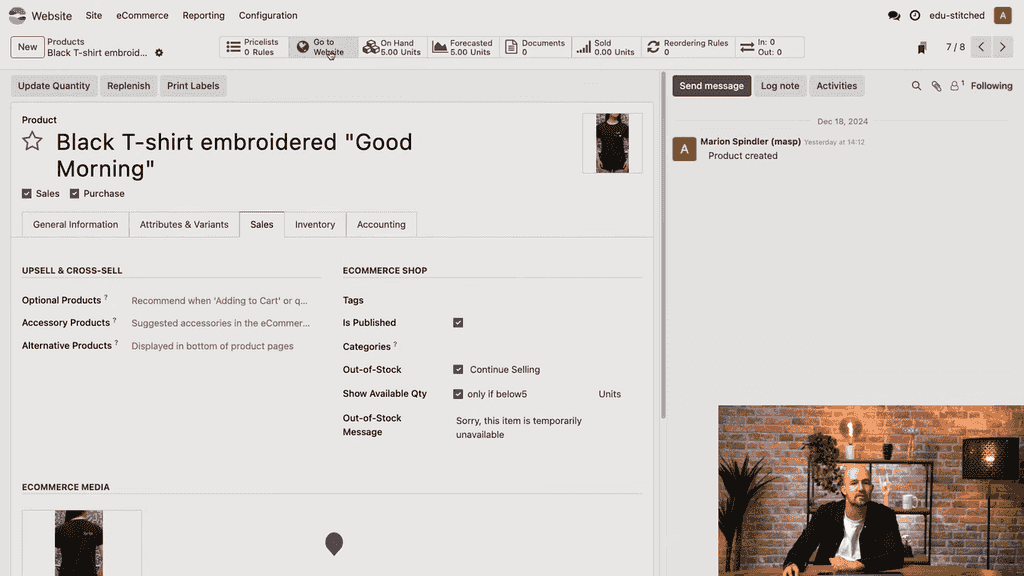
Go to Website button on backend product page

Bulk Importing Products

If you have a large product catalogue, manually creating each product is impractical. Odoo supports bulk import via spreadsheet files.
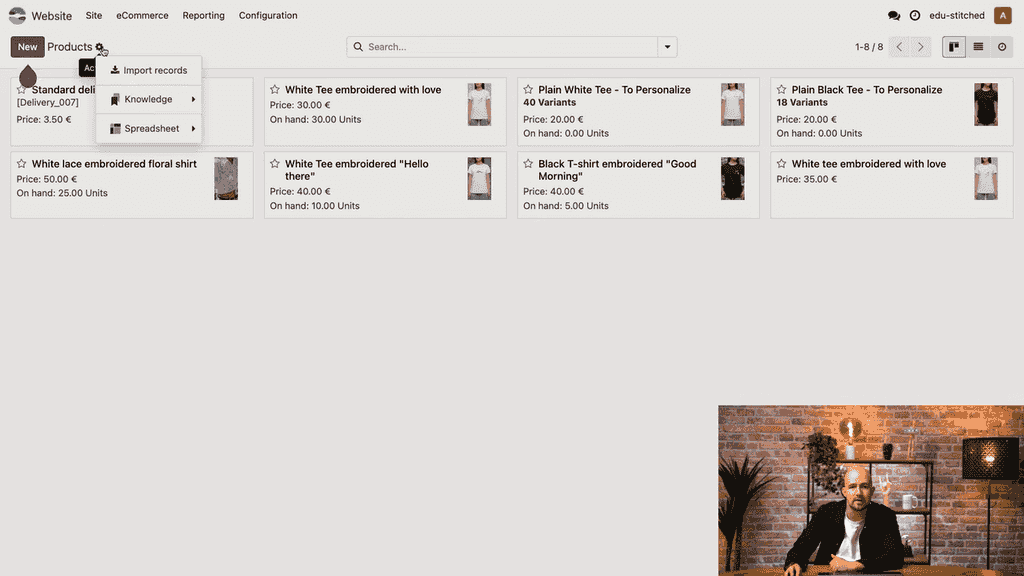
  1. Go to eCommerce > Products
  2. Click the gear icon
  3. Select Import Records

Gear icon and Import Records option

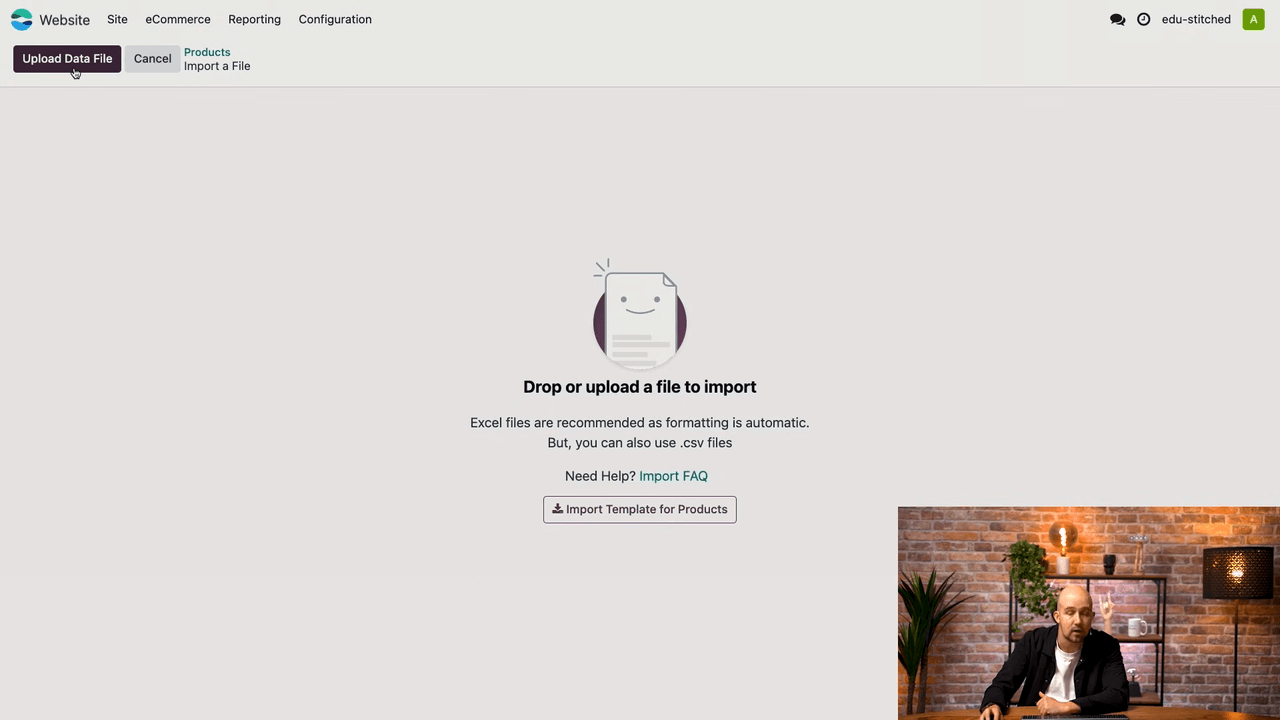
  1. Click Upload Data File
  2. Upload your XLS or CSV file

Upload Data File interface

For formatting requirements and field mapping details, refer to the Odoo online documentation.

Customizing Individual Product Pages

Odoo allows you to customize each product page independently using the website builder. Changes to one product page do not affect others.
  1. Navigate to the product page on your website
  2. Click Edit
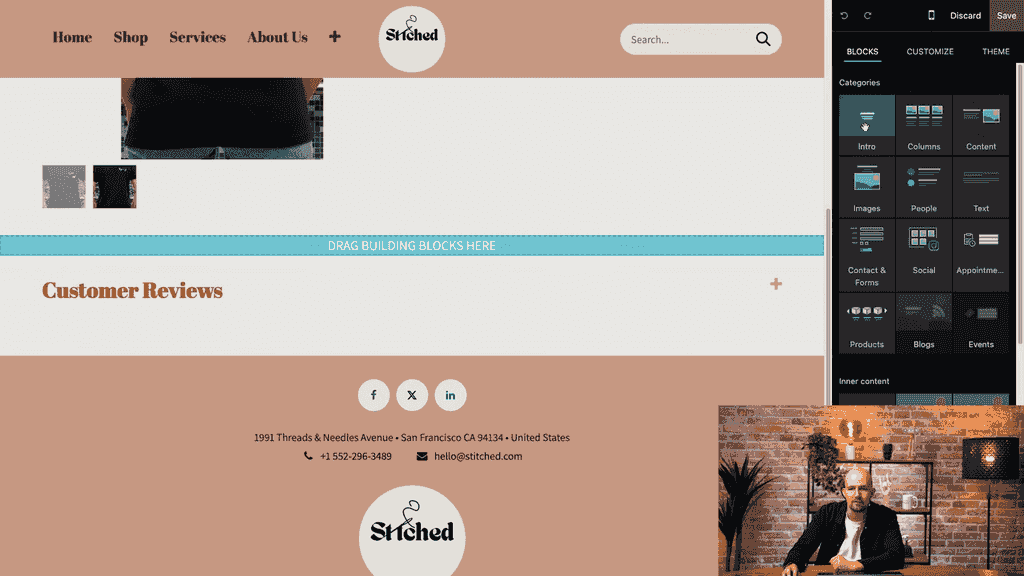
  3. Add building blocks (e.g., steps, testimonials, feature lists)

Adding Steps building block to product page

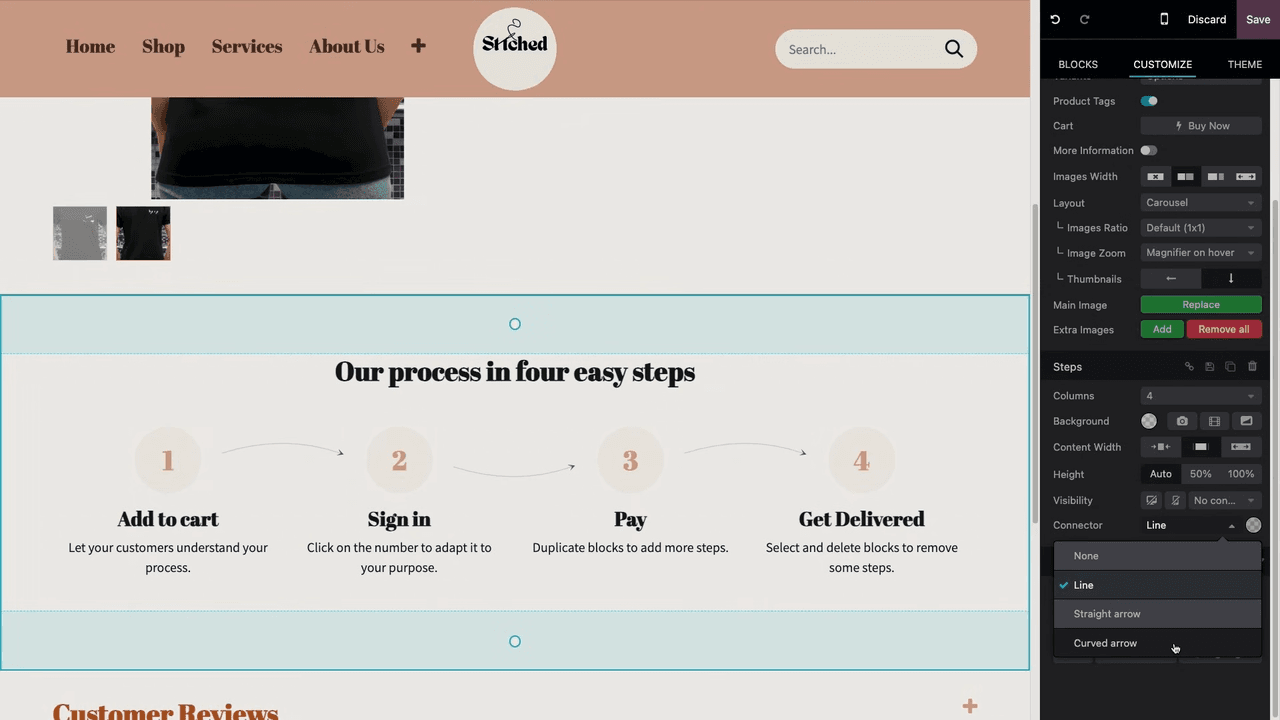
  1. Customize block options — change connectors, toggle text visibility, adjust styles

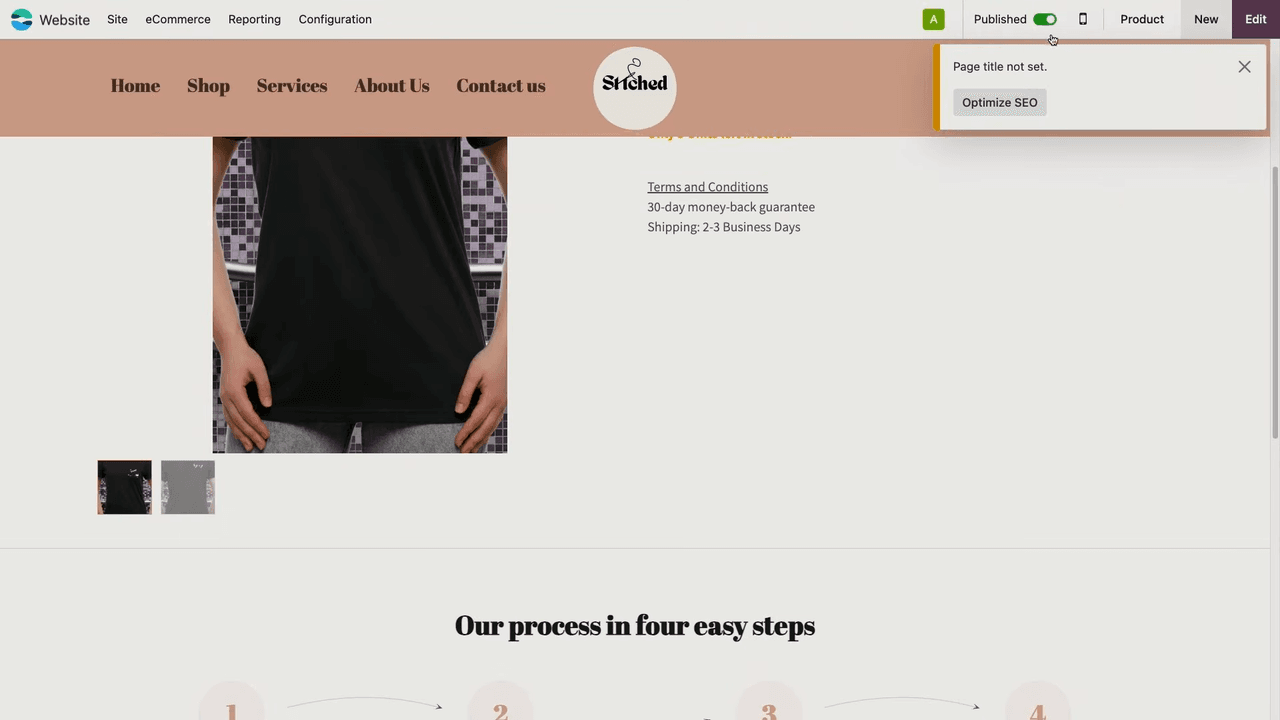
Customizing Steps block with curved arrows

  1. Click Save

Customized product page with steps block

For example, you might add a "Steps" block to one product showing how it's made, while keeping another product page minimal. Each page can have its own unique layout.

Next Steps

You now know three ways to add products to your Odoo eCommerce store: frontend creation for quick additions, backend creation for detailed configuration, and bulk import for large catalogues.

From here, consider:

  • Setting up product variants (sizes, colours)
  • Configuring payment methods and shipping rules
  • Designing your shop page layout with categories and filters
  • Enabling inventory tracking to manage stock levels

References

Tags

OdooE-CommerceProduct ManagementOnline Store
Professional businesswoman working with data and analytics in modern office environment

Need Help with Odoo Implementation in Hong Kong?

Zoo AI is a certified Odoo partner in Hong Kong, delivering expert ERP implementation and AI automation for SMEs. Get in touch to learn more.